
 |
 |
1. Data Processing Engine Upgrade |
| 2. Upgrade of the Mail In Database which receives the messages data | ||
| 3. Upgrade components of the Data collector on the messaging servers |
1. Data Processing Engine Upgrade |
|
|
 Back to Top
Upgrade all the application components
The procedure to update the Data Processing Engine may concern either the Template Databases Update or the main engine Task ( Mail Flow Engine : MailFlow.exe). To update the various databases, you need to apply a "Replace Design" on all target Mail Flow Analyzer databases. There is no need to stop the task or even the Domino server to realize this step.
To update the Task, first you have to stop it (run a command on the server console or use a stop request). Then; you can replace the binary (MailFlow.exe) by the new version and restart the Task. You may need to modify the Setup document before restarting the Task if there is new parameters to define.
For a major product update, the easiest method is to use the Automatic Upgrade Procedure.
Application Automatic Upgrade Procedure
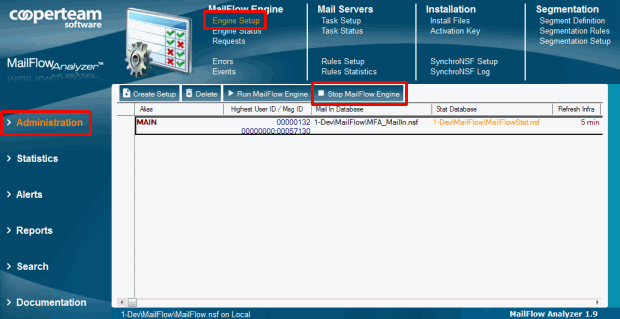
The very first step is to stop the Mail Flow Engine. To do so, open the mail database of Mail Flow Analyzer (MailFlow.nsf), go to the Setup view and click on the Stop Mail Flow Engine button. When all threads from the Task Status view are seen in red, you can start the upgrade.
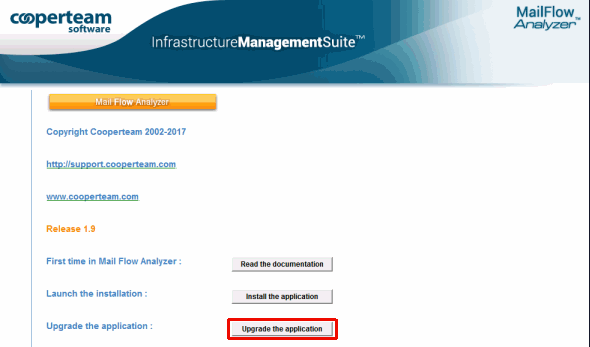
The upgrade process has been fully automated. Install the new MailFlow.nsf database on you local Data folder of your Notes client and open it. The first way to start the upgrade is to use the following  button from the About Database document. This document should open the first time you open the database.
You can also use the following button from the view Administration / Installation / Install Files in the MailFlow.nsf database: 
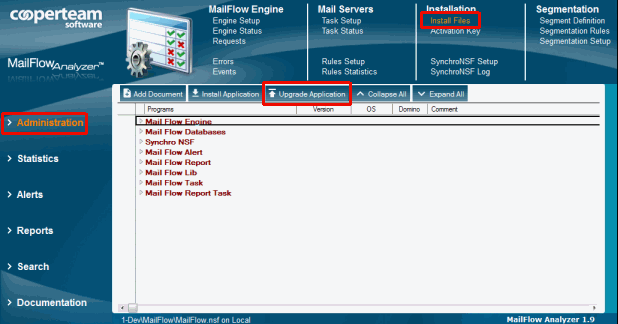
After clicking, a wizard guides you through the upgrade process on the Domino server.
- Step 1: Accept the End-User License Agreement
You have to accept the license contract before continuing. Click on the "I Agree" button or "Exit" to refuse.
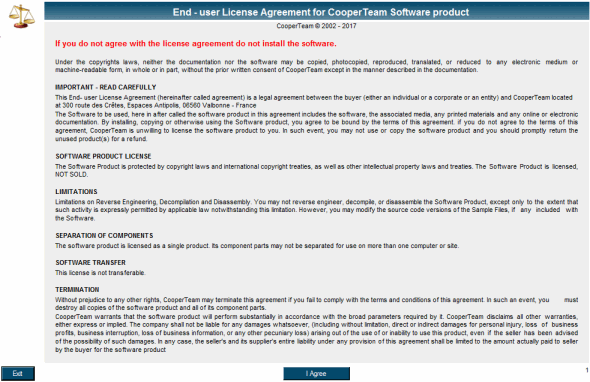
- Step 2 : Identify the Main database of Mail Flow Analyzer to update
The main MailFlow Analyzer database is the one which controls the operation of the Mail Flow Engine. It contrains settings information of the application, as well as allow you to monitor the Engine status and launch requests (like recalcuation of the statistics, restart the Mail Flow engine, run a search request, export data,...). This database also includes all the components of the application (binaries, Notes databases, documentation). This database is also used for the deployment of the application. It is the main Mail Flow Analyzer database, generally called and located here : MailFlow\MailFlow.nsf.
This step is used to locate the main database of Mail Flow on its server. Fill in the fields Server Name and Database name and then click on Next Step >>, as described below:

- Step 3 : Specify the name of the Setup document
Please, confirm the name of the Setup document of the main Mail Flow database. Fill in the field and click on Next Step >>, as described below :

- Step 4 : Stop Mail Flow Engine, only if it is currently running
The MailFlow Analyzer executable cannot be updated if it is currently running, so you have to stop it before continuing the upgrade process. When you see the following information Mail Flow Engine is not running displayed in the Wizard window, click on Next Step >>.

- Step 5 : Update the design of all Mail Flow databases
There are 10 distinct databases that form the Mail Flow Analyzer application. Each with its own design that can be impacted during an upgrade. Beware of the design of the MailFlowQuarantine database, you can find several databases to update on different servers.
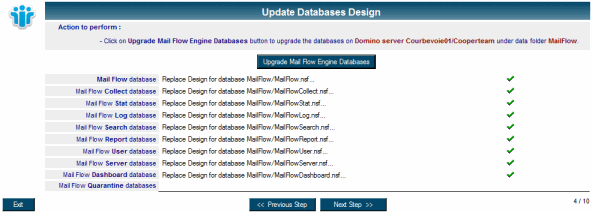
After the design upgrade of all databases, click on Next Step >>.
- Step 6 : Refresh the Setup documents of the Mail Flow Collect database on the messaging servers
All configuration documents of the Mail Flow Collect databases installed on the messaging servers need to be resaved in order to get the new options. The Mail Flow Collect databases are going to be opened on the appropriate servers.

After the update of the Setup documents, click on Next Step >>.
- Step 7 : Update the Binaries documents
Click on the "Upgrade Install Files documents" button to update the executable files stored in the MailFlow and MailFlowCollect databases.
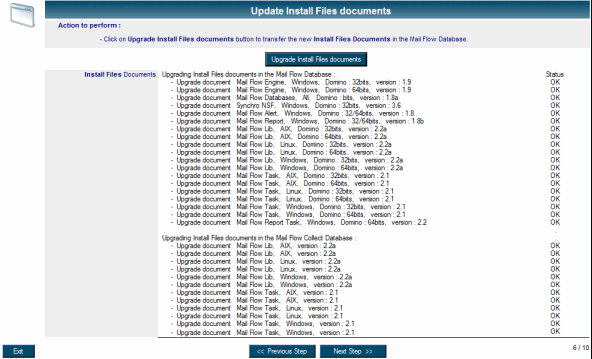
When the update process is done, click on Next Step >>.
- Step 8 : Configuration of the Mail Flow Dashboard database
The Mail Flow Dashboard database have to be configured before using it. Specify the IP address or the DNS Server name with which the database needs to connect to. For this purpose, click on "Configure Dashboard Database".
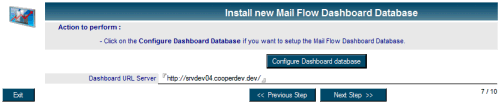
Once the configuration of the Dashboard is over, click on Next Step >>.
- Step 9 : Install new Template documents for the Mail Flow Report module
The Mail Flow Report database contains some default report templates which can be used to create your own reports. While upgrading Mail Flow Analyzer, some new additional templates will be added in order to take advantage of these new possibilities. Click on "Install Report Templates" to upgrade the templates.

Once the Report Templates upgrade is finished, click on Next Step >>.
- Step 10 : Documentation documents Update
While adding new features to the Mail Flow Analyzer application, some additional information and documentation updates may be required. To use the latest available version of the documentation, click on Upgrade Documentation document.
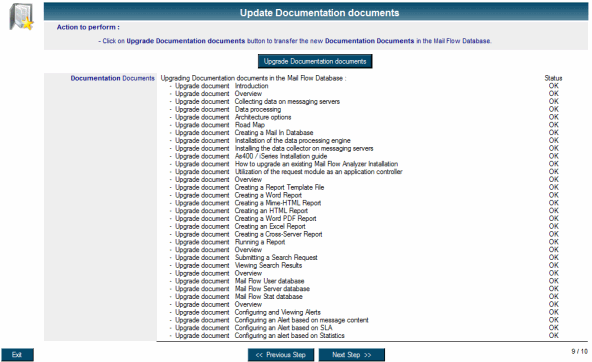
One the Documentation is up to date, click on Next Step >>.
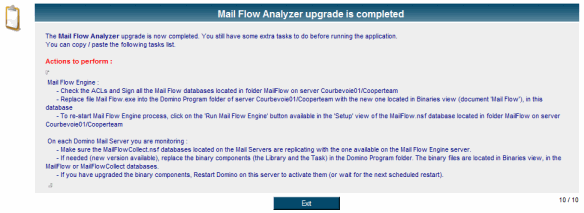
- Step 11 : Upgrade Success Confirmation
A message similar to the one shown below will appear, displaying the Upgrade success status and describing the manual steps left to finalize the Upgrade process.
Upgrade Finalization
In order to end the upgrade of the processing engine, it is appropriate to make few manipulations to fully complete the Upgrade process :
- Check the ACL (Access Control List) for all Mail Flow databases.
- Sign Mail Flow databases with the relevant signature usually used for applications.
- Replace the MailFlow.exe executable of the server by the latest version which can be found in the Administration / Installation / Install Files view, inside the Mail Flow Engine document (use the version matching the Domino server platform : 32 or 64 bits).
- Restart the Mail Flow Engine by clicking on the Run Mail Flow Engine button, available from the Administration / Mail Flow Engine / Setup view of the MailFlow.nsf database.
2. Upgrade of the Mail In Database which receives the messages data |
|
|
The "Mail In Database" is a passive element during the data files transfert process between messaging servers and the processing machine. Updates of the various components of the Mail Flow Analyzer application do not concern this database. Therefore, there is no further upgrade action necessary for this database.
3. Upgrade components of the Data collector on the messaging servers |
|
|
The procedure to follow to update the Data collector components on a server differs according to the update of the task or library. There is no need to update the design of the MailFlowCollect database because it's automatically done via replication with the replica installed on the server hosting the processing engine.
- To update the task, please follow the steps below:
- Stop the MailFlowTask task via the server console using the command "tell mailflowtask quit".
- Replace the MailFlowTask binary located in the Domino Program folder by the new one.
- Restart the task via the server console using the command "load mailflowtask".
To validate its good operation, open the MailFlowCollect database, then from the "Task Status" view, verify the status of the "Task" document looking at the type column linked to the appropriate server, information regarding the task (version number, restart date) must have been updated.
- To update the library, please follow the steps below :
- Stop the Domino Server.
- Replace the MailFlowLib library located in the Domino Program folder by the new one.
- Restart the Domino Server.
To validate its good operation, open the MailFlowCollect database, then from the "Task Status" view, verify the status of the "Library" document looking at the type column linked to the appropriate server, information regarding the task (version number, restart date) must have been updated.
Comments
0 comments
Article is closed for comments.