


1. Software installation guide |
|
|
 Back to Top
Road Map d'installation du produit
It is necessary to perform a number of steps in the proper order so that Mail Flow Analyzer is successfully installed on Domino messaging servers and on the computer dedicated to data processing. Each step is presented with its objectives, pitfalls and elements required for a proper execution (see related chapters in the documentation).
Here are the different steps to take for installing and operating the application:
On one of the company's Mail servers
Step 1: Create a Mail In Database on one of the messaging servers
The creation of a Mail In Database on one of the enterprise servers should not present any major problem. It is just a matter of creating a Notes Database on a Domino Server, performing the usual administration tasks there (ACL update) and creating a document in the Address Book (Mail In Database) to declare this database and give it a name. This name will be used as a messaging address for mail sending. If your user rights do not allow creating a database on a server or managing the Address Book, ask the Domino administrator for help.
Documentary references: Installating the application / Creating a Mail In Database.
On a Domino server dedicated to processing and storing data
Step 2: Install the data processing engine on a dedicated computer
On a Windows machine already running a Domino server, installing the application requires the following steps:
- Install the MailFlow.nsf database into the Notes Data folder (or a subfolder) of the computer and perform the usual administration tasks (database signature, ACL update, etc.).
- Use the automatic installation module in the MailFlow.nsf database to create the main application Setup document and deploy the other Notes databases (MailFlowServer.nsf, MailFlowUser.nsf, MailFlowLog.nsf, MailFlowSearch.nsf, MailFlowStat.nsf, MailFlowDashboard.nsf, MailFlowCollect.nsf and MailFlowQuarantine.nsf). You will then have to perfom the usual administration actions on these databases (Signature, Update the ACL, etc.).
- Install the application executable files (MailFlow.exe and if needed SynchroNSF.exe) into the Domino Program folder.
- Check if the Notes ID used on this Domino server is well authorized to read and delete documents in the Mail In Database created for the application.
- In the MailFlow.nsf database, validate the contents of the Setup document. You can declare Sub Infrastructure, Population, Cross-Population and additional User Groups. You can define the exceptions for the search module, change the colors of the graphs, and define the list of statistics to publish...
Documentary references: Installating the application / Installation of the data engine.
Step 3: Start the data processing engine
Starting the application consists in running the MailFlow.exe executable file that will use the Setup document stored in the MailFlow.nsf database. After a short initialization phase, the program will start scanning the Mail In Database in order to retrieve and process inbound data messages..
In order to monitor if the data processing engine works properly, it is sufficient to open the view Administration / Mail Flow Engine / Engine Status of the MailFlow.nsf database. The document displayed in the view reports on the progress made by the MailFlow.exe program.
Documentary references: Operation of the application / Starting the data processing engine.
On the company's Mail servers
Step 4: Determine the list of servers where to install the data collector
This is to analyze the Domino mail routing topology to define the list of servers hosting mailboxes and those serving as gateways to the Internet or other Notes domains. To maximize the quality of the statistics, it is important to cover the maximum number of servers with mail routing activities. For each of the affected servers, collect useful information such as the operating system used and the paths for installing the binaries on the disk (Data Notes directory, Program directory).
Documentary references: Installating the application / Installing the data collector on the mail servers.
Step 5: Replicate the Mail Flow Collect database on the mail servers
In order to configure the module collecting the data on the previously selected mail servers, it is necessary to deploy a Notes database (MailFlowCollect.nsf) on all these servers. This database can be placed anywhere on the Data tree of the Domino installation. It is therefore necessary to first replicate the MailFlowCollect.nsf database present on the data processing server on all the servers where the data collector will be installed. During the automatic installation process, you have already been able to specify the list of servers where the MailFlowCollect database should be replicated. You can supplement this list by manually replicating the database on additional servers.
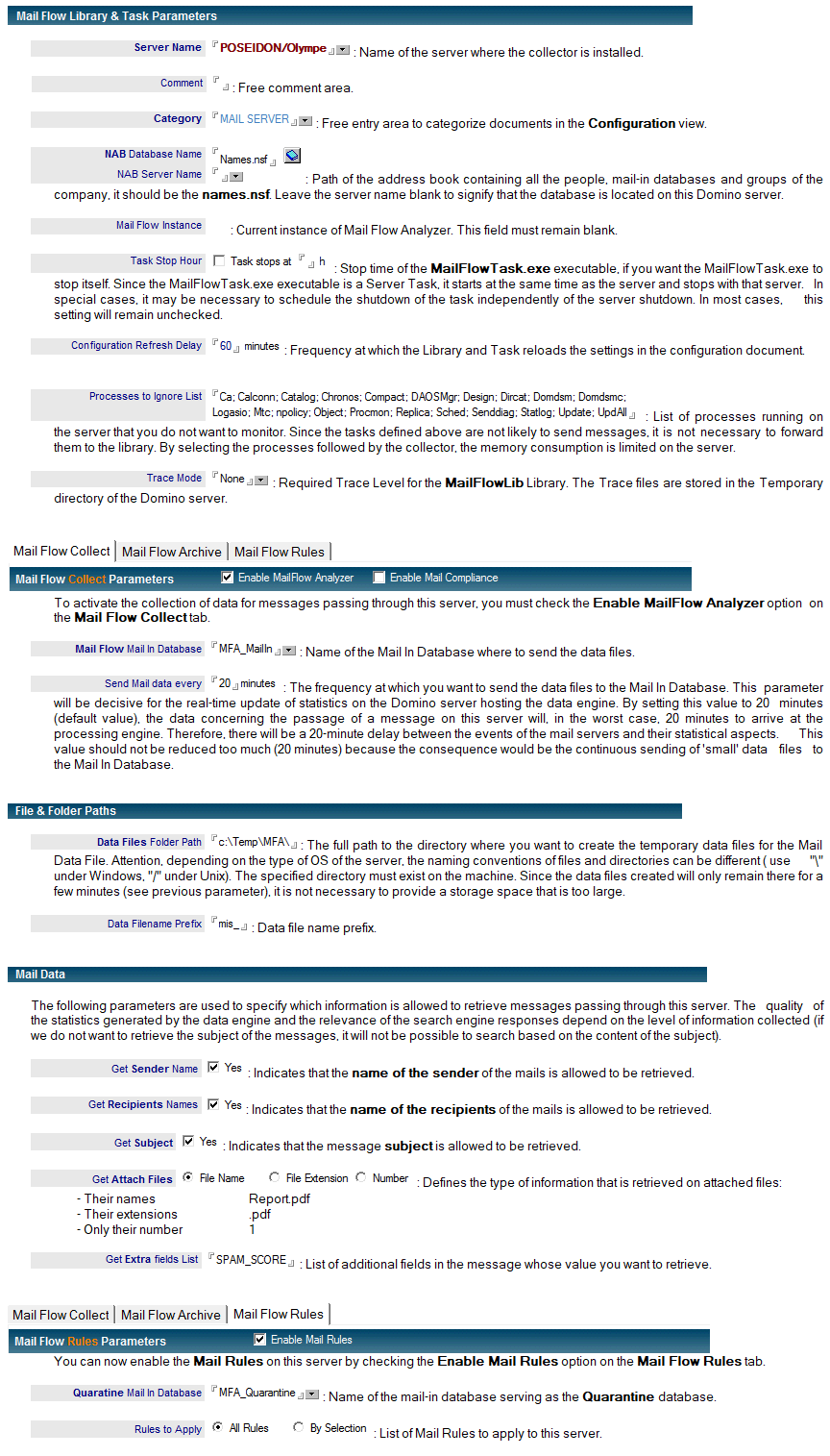
Once the database is replicated, it is necessary to create in this database a configuration document for each of the Domino servers. This document defines the type of information to be retrieved in messages, the name of the Mail In Database where to send the data files, the frequency of the mailings, etc. Most of the information is the same for all servers.
Documentary references: Installating the application / Installing the data collector on the mail servers.
Step 6: Install the data collector components on messaging servers
The MailFlowLib and MailFlowTask files should be placed into the Domino Program folder of all the messaging servers where the data collector is to be installed. The Notes.ini should also be modified in order to mention these files. These files are specific to the server’s operating system, as they contain code. It is therefore necessary to copy the correct files corresponding to the operating system encountered.
Also, make sure that the replica of the MailFlowCollect database on the server contains a server-specific setup document. If all the configuration documents were created in another replica of the database, you must force a replication with this server in order to get the document into the database.
Documentary references: Installating the application / Installing the data collector on the mail servers.
Step 7: Activate the Messaging Rules
If you want to enable mail routing control by MailFlow Analyzer's Mail Rules, you must check the Enable Mail Rules option in the mail server configuration document in the Mail Flow Collect database and declare the name of the Quarantine database. The Messaging Rules can be configured later.
Documentary references: Messaging Rules / Configuration of the Messaging Rules.
Step 8: Enable message data collection
The messaging server should be restarted, so that the MailFlowLib library can be enabled. The MailFlowTask task should then be restarted if it has not been setup on the ServerTasks line in the Notes.ini file.
Documentary references: Installating the application / Installing the data collector on the mail servers.
Optional steps
Step 9: Select the statistics visible in the Mail Flow Stat database
If you want to restrict the statistics information visible in the MailFlowStat.nsf database of the machine running the data processing engine, you must set the fields you want to hide in the Setup document of the Mail Flow database. In addition, the different types of documents in the database (Infrastructure, Population, CrossPopulation, Server, CrossServer, User, Group of User) are protected by reader fields, so make sure that the ACL entries receive the required roles to view documents ([SERVER], [CROSSSERVER], [USER]...).
Documentatary references: Installating the application / Complete the contents of the main Setup document.
Step 10: Create Alert documents
From the Alerts view of the Mail Flow database, you can create Alert documents and enable them to be notified in real time of the detection of a message circulating in the Domino infrastructure and meeting the criteria defined in the Alerts documents.
Documentary references: Alert Module.
Step 11: Schedule Reports generation
The Mail Flow Report database contains a number of Reports templates that you can use to produce Excel or Word files that contain key metrics for the messaging infrastructure. You can customize them and use them, either manually or by scheduling their generation on the Domino server where the data engine is installed. In the latter case, you will need to install Word and Excel on the Domino server.
Documentary references: Reports.
Step 12: Create Mail Rules in the Mail Flow Collect database
You can control the routing of messages circulating in your Domino server infrastructure by creating Mail Rules in the Mail Flow Collect database. These rules are usually associated with a quarantine database because they should block the routing of unwanted messages by sending them to a quarantine database either permanently (blocking) or temporarily (delay).
Documentary references: Messaging Rules.
2. Creating a Mail In Database |
|
|
A Mail In Database (Mail In DB) should be created on one of the messaging servers, so that the data collected on messaging servers can be accessed by the data processing engine. Collectors (Mail Flow Lib) installed on messaging servers will thus be capable of sending files and data (Mail Data) to this database, encapsulating them in messages targeted at the Mail In Database. The data processing engine (Mail Flow Engine) will just have to retrieve inbound messages in the Mail In Database and to extract attached files from them.
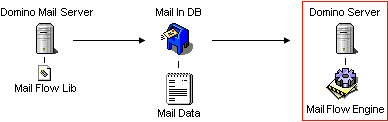
Create the Mail In Database
Creating the Mail In Database on one of the Domino servers goes through the following steps, that will be performed in collaboration with the Notes administrator:
-
Creation of a new database, on one of the messaging servers. Although it is not a requirement, it is possible to let it inherit from a messaging model in order to facilitate its read access. Its ACL should be updated, in order to restrict its access to local servers (Local Servers Manager) and to the Notes ID used on the computer that hosts the data processing engine. This ID must have read-access rights to the database (in order to retrieve the attached file), as well as rights to delete messages from the Mail In Database, once these have been processed. This is why an entry in the ACL, with Editor, Designer or Manager with document deletion rights, has to be specified for this ID.
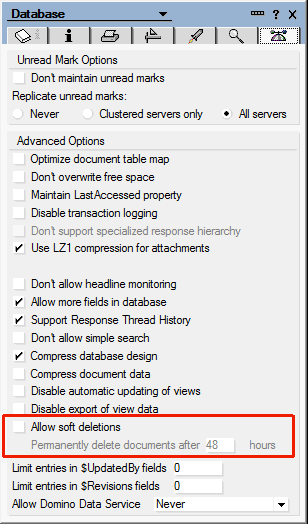
In the database properties, consider unchecking the Allow soft deletions option so that you do not need unnecessary disk space on the mail server where the database is installed.
- Creation of a Database document (inbound mail database) in the Address Book, in order to associate a messaging address to the newly created database. You must indicate in the document:
- a symbolic name for the database (ex: MAIL_FLOW_DB) that will be used as an internal messaging address
- the name of the Domino server where the database was created
- the path to the database .nsf file (relatively to the Data folder)
- the messaging domain name
It is unnecessary to specify an Internet address for this Mail In Database and to select the encryption option for inbound mail.
- The Database document should be replicated in all the address books so that the database is known by all the domain servers. From the server console, it is possible to force the Address Book replication in order to speed up the procedure.
Check if the Mail In Database works correctly
To test if the Mail In Database works properly, it is sufficient to send a message to the database address (MAIL_FLOW_DB) and to check the correct mail routing. Then, delete the document from the database.
3. Installation of the data engine |
|
|
The Domino server dedicated to the processing of message data is the heart of the MailFlow Analyzer application. It hosts both the software code (MailFlow.exe) which retrieves the data in the Mail In Database, the main Notes database which control the application (MailFlow.nsf), the Notes database in which are built the set of statistics (MailFlowUser.nsf and MailFlowServer.nsf, MailFlowStat.nsf and MailFlowDashboard.nsf), the Notes database serving as an interface for interactive search (MailFlowSearch.nsf), the database for generating Reports (MailFlowReport.nsf), the database Containing the Logs of the application (MailFlowLog.nsf), the replica of the database containing the settings of the data collectors on the mail servers (MailFlowCollect.nsf) as well as the tree of all the files containing the data extracted from the messages (Mail Data File).
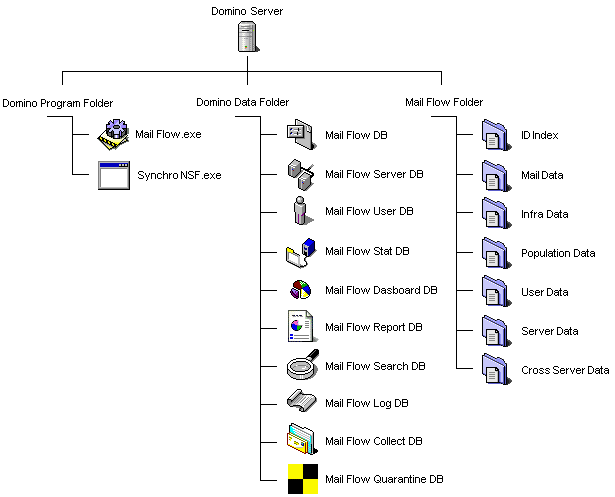
This machine that hosts both Notes data and executables interacting with Notes databases must be a Windows Domino server. It is technically possible to use only a simple Notes client. This configuration can be implemented in particular in a trial mode of the solution or for relatively low data volumes. The installation of the solution on a client workstation is mainly limited by the need to be physically located on this workstation in order to control the application, as Notes databases are hosted locally.
This database is mainly intended to collect data about messages arrived in the Mail In Database, to process them in order to produce statistics and to store them. This is why it should have CPU and memory capacities matching the volume of processed data, but also enough disk space to store these data. The folder where the file tree structure will be stored should be carefully selected. It should not be put under the Notes Data folder as these files are not Notes databases. The antivirus installed in this computer should also be disabled, in order to prevent it from scanning the files. As these are regularly modified and zipped, the antivirus engine would endlessly unzip them in order to analyze their contents (i.e. text), which would considerably slow down write accesses to the disk.
The computer where the data processing engine is installed should run under Windows.
Installing the MailFlow database
Implementing the application on the dedicated computer goes through installing the MailFlow.nsf database into the Data folder of the Domino server. To manage the application databases more easily, it is recommended to create a MailFlow subfolder, into which the databases will be put. If the database is already located under the Notes Data folder, it should be copied into the MailFlow subfolder (MailFlow\MailFlow.nsf) and the former database should be deleted. The location chosen for the MailFlow.nsf database is important, as it will be referred to during future database installations.
Once the database is installed, its ACL should be updated (in order to restrict its access to authorized users only) and all Design elements should be signed with the computer ID (in order to avoid ECL problems).
Automatic installation of the application
In order to facilitate the installation of all the components present on the machine dedicated to data processing, the application has a simplified automatic installation procedure. To activate it, you can use the button  which is located in the About document of the MailFlow.nsf database:
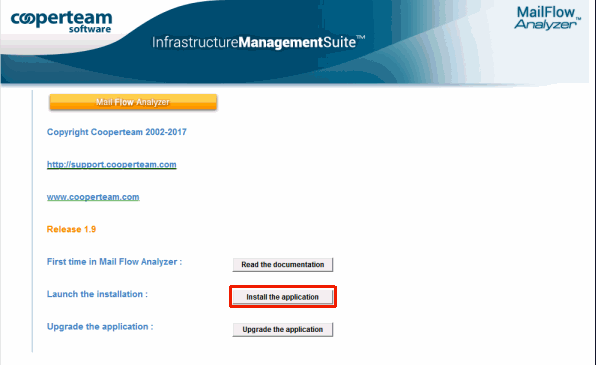
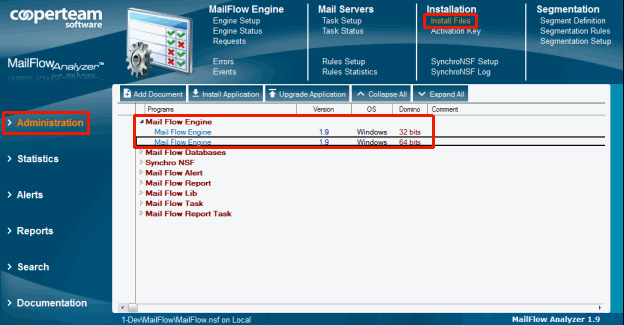
You can also use the button  available in the Installation / Install Files view of the Mail Flow database:

An installation wizard will display in order to complete all the steps necessary to install the data engine on the Domino server.
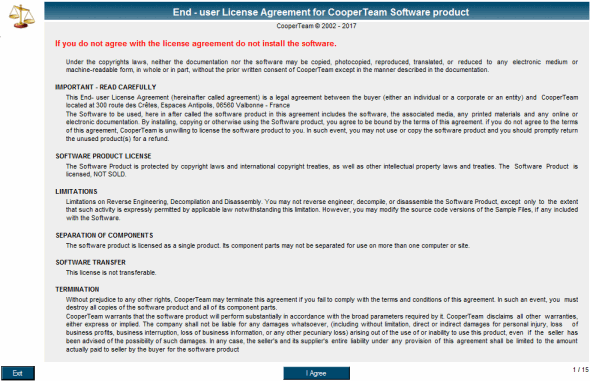
Step 1 : Acceptance of the License Agreement
Step 2 : Select the Domino server to install the data processing engine
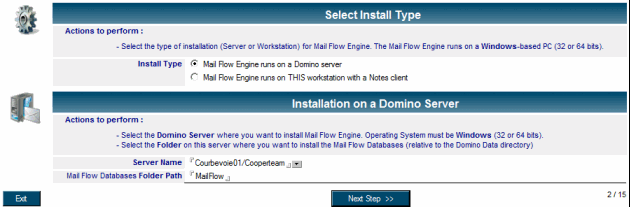
The following information concerns options for installing the processing module in the server's Domino program environment (it is also possible to install it on a Notes client workstation). This first section should not be filled in. It is only necessary to check the validity of options detected by the installation module (installation on client workstation or on a server, name of the subfolder where the Notes databases will be installed).
Step 3 : Installing Mail Flow databases on the server
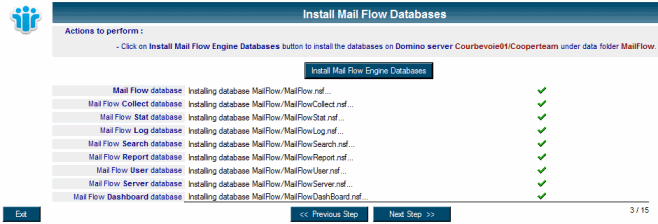
This step consists of installing the different Notes databases of the application on the Domino server hosting the application. The Notes databases will be installed next to the current database (MailFlow.nsf). To start the process, simply press the button  . As the databases are installed on the server, a report is displayed. If there is a problem on one of the databases, it will be presented on the screen. The icons of the different bases installed on the machine will be added on the Notes client workspace:
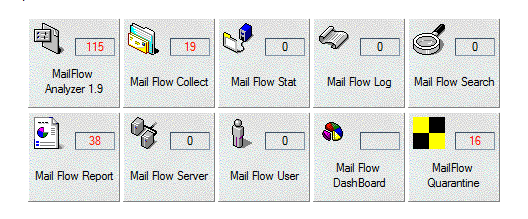
Le rôle des différentes bases est rappelé succinctement :
| Mail Flow | This database is the entry point of the Mail Flow Analyzer application. It contains the main setup document, documentation, installation files, definition of real-time alerts, definition of segments, synchroNSF configuration documents for construction of a meta-directory, and query module. | |
| Mail Flow Collect | This database will be replicated to all mail servers that receive the data collection module. It is used to configure the operation of the two components placed there (the library and the task). It also hosts the Mail Rules for Message Routing Control. Its presence on the machine dedicated to the data processing is explained by the need to control from a single point, the configuration of all modules of the application solution Mail Flow Analyzer. | |
| Mail Flow Stat | This database is used for the publication of selected statistics. The statistics in this database correspond to a subset of the statistics produced. The selection of what you want to publish is done at the level of the configuration document. | |
| Mail Flow Log | This database collects messages related to the operation of the application (error, various events). | |
| Mail Flow Search | This database is used as an interface to search for messages that have passed through the infrastructure. | |
| Mail Flow Report | This database is used for report generation as Word or Excel files. | |
| Mail Flow User | This database contains all statistics created for users, mail-in database, NAB groups, and user groups. | |
| Mail Flow Server | This database contains all the statistics created for Global Infrastructure, Sub Infrastructure, Populations, Flows between Populations, Servers, and Inter-Server Flows. | |
| Mail Flow Dashboard | This database provides synthetic dashboards for the messaging statistics of the global infrastructure. | |
| Mail Flow Quarantine | This database keeps all messages that have been blocked on Mail servers by the Mail Rules. | |
Step 4 : Choosing the name for the Mail Flow database setup document

This is the name to be given to the Setup document which will group all the information characterizing this installation. Choose a simple name, without accents or spaces. Generally, the name "MAIN" is left by default.
Step 5 : Selecting Number Display Options for Reports

The display options for numbers are used in Word reports.
Step 6 : Configuring HTTP Access to the Mail Flow Dashboard Database

This is the URL to access the server hosting the Mail Flow Dashboard database. This URL will be placed in the Setup document of the Mail Flow Dashboard database. If the Domino server hosting the Mail Flow database does not have the HTTP task started, it will be possible to replicate the Mail Flow Dashboard on another Domino server in the company and modify the Setup documents (Mail Flow and Mail Flow Dashboard) to indicate the name of this server.
Step 7 : Defining the list of Internet domains of the company

Enter the Internet domain name(s) used in the Internet addresses of people in your company. These values are used to differentiate internal traffic from external traffic (Internet). Depending on the client workstation settings, the e-mail addresses used are not the Notes FullName but the Internet addresses. It is therefore necessary for the application to be able to understand that it is a routing internal to the company and not external.
Step 8 : Selecting the directory where you want to store the processing engine data

The complete path (with the drive information) of the directory where the files containing the data extracted from the messages will be stored. It is necessary to provide sufficient disk space with respect to the volume processed and the desired retention time. If the directories do not exist, the application will create them.
Step 9 : Software Activation Key entry optional step

If you are using a trial version or time-limited version (rent, subscription) of the Mail Flow Analyzer product, you must enter your activation key here.
Step 10 : Creating the Program document for the automatic startup of MailFlow.exe

A Program document is created in the Address Book of the Domino server hosting the Mail Flow Analyzer application. This Program document starts the MailFlow.exe task at the same time as the server.
Step 11 : Creating the Mail In database that receives data from mail servers
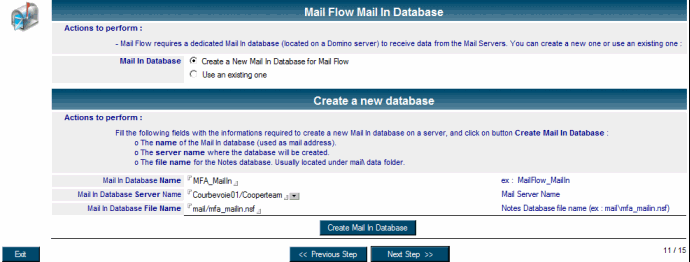
This step allows you to create or choose the Mail-in database that will be used to receive data from mail servers.
Step 12 : Creating Setup documents in the Mail Flow, Mail Flow Dashboard, and Mail Flow Report databases
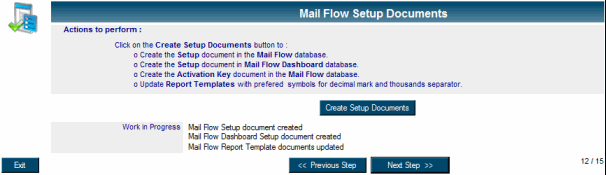
The Setup documents are created in the Mail Flow (main setup) database and in the Mail Flow Dashboard (setup dashboard) database.
Step 13 : Creating replicas of the Mail Flow Collect database on mail servers
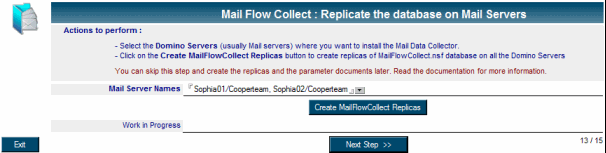
This is the list of mail servers where to replicate the Mail Flow Collect database.
Step 14 : Creating Quarantine Mail for Database for Mail Rules
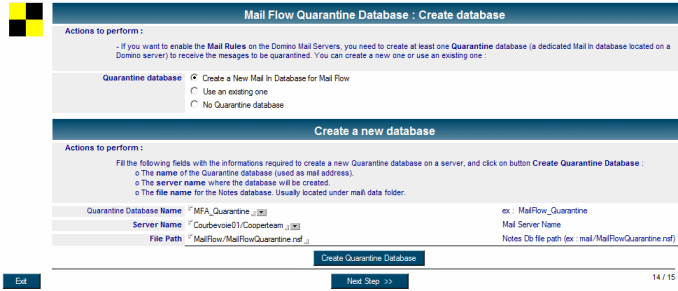
This step allows you to create or choose the Mail-in database that will be used as the Quarantine database to receive messages blocked by the Mail Rules on Mail servers.
Step 15 : Reminder of the list of remaining manual tasks
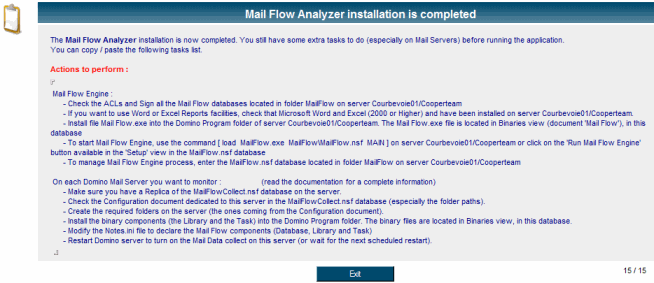
This is a reminder of all the manual tasks still to be performed before starting MailFlow Analyzer application.
Signing the databases and updating their ACL
The automatic installation of the databases has placed them in their destination directory, but in order to complete their installation, it is necessary to consider signing them with the server ID and updating their ACL to limit their access to authorized persons only. There are 3 types of bases with regard to their access:
- Databases used to control the application or contain unfiltered statistics:
Mail Flow
Mail Flow Collect
Mail Flow User
Mail Flow Server
Mail Flow Dashboard
Mail Flow Log
Mail Flow Report
Mail Flow Quarantine
Access to these databases should be limited to the administrators of the application.
- The database used as an interface to the search of messages:
Mail Flow Search
Access to this database should be limited to administrators and Help Desk people if they have to search (Mail Tracking) messages that have routed in the Domino infrastructure.
- The database contening the filtered statistics:
Mail Flow Stat
The access level to the information present in this database can be modulated by the assignment of the predefined roles:
[USER] View all User documents
[MAILSERVER] View all Group of Users / Mail Server documents
[CERTIFICATE] View all Group of Users / Certificate documents
[ORGANIZATION] View all Group of Users / Organization documents
[SERVER] View all Server documents
[CROSSSERVER] View all Cross Server documents
If a person opens the database then he does not have any of these roles, he will be able to view only his User statistics document. In the event that users should not see anything in the database, simply position the -Default- entry from the ACL to NoAccess.
Installing the MailFlow.exe executable on the server
If the installation of the processing engine is done on a Domino server, it is not possible to automatically connect to the server to copy the program file MailFlow.exe to it. You must detach the executable file (MailFlow.exe) from the Mail Flow Engine document in the Installation / Install Files view and drop it into the Program directory of the Domino server hosting the application. The choice of 32-bit or 64-bit file depends on the version of the Domino server that is installed.
4. Complete the contents of the mail Setup document |
|
|
The Setup document contains all the parameters of operation of the data processing engine. During the automatic installation procedure, a Setup document was created in the Mail Flow database, with the default values. Before starting the application, it is important to check the contents of the document and to modify, if necessary, certain options.
The Setup document is accessible from the Administration / Mail Flow Engine / Engine Setup view of the Mail Flow database. The document name (Alias) is the name that was specified during the automatic installation procedure. Changing the values in the Setup document can only be done if the MailFlow.exe engine is not running. You must therefore always stop the processing engine before modifying this document.

5. Installing the data collector on the mail servers |
|
|
In order to have precise information about the messages transiting on the different mail servers of the company, it is necessary to install on the maximum number of servers the module allowing to retrieve the data of the messages. The module consists of a library (MailFlowLib), a server task
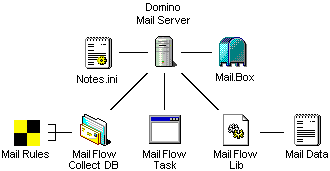
(MailFlowTask) and a Notes database (MailFlowCollect). This database provides the necessary parameters for the operation of the two binaries (the Lib and the Task) and it also contains the Mail Rules used to control the routing of messages. Any message entering the mail.box of the server is analyzed by the library and the relevant data is collected and then transferred to disk in files (Mail Data). These are then forwarded to the Mail In Database by the task.
Installing the Data Collector
Installing the data collector on a Domino server requires the steps described below. They will be carried out, if necessary, in collaboration with the Notes Domino administrator of the company:
- Creation of a replica in the MailFlowCollect.nsf database (which is located on the Domino server hosting the application engine) on the Domino mail server. The database can be placed at any level of the server's Data directory. As with any new database installed on a server, it will be necessary to check its ACL to ensure that the server hosting this replica has access to Manager on it.
- Creation in the MailFlowCollect.nsf database, of a configuration document for this server. The following fields are required:
- Installation, in the Program directory of the server, of the MailFlowTask executable. Be careful to select the executable corresponding to the operating system of the server.
- Installation, in the Program directory of the server, of the MailFlowLib library. Be careful to select the executable corresponding to the operating system of the server.
- Modifying the server's Notes.ini file to declare the database, the executable and the library:
- In order for the executable and the library to locate the MailFlowCollect.nsf database on the server, you must add the MailFlowDatabase = line at the end of the Notes.ini, giving it the path to the database. If the MailFlowCollect.nsf database was created in a MailFlow directory, the line will be as follows:
- MailFlowDatabase=MailFlow\MailFlowCollect.nsf
- MailFlowDatabase=MailFlow\MailFlowCollect.nsf
- In order for the executable and the library to locate the MailFlowCollect.nsf database on the server, you must add the MailFlowDatabase = line at the end of the Notes.ini, giving it the path to the database. If the MailFlowCollect.nsf database was created in a MailFlow directory, the line will be as follows:
- In order for the executable to start at the same time as the server, simply add its name (MailFlowTask.exe) to the end of the ServerTasks= line.
- For the MailFlowLib.dll library to hang in the heart of the Domino process, it must be declared through the EXTMGR_ADDINS = line. If this line does not exist, it must be created. If it exists, place the library name at the beginning of the line, before all other values. Example :
- EXTMGR_ADDINS=MailFlowLib.dll
=> Be careful, the name of the files (Task or Library) depending on the operating system (Windows, AIX or Linux).
- In order for the data collector to start working, it is imperative to restart the Domino server.
- The information in the configuration document is only read by the library when the server starts. For changes to take effect, it is imperative to restart the Domino server. However, for the task, it loads the settings at its start, it is simply enough to simply re-start it to take into account the new parameters if needed.
Checking if the Data Collector works correctly
There are a number of indicators to watch or actions to perform to verify that the data collector is functional on the server where it was installed. Since the collector is composed of several elements (the library, the task and the database), one must ensure that each of them is active:
- When starting the server, it is necessary to check on the server console or various events in the Log.nsf database of the server that the following lines are seen "MailFlow Analyzer : mail.box is under control by xxx". This is the confirmation that the library was able to hook to the heart of the Domino process. The xxx are replaced by the names of the tasks that can send mails, now monitored by the library (it generally includes server, router, smtp, pop3, amgr, http, traveler, amgr ...).
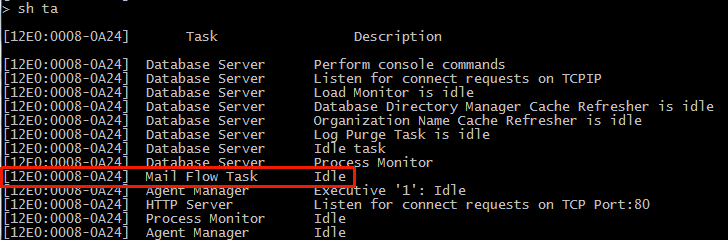
- The display of the list of tasks running on the server should show the Main Flow Task (using the command 'show task'):
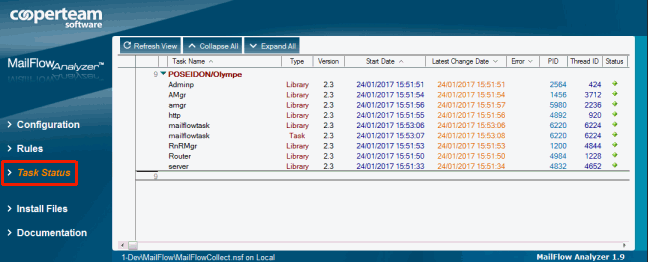
- In the MailFlowCollect database of the server, the view Task Status displays the Task activity documents (Type = Task) as well as Library activity documents (Type = Library) under the category that includes the server name. You can view all the Domino Server Tasks that are under the control of the Mail Flow Library:
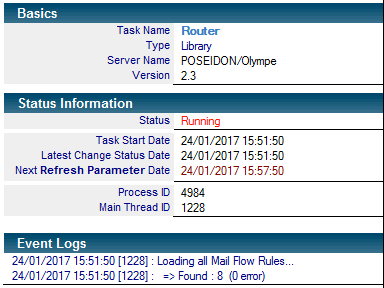
Each document indicates the name of the concerned task, the version of the library component, the start date of the task, the next date of reloading the parameters and the events related to its activity (loading messaging rules, miscellaneous errors ... ):
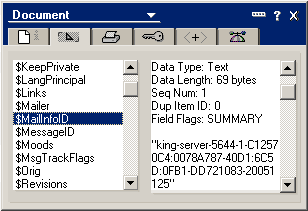
- Any message passing through this server should have been 'marked' during its passage. A $MailInfoID field has been added. This field will be visible in the mailbox to the receiver, looking at the message property information, you can see something like the below example:
- After a few minutes, messages containing data extracted from emails should start arriving in the Mail In Database. The delay depends on the setting of the document in the Mail Flow Collect database (20 minutes by default).
Comments
0 comments
Article is closed for comments.