
 |
 |
1. Presentation |
| 2. Creation of Segments | ||
| 3. Segmentation Rules | ||
| 4. Segmentation Setup | ||
| 5. Results of the Segmentation |
1. Presentation |
|
|
 Back to Top
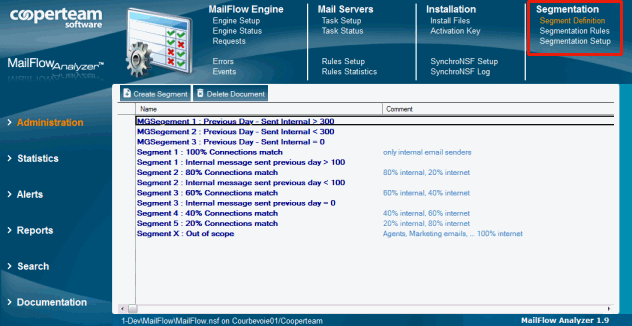
MailFlow Analyzer provides engine capable to categorize User documents in the Mail Flow User database. The segmentation aims for assembling User documents with the same features in homogenous groups. The segmentation setup is done from the Mail Flow database, in the Administration / Segmentation section:
The result of the segmentation is accessible in the Mail Flow User database, in the Users / By Segment view:

The segmentation of Users documents relies on:
- The Segments (it represents all the names of the various groups which will receive the User documents).
- The Segmentation Rules (criteria which will define one User document allocation to a specific Segment).
- The Segmentation Setup (it indicates the list of the Segmentation Rules to apply to User documents and the order to follow).
You can visualize the User documents segmentation as a categorized view where the different categories would be the Segments names. The computation, for every User document to be in the right category, is based on the Segmentation Rules. It allows to create a categorized view without needing to modify the Design of the Mail Flow User database.
2. Creation of Segments |
|
|
The first step is to create a Segments set that will be useful to filter the User documents. You can use the  button from the Administration / Segmentation / Segment Definition view of the Mail Flow database : :

 : Segment name
 : Comment
 : Name of the person who created the document
 : Creation date
 : Modification date
A Segment document is only formed by one single and mandatory field, its name.
In this example, we are going to segment the users based on the number of messages they have sent during the past month. To illustrate this, we create arbitrarily several segments :
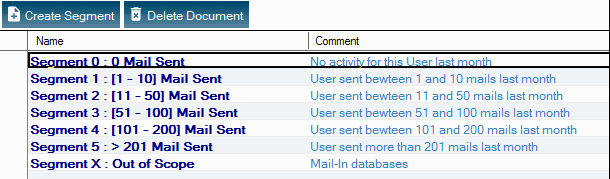
| Segment 0 : 0 Mail Sent : | The user didn't not send any messages | |
| Segment 1 : [1 - 10] Mail Sent : | The user sent between 1 and 10 messages | |
| Segment 2 : [11 - 50] Mail Sent : | The user sent between 11 and 50 messages | |
| Segment 3 : [51 - 100] Mail Sent : | The user sent between 51 and 100 messages | |
| Segment 4 : [101 - 200] Mail Sent : | The user sent between 101 and 200 messages | |
| Segment 5 : > 201 Mail Sent : | The user sent more then 201 messages | |
| Segment X : Out of Scope : | The User document is out of scope |
The last Segment (Segment X : Out of Scope) refers to all the User documents that we don't want to take into account. For example, it could refer to User documents such as Mail-In database which aren't real users but functional databases receiving emails.
3. Segmentation Rules |
|
|
Segmentation rules are used to define the way a User statistics document should be assigned to a Segment. To create a segmentation rule, we use the  button from the Administration / Segmentation / Segmentation Rules view:

 : Rule name
 : Explanation of the rule action
 : Category allowing to filter rules in the Segmentation rules view
 : Name of the person who created the rule
 : Creation date of the rule
 : Modification date of the rule

 : Criteria of the User document being used
 : Operator
 : Values

 : Name of the Segment where the User document has been sent to (in case one or several above features were checked)
 : Explanation of the criteria allocation
One or many criteria can be used. For that, you need to increase the value on the  .
.
button. You can select a criterion among an existing list or by naming the field name of the User document in the Mail Flow User database. Depending on the format of the chosen criteria (numerical, text...), you have to pick the adequate operator in order to compare the criteria or the selected field content with the informed value. You have to take into account that the process will be applied to the targeted segment, meaning to the users matching completely the criteria studied (criteria are associated with an AND).
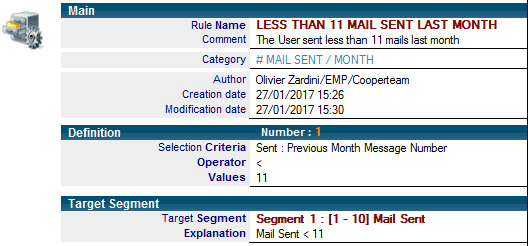
We will explain this through an example of User Segmentation based on the number of mails sent last month. We have to create as many segmentation rules that there are segments. In order to determine of a User has to be put in the Segment 1 (between 1 and 10 mails sent last month), the Segmentation rule will be the following:
4. Segmentation Setup |
|
|
A Segmentation Setup document allows to determine the list of Segmentation Rules which need to be applied to the User documents of the Mail Flow User database as well as their order of application. To create a Segmentation Setup, you have to use the  button from the Administration / Segmentation / Segmentation Setup view:

 : Segmentation Setup Name
 : Explanation describing the type of segmentation
 : Category to filter the Segmentation Setup documents in the Segmentation Setup view
 : Name of the person who create the document
 : Creation date of the document
 : Modification date of the document

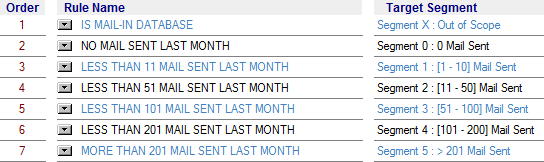
The list of Segmentation Rules to apply to the User documents of the Mail Flow User database. The order of the rules is important as every rule evaluation is processed according to its number.
Here, we start to apply the rule IS MAIL-IN DATABASE detecting if the User document is a Mail-In database. If it is the case, the User document is sent to the Segment X : Out of Scope segment and then we engage to the next User document. If it is not the case, the rule NO MAIL SENT LAST MONTH is applied until one rule fit to all the selected criteria. At the end of the process, all the User documents are affected to one of the seven defined segments.
5. Results of the Segmentation |
|
|
To apply the Segmentation Setup of User documents of the Mail Flow User database, you need to go to the Administration / Segmentation / Segmentation Setup view of the Mail Flow database and use the  . button. You can apply the segmentation on all User documents if you select
  button or on a limited selection if you click the
  button.
You have then to select the Segmentation Setup document you want to use and click on OK :
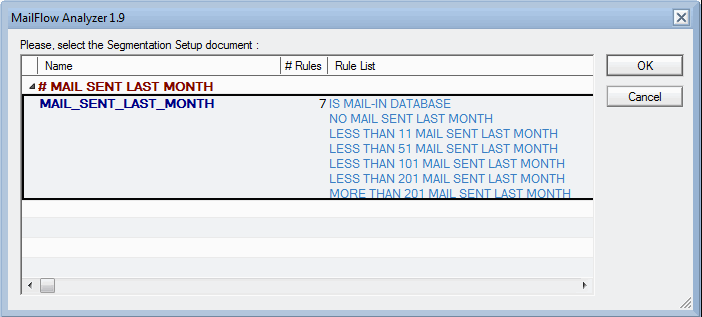
You can follow the progress of the User documents in the Status Bar of the client Notes (bottom left):

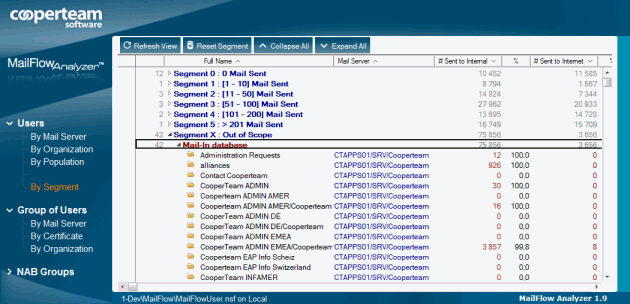
Once done, the segmentation of User documents is accessible in the Users / By Segment view of the Mail Flow User database:
Comments
0 comments
Article is closed for comments.