
 |
 |
1. Application Interface |
| 2. Starting the data processing engine | ||
| 3. Check if the application is correctly running | ||
| 4. Query Module |
1. Application Interface |
|
|
 Back to Top
The MailFlow Analyzer solution consists of a set of 10 Notes databases whose role is briefly summarized below:
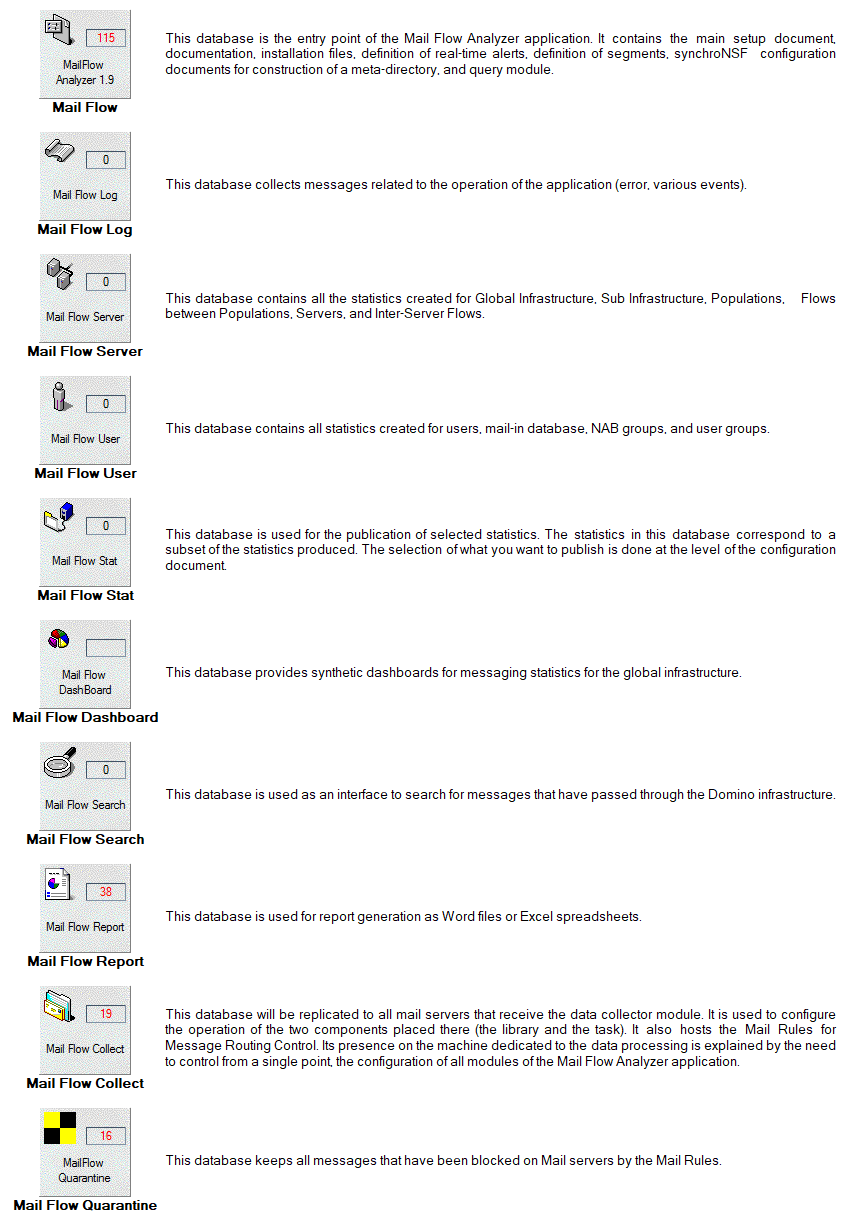
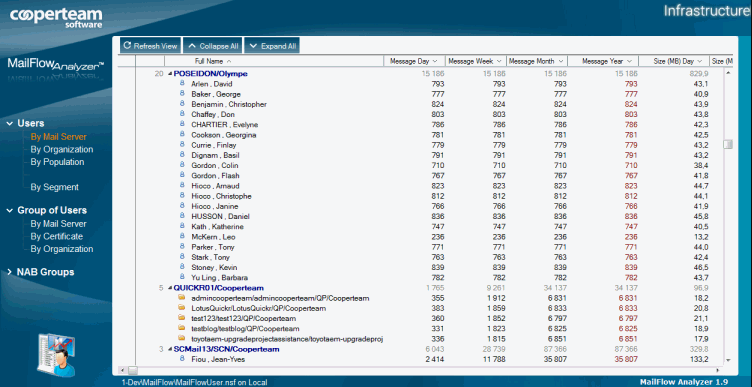
You can access these databases individually by opening them via a Notes client. On the left you have a browser allowing you to access the various views of the database. Example of the Mail Flow User database:
Unified Interface
From the Mail Flow database, you have a unified interface to access all the content of the other Mail Flow Analyzer databases. From the Mail Flow database, you have a unified interface to access all the content of the other Mail Flow Analyzer databases. The left hand navigator contains the main menu displaying 6 key thematic topics (Administration, Statistics, Alerts, Reports, Search and Documentation) and the top browser contains the contextual views to the selected topic.
- The Administration topic provides access to:
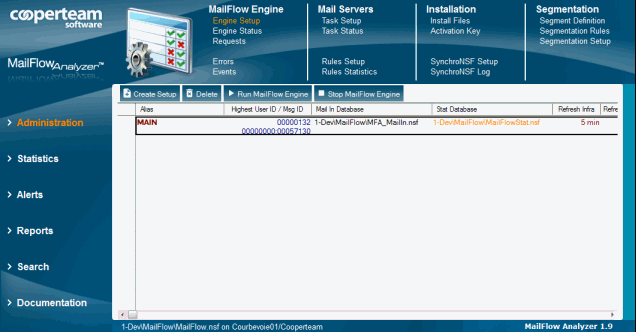
- The configuration of the processing engine (Engine Setup, Engine Status, Query Module, Segmentation settings).
- The elements needed to install the application (installation files, activation key, creation of a metadirectory).
- The log documents of the processing engine (Event and Errors).
- The configuration documents of all Mail Flow Collect databases installed on the mail servers (Task Setup, Task Status, Rules Setup).
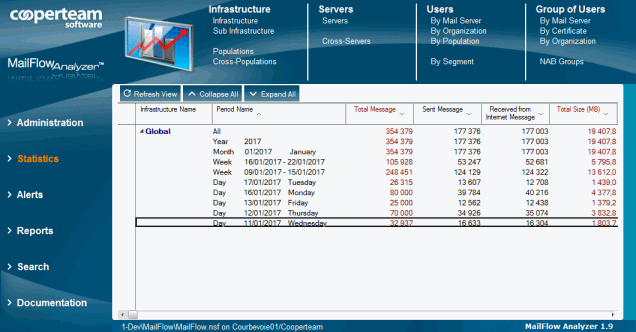
- The Statistics topic provides access to the statistics views available in the Mail Flow Server database (Infrastructure, Sub-Infrastructures, Populations, Cross-Populations, Servers and Cross-Servers) as well as the Mail Flow User database (User, Group of Users, NAB Group):
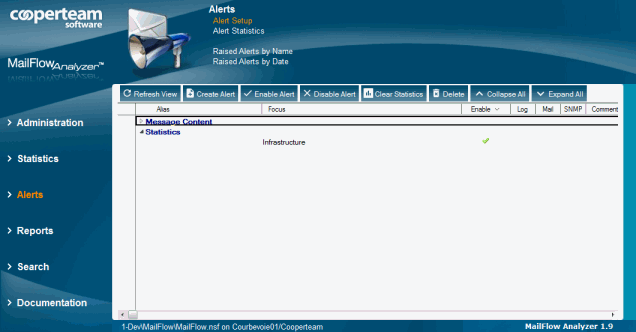
- The Alerts topic provides access to the Alerts settings and their statistics (located in the Mail Flow database) as well as Logs generated when alerts are triggered (located in the Mail Flow Log database) :
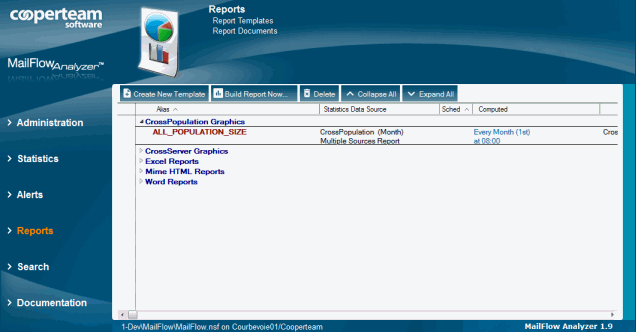
- The Reports topic provides access to the content of the Mail Flow Report database (Report Templates, Generated Reports):
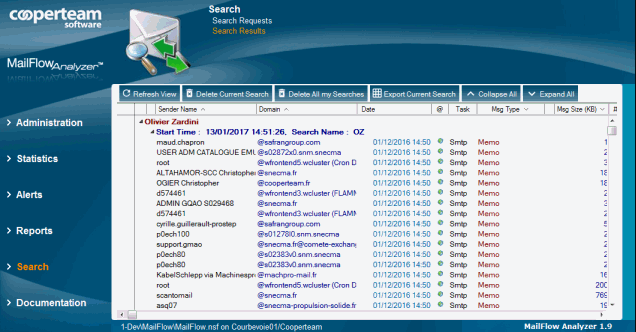
- The Search topic provides access to the content of the Mail Flow Search database (Search Requests, Search Results):
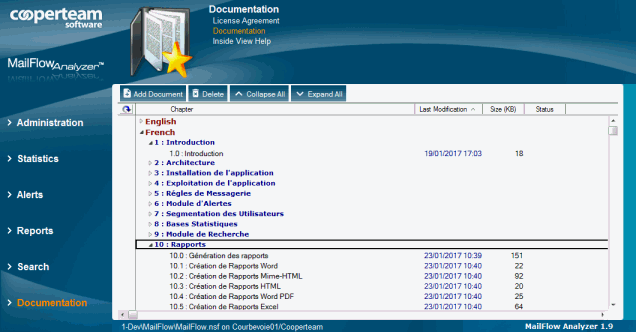
- The Documentation topic provides access to the documentation section of the application (located in the Mail Flow database):
2. Starting the data processing engine |
|
|
The easiest way to manually start the processing engine is to select the Setup document present in the view Administration / MailFlow Engine / Engine Setup of the Mail Flow database and use the button  :
:
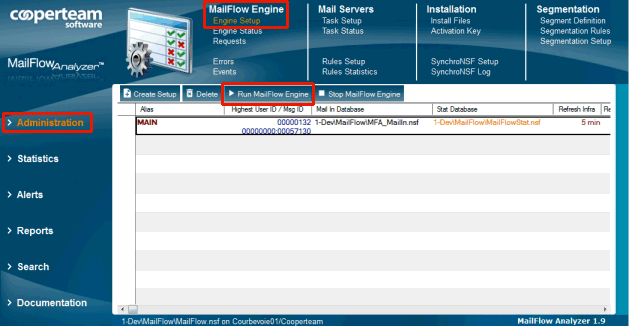
You can also start the MailFlow.exe executable directly from the server console using the following syntax:
load MailFlow.exe <chemin de la base Mail Flow> <Nom du document de Setup>
eg: load MailFlow.exe MailFlow\MailFlow.nsf MAIN
Be careful, the name of the Setup document is case sensitive.
In order to start the data processing engine at the same time as the Domino server, you can either modify the ServerTasks line of the server's Notes.ini file to include the MailFlow.exe or create a Program document in the address book (which is normally already done via the automatic installation wizard).
Regardless of the startup mode, the application will display information on the server console about its initialization:
26/01/2017 16:14:29 Mail Flow v 1.9, (c) CooperTeam, 2004-2017.
26/01/2017 16:14:29 Cooperteam - Internal
26/01/2017 16:14:33 Mail Flow : Loading Server documents...
26/01/2017 16:14:33 Mail Flow : Loading Groups documents...
26/01/2017 16:14:34 Mail Flow : Loading Certifiers documents...
26/01/2017 16:14:34 Mail Flow : Loading Infrastructure documents...
26/01/2017 16:14:34 Mail Flow : Loading Server documents...
26/01/2017 16:14:34 Mail Flow : Loading Cross Server documents...
26/01/2017 16:14:34 Mail Flow : Loading User documents...
Searching for new documents in the Mail In Database and processing them in order to create statistics will only start after the initialization phase. Since the MailFlow application is a server task, it can be stopped using the tell mailflow quit command on the server console. You can also use the following button  available in the Administration / MailFlow Engine / Engine Setup view of the Mail Flow database.
3. Check if the application is correctly running |
|
|
Several indicators are used to control the execution of the application. When starting up, it is necessary to check the information displayed in the console (or in the Misc Events documents of the Log.nsf database) for any trace of anomaly.
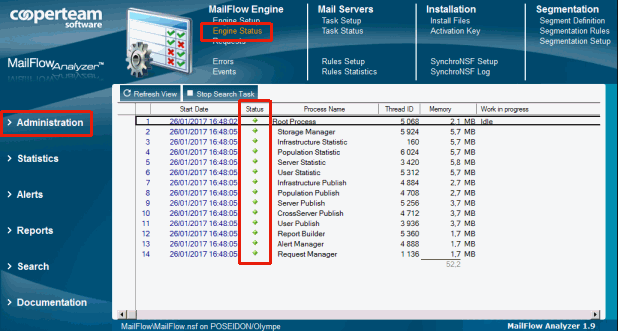
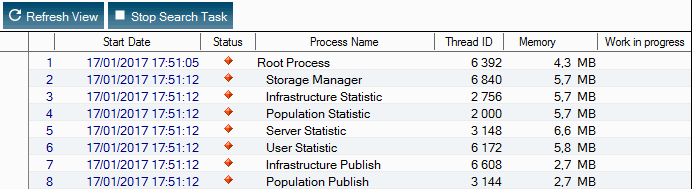
Once the initialization phase is complete, the application will create several Task Status documents in the MailFlow.nsf database that are accessible through the Administration / MailFlow Engine / Engine Status view. These documents provide information on the state of the various threads of the processing engine (started, off) at any time, their memory consumption, the disk size of the different files in the application, and the processes in progress (retrieving incoming messages in the Mail In Database, processing information, upding the Notes documents, etc...). The first thing to check is that the processor is well started and active (displaying a green diamond  in the Status column), see below example:
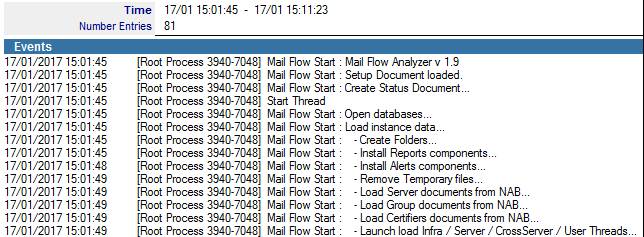
During their execution, the various threads of the processing engine will report in the MailFlowLog.nsf database the events related to their operation
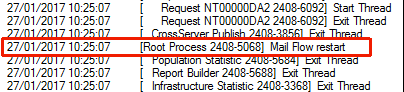
(Events documents) or the problems encountered (Errors documents). Each event is time-stamped. The name of the Thread is present at the beginning of the line, see below example:
4. Query Module |
|
|
Using the Query module to control the application
The data processing engine offers, via the MailFlow.nsf database, a communication interface. Using the Task Status document, the application informs the administrator about its status (processing in progress, consumed resources ...) and using the Request documents, it allows the administrator to ask the application to perform certain tasks.
These tasks can be grouped into 5 categories:
- Application administration requests (shutdown, restart, etc...)
- Queyries related to statistics (updating Notes documents in the MailFlowServer and MailFlowUser databases)
- Report generation requests
- Search quesries among the requêtes message data (locate some messages)
- Queries to export the message data (in .CSV files or in a Notes database)
To create a Query, you must place it in the Administration / MailFlow Engine / Requests view of the MailFlow.nsf database and use the button  . Whatever type of query you create, the document contains the following fields:
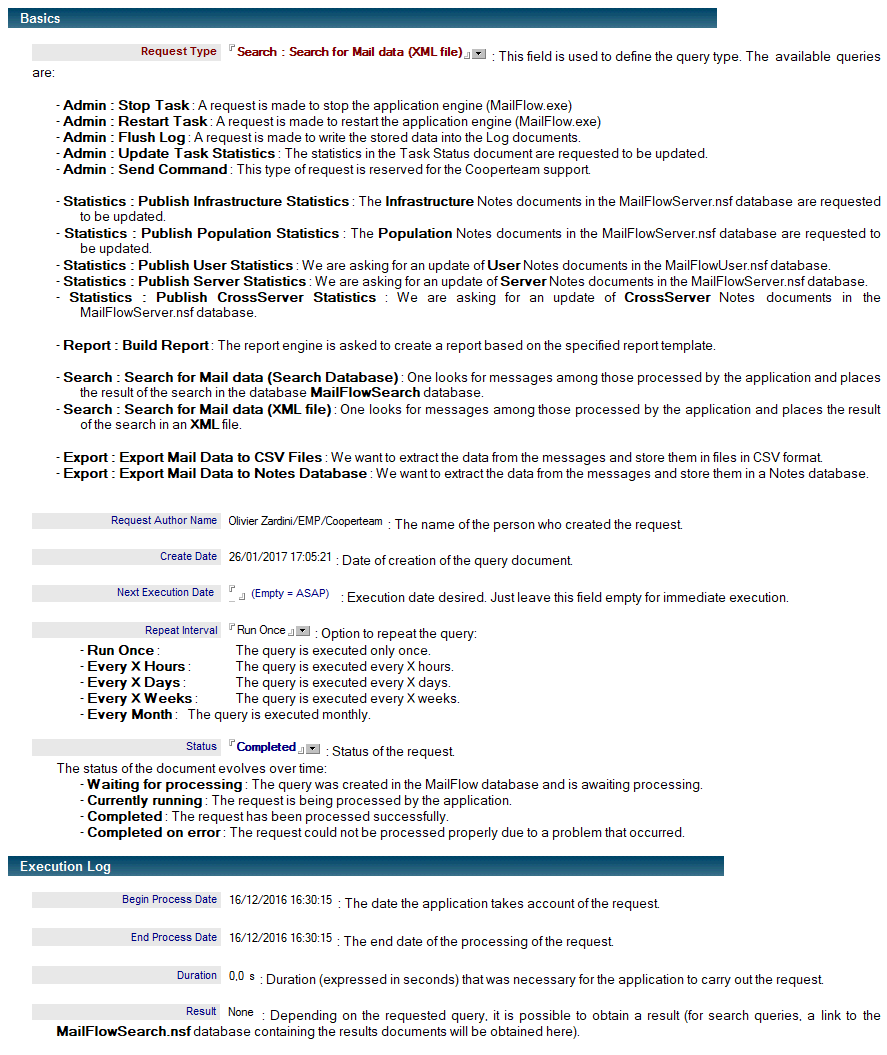
Some queries require additional parameters that will be detailed below.
After the query is processed by the application engine, the Request document moves to the completed state. For administration requests (application shutdown ...) which are easily reusable as generic, it is not necessary to recreate a new Request document each time. It is indeed possible to reuse the same Request document by recycling the document using the button  present in the Requests view.
Administration requests
Administration queries are used to regulate the operation of the MailFlow.exe application (shutdown, restart) somewhat in the same way as the commands passed to the Domino server console. The main advantage of communicating with the application through the query documents instead of the usual commands of the console is the possibility for people who are not Notes administrator of the Domino server where the application resides to be able to control it. You only need access to the main MailFlow database is sufficient to manage the complete application.In case the application is installed on a machine equipped with a single Notes client, it is impossible to use a server console. The interface offered by the MailFlow database then remains the only way to interact with the application (shutdown). If the application is installed on a Domino server, it remains of course listening to the orders that would be passed to the console (tell mailflow quit).
There are 4 administration requests:
- Admin : Stop Task : This request is for the immediate termination of the data processing engine. As soon as the query is taken into account, the application will terminate the current processes as soon as possible, put the data still in memory into files and free all allocated resources (database closure, memory release ...). Depending on the processes in progress, it may take several minutes between the application to be taken into account and the application to be stopped completely. The status document of the task is modified to indicate that the task is stopped (red diamond):
- Admin : Restart Task : This query is used to restart the application. This is a process similar to the shutdown of the application (end of treatment, flush disk values, resources release). Restarting the application allows, among other things, the changes made in the Setup document to be taken into account. In the Event Log document, the relaunch of the application will be clearly notified:
- Admin : Flush Log : This query forces the application to write to the MailFlowLog database information about various events or error messages produced by the application. Since these data can be numerous, they are not immediately transferred into the Log documents, but stored for a moment (buffer). Writing in Log documents usually occurs only every 5 minutes.
- Admin : Update Task Statistics : The Task Status document contains a number of indicators on the resource consumption by the application (size of allocated memory, volume of data on the disk, etc.). These indicators are updated every 15 minutes. This request forces the application to recalculate all these indicators immediately.
Requests for updating statistics
The result of processing the message data by the application engine is visible as Notes documents in the MailFlowUser and MailFlowServer databases. Depending on the options defined in the Setup document, the application builds real-time user statistics (User documents), user groups (NAB Groups, Group of Users : Mail Server, Certificate and Organization documents), infrastructure (Infrastructure documents), populations (Population documents), servers (Server documents) and cross-server flows (CrossServer documents). All these statistics are presented in Notes. For performance reasons, the Notes documents hosting these statistics are not updated for each new message that passes through the infrastructure, but only at regular intervals.
Statistics update queries are used to force the updating of Notes documents that display statistics to reflect current data.
- Statistics : Publish Infrastructure Statistics : Forces the reconstruction of Infrastructure Notes documents in the MailFlowServer database from the statistics data stored in the files.
- Statistics : Publish Population Statistics : Forces the reconstruction of Population Notes documents in the MailFlowServer database from the statistics data stored in the files.
- Statistics : Publish User Statistics : Forces the reconstruction of User, NAB Groups, Group of Users : Mail Server, Certificate and Organization Notes documents in the MailFlowUser database from the statistics data stored in the files.
- Statistics : Publish Server Statistics : Forces the reconstruction of Server Notes documents in the MailFlowServer database from the statistics data stored in the files.
- Statistics : Publish CrossServer Statistics : Forces the reconstruction of CrossServer Notes documents in the MailFlowServer database from the statistics data stored in the files.
Updating the Notes documents in the MailFlowUser and MailFlowServer databases immediately updates the corresponding documents in the MailFlowStat database. As the processes related to the updating of the Notes documents are rather heavy (statistics to be consolidated, documents to be modified, replication flows ...), it is preferable to leave the application alone to manage the updating of the documents and not too much solicit it for complete upgrades. The time required to complete this request depends on the number of documents to be updated. As it may take a long time, the Task Status documents in the relevant threads (Publish) indicate the status of the query.

 : Desired scope for the regeneration of statistical documents:
- All : We want to rebuild all the statistical documents.
- Selection by Key : We only want to reconstruct a subset of the statistical documents.
 : List of documents to rebuild, based on the unique key of the document. In the Identity tab of each statistical document, you have a Document Single Key field indicating the document key. The key is composed of the document type (infra, server, population, user ...), a unique number regrouping all the same ones of the same set, information about the period (All, Year, Month, Week, Day) and a number characterizing this period (number of the year, number of the week, number of the day ...):
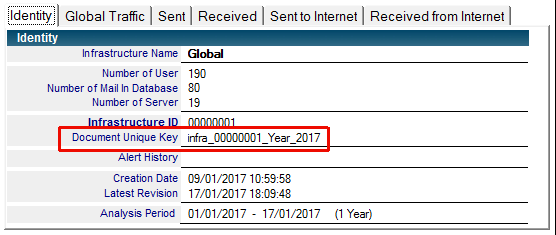
To define the list of documents you want to rebuild, you can target 1 document by specifying its unique key or a whole set using the wildcard character *:
infra_* : Rebuild ALL Infrastructure Documents
infra_*_Year_* : Rebuild all Infrastructure Year documents
infra_00000001_* : Rebuild all documents from the Infrastructure number 1 (All, Years, Months, Weeks, Days)
Reporting Requests
Report generation requests are used to request that a report be created based on the report templates in the Mail Flow Report database. Once the report is generated, it is present as a file attached to a document in the Reports Documents view (in the Mail Flow Report database).

 : Name of the report template to use
Messages Search Queries
- Search : Search for Mail data (Search Database)
Search queries (Search for Mail Data option) allows you to locate and display in the MailFlowSearch database information about certain messages that have passed through the infrastructure. Message Search requests can be created either in the MailFlow or directly from the MailFlowSearch database. Messages can be searched by indicating a large number of criteria that serve as filters.
Since these filters are strictly identical to those found in the Search Request document in the Mail Flow Search database, we refer you to the Search Module documentation for an explanation of how to use them.
The only difference between a search query made from the Mail Flow database (like here) and a search query made from the Mail Flow Search database is whether or not the search exclusions defined in the Setup document are taken into account:

A search query made from the Mail Flow database will ignore the exclusions and will therefore return all documents meeting the criteria, even the prohibited documents. The security officers will therefore use the search queries in the Mail Flow database, whereas the Help Desk cell will instead use the searches of the Mail Flow Search database.
- Search : Search for Mail data (XML file)
Search queries in XML format (Search Mail Data in XML File option) search for messages and retrieve their data for storage in XML files. These queries are quite similar to search queries (Search for Data Mail option) because they share criteria for selecting messages (time periods, criteria based on content). The difference comes from processing the message data that corresponds to the selected criteria. These messages are not displayed in the MailFlowSearch database as is the case for search queries, but all the data collected on these messages are aggregated into an XML file created on the machine hosting the data.

 : The full path of the XML file to create
 : Option to compress the result XML file
Messages Export Queries
Export queries are used to retrieve message data and make it available outside of Mail Flow. The possible export formats are CSV files (which can then be imported into an SQL database) and Notes documents. Export queries can be scheduled daily; In particular via the interval of repetition of the request:
 : Export everyday the documents of the previous day. The next day, a new export request processes the documents of the day, and so on.
- Export : Export Mail Data to CSV Files
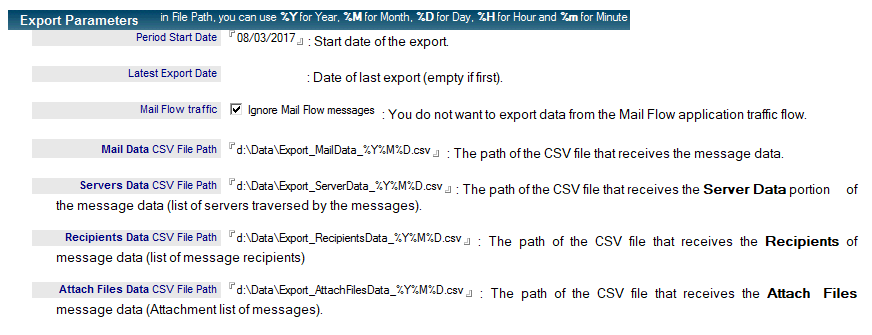
Export queries in files (Export Mail Data to CSV Files option) allow you to search for messages and extract their data to store them in 4 CSV files created on the machine hosting the data. These queries are quite similar to search queries (Search for Data Mail) because they share criteria for selecting messages (criteria based on message content).
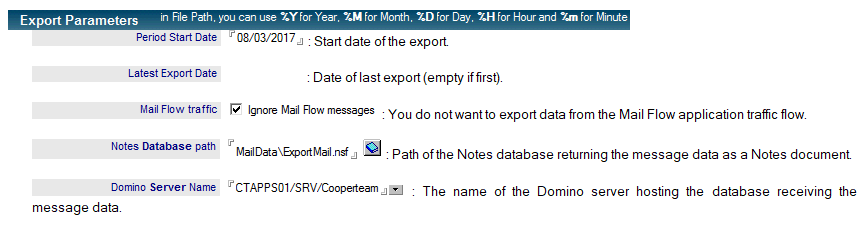
- Export : Export Mail Data to Notes Database
Export queries in a Notes database (Export Mail Data to Notes Database option) can be used to search for messages and retrieve their data for storage in a Notes database hosted on a Domino server. These queries are quite similar to search queries (Search for Data Mail) because they share criteria for selecting messages (criteria based on message content). Each selected message is converted to a Notes document with the same data module as the Search Results documents in the MailFlowSearch database.
Comments
0 comments
Article is closed for comments.