
 |
 |
1. Overview |
| 2. Submit a search request | ||
| 3. View the Search Results |
1. Overview |
|
|
 Back to Top
The search module provides for a refined search of all messages that have passed through a Domino server within your messaging infrastructure. You can search for any message, starting on the Mail Flow Analyzer installation, without any time limit. As a message puts on average around 10 minutes between the time it is captured on a mail server and the time it is stored by Mail Flow Analyzer, please wait a few minutes before searching for recent messages.
You can access to the Search Module in different ways :
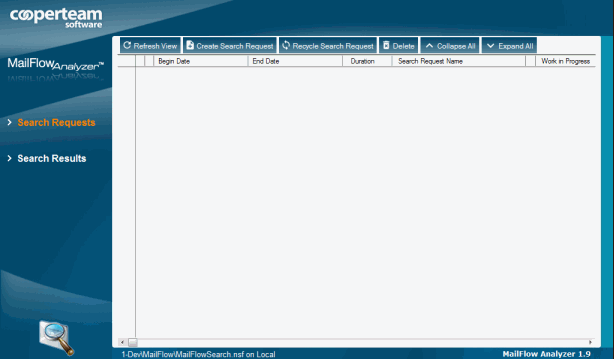
- By opening directly the Mail Flow Search database, from the IBM Notes workspace:

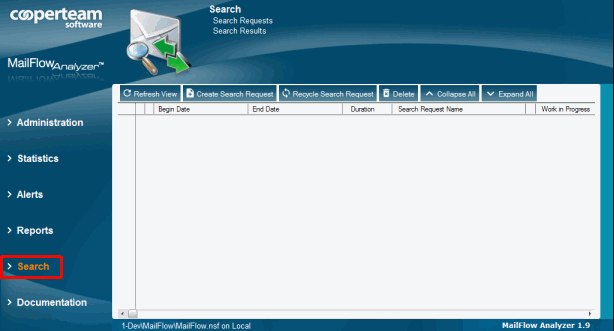
- By using the Search view from the main outline of the Mail Flow database:
- By creating a search Request, from the Requests view of the Mail Flow database:
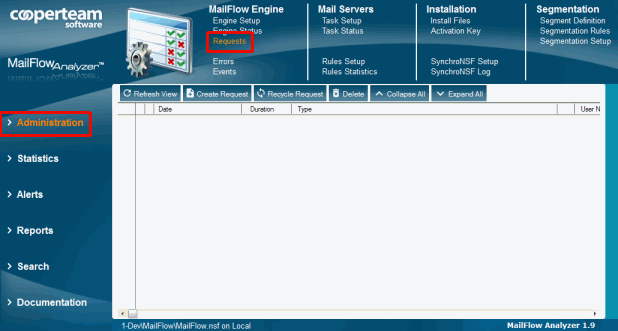
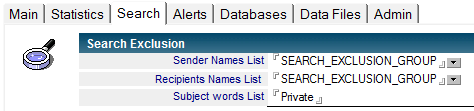
This last method is set aside for Notes Domino Administrators or Security Officers wishing to create search request for all messages that have been through the infrastructure, but are not limited from some exclusions usually set on the main Setup document of the Mail Flow Analyzer engine (usually, document called "Main"):
2. Submit a search request |
|
|
To create a new search request, please click on the following button  from the view Search Requests. The Search Request document includes all the fields to fill in in order to define the search criteria. Once the form is complte, please save it using the
  button in order to launch the search. Mail Flow Analyzer will access to its messages database to find out all the results. Results will be displayed as a Notes documents in the Search Results view. You can wait for the results looking at the Search Results view to see results little by little or wait in the Search Request to see the search progress of the request.
You can run several search at the same time, because Mail Flow Analyzer uses on dedicated thread per request.
The Search Request form contain the following items:

 : The name of the person creating the search request.
 : Creation Date of the request.
 : Current status of the Search Request. The different types of status:
- Waiting for processing : Request created, awaiting processing.
- Currently running : Processing is in progress.
- Completed : Search Requested is completed.
- Completed on error : Search Requested is completed with errors.

 : The name of the Search Request.
 : Indicates if the results should be private, hidden for anyone else opening the Mail Flow Search database.
 : The desired maximum number of results.

 : Define the period for which the Search Request will be applied.
 : Week days and period of time applied to the Search Request.

 : Sender name of the message, stating if the Sender name appears in either the "From" field, the "Principal" field or from the internet sender "SMTPOriginator" field.
 : Message sender's name, whatever the field concerned (From, Principal or SMTPOriginator).

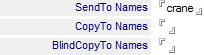 : Recipients Name of a message, stating if the names appear as the main recipients (SendTo field), as secondary recipients (CopyTo field) or hidden recipients (BlindCopyTo field).
 : Message recipeints' names, whatever the field concerned (SendTo, CopyTo or BlindCopyTo).
 : Define the Number of Recipients of a Message.

 : Words contained in the message's Subject.
 : Message's type (Form selection : Memo, Reply, Forward, Notice...).
 : Define the Message Size.

 : Attach File Names of a message.
 : Number of Attach files of a message.
 : Size of Attach Files of a message.

 : Define if the message is signed.
 : Define if the message is encrypted.
 : Define the Importance Level of a message.
 : Define the Delivery Priority Level of a message.

 : Origin of the message (Internet ou Internal).
 : Indicate the Message SLA (distribution time).
 : You can ignore messages in low priority.
 : You can ignore messages who were retained in the Quarantine.
 : Value of the Mail Flow ID of a message ($MailInfoID field).
 : Value of the $MessageID field of a message.
 : Names of SMTP servers where a message has been routed through, before reaching the IBM Domino infrastructure. You can enter any input texts and IP addresses, usually seen in the Received field of an Internet message:
from mail-oi0-f52.google.com (mail-oi0-f52.google.com [209.85.218.52]) (Using TLS)
by eu-smtp-1.mimecast.com
with ESMTP id uk-mta-61-HhQpdd0MOj-NjGv2GRE9PQ-1;
Wed, 19 Oct 2016 05:41:23 +0100
 : Names of Domino servers that processed the message.
 : Domino Task Names that processed the message (Server, Router, Smtp, Http, Traveler...).

 : You can used a @Formula selection to define the list of messages you are searching for.

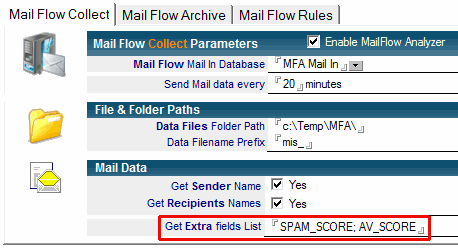
 : You can search for specific value in a non-standard field (usually added by anti-virus, anti-spam, filtering tools...) by filling in the name of the field (Extra Field Name) and the searched content (Extra Field Values). To enable the search on non-standard fields, you have to declare them in the "Get Extra fields List" field of messaging servers Setup documents inside the MailFlow Collect database:
Search criteria
When saving the Search Request, Mail Flow Analyzer will start analyzing all messages matching the time period specified (Begin Date - End Date) and apply the search criteria defined in the request. It will stop when the time period end (End Date) or when the maximum number of messages is reached (Max number Msg returned). The average time needed to process a search request depends on the number of days of the specified period and the total number of message kept every day (equivalent to number of messages routed across the Domino infrastructure every day).
Search criteria respect the following rules:
- The input texts is NOT case sensitive:
 or
or
 are equivalents.
- The input texts his interpreted as a substring to search for:
 the input text 'sander' means that Mail Flow searches for all messages where the sender names contain the substring 'sander'. Results can be 'bob.sander@gmail.com' or 'CN=Bob Sander/OU=SALES/O=Corp' or even 'bsander'.
- You can use several search criteria, doing so, the results is done using a logical AND:


 : Search is made to find out all messages with at least 11 recipients AND without encryption AND contain at least 1 PDF file.
- You can also add several values for each criteria, use a semicolon as a separator. They use them with a logical OR:
 : The input texts is used to search all recipients names that contain either the strings david.crane OR d.crane OR dcrane.
- Wild (or special) characters like * or ? are not recognized. If you search for example for PDF files, you should enter the string .PDF (not *.PDF):

3. View the Search Results |
|
|
The Search Results view of the Mail Flow Search databsase shows the search results as well as non-private searches made by others. Results are categorized by Search Name and sub-categorize by date. The various columns of the view display the important values of messages (Sender, Recipients, Subject, Size, Number of recipient, Origin of the message...).
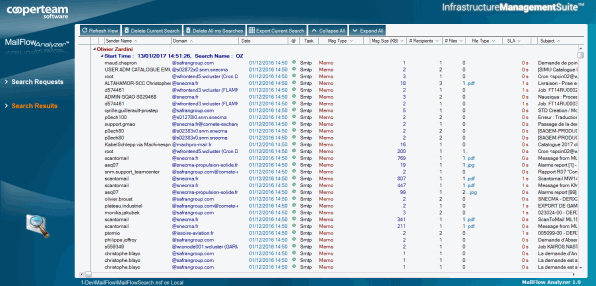
The documents appearing below a category are messages meeting the criteria you specified. To access to the message detail, you need to open the document from the view. Please Note that neither messages body or content of attached files are captured by Mail Flow Analyzer. They are not visible in the rendered results.
The section Internal Reference contains identifiers allowing Mail Flow Analyzer to pinpoint each message.

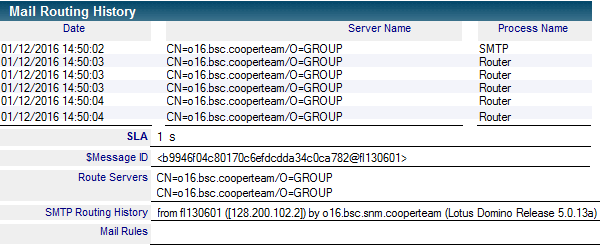
The section Mail Routing History display internal servers of the infrastructure on which a message passed through as well as Domino processed Task (SMTP, Router, Server...). The internal routing time (in seconds) is shown on the SLA line. If the message is coming from the Internet, there is also useful routnig information on SMTP (SMTP Routing History). If the message has been processed by one or several Mail Rules, Règles de Messagerie de Mail Flow Analyzer, they are listed in the Mail Rules field.
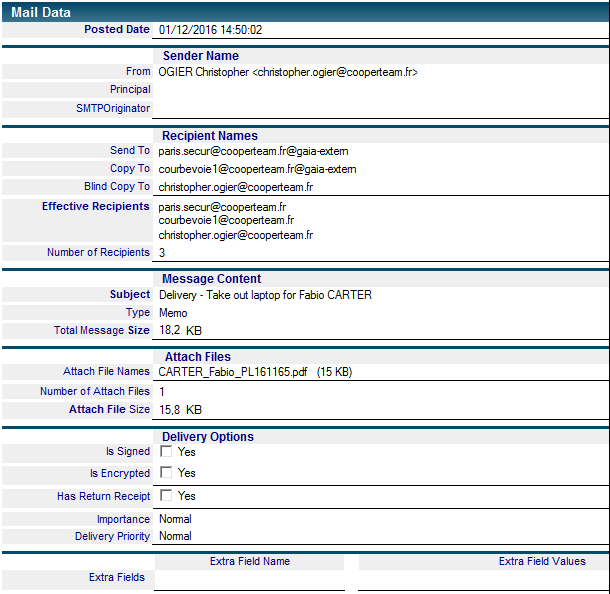
The section Mail Data display the different fields values of messages captured by Mail Flow Analyzer, like the Posted Date, Subject), sender information (From, Principal, SMTPOriginator), recipient names (SendTo, CopyTo, BlindCopyTo, Recipients), the message size (Total Message Size), Attach File Names, routing options (Is Signed, Is Encrypted, Importance, Delivery Priority)...
Export the Search Results
You can export the search results as a .CSV file. To do that, you just have to select one or more documents from the Search Results view and then click on the following button  .
.
Then, a pop-up window will appear, asking for the full path of the file to create:
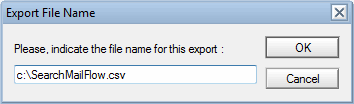
All you need to do is simply enter a filename with a valid path and click on the OK button. The .CSV file will be generated with all the messages information releated to the selected search.
Purge the Search Results
To remove from the Mail Flow Search database all documents linked to a Search Request, you have to select a document from the Search Results view and then click on the button  .
.
To remove all documents for all Search Results, you have to click on the button  .
.
Comments
0 comments
Article is closed for comments.