
 |
 |
1. Introduction |
| 2. Presentation of Alerts Documents | ||
| 3. Creation of Alerts based on Message Content | ||
| 4. Creation of Alerts based on SLA | ||
| 5. Creation of Alerts based on Statistics |
1. Introduction |
|
|
 Back to Top
MailFlow Analyzer provides a real-time Alerts module. Alerts can be based on message content, message delivery duration (SLA) or values found in statistics documents (Infrastructure, Population, Cross-Population, Server, Cross-Server, User, Group of Users, NAB Groups and Mail Rules).
Alerts are used to immediately point out uncommon events, such as a violation of company rules. Furthermore, it can highlight unusual behaviors at an infrastructure level in situations, for example, when an high number of emails are exchanged whereas usually this specific number is rather low. Here are some examples :
Alerts based on message content: Raise an alert if a message includes more than 30 recipients and / or the size of the message is over 10 MB.
Alerts based on SLA: Raise an alert for messages taking more than 30 minutes to be delivered (messaging system router).
Alerts based on Mail Flow statistics: Raise an alert once the number of messages transferred through a messaging server is 30% higher than the usual number.
Every alert is immediately notified by email, by SNMP or through a record in the Mail Flow Log database.
2. Presentation of Alerts Documents |
|
|
Alerts can be seen from the Alerts view, in the MailFlow.nsf database. The Alert Setup view lists all Alert documents used to setup the alerts :
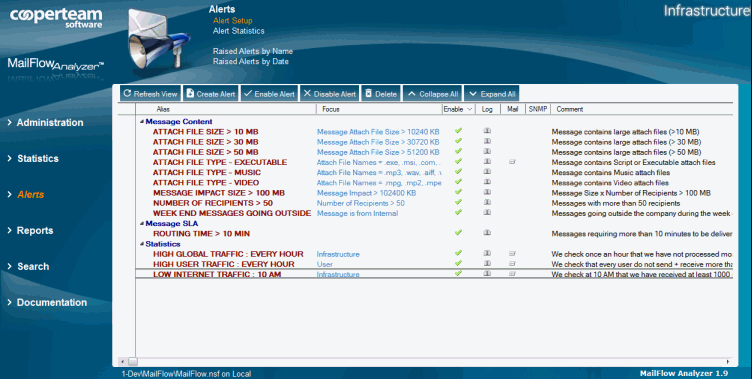
It is possible to activate  or deactivate
  the existing alerts by using the following buttons
 and
and  from the view.
In order to create an new alert in the MailFlow.nsf database, you may click on the button  and fill out the following fields:
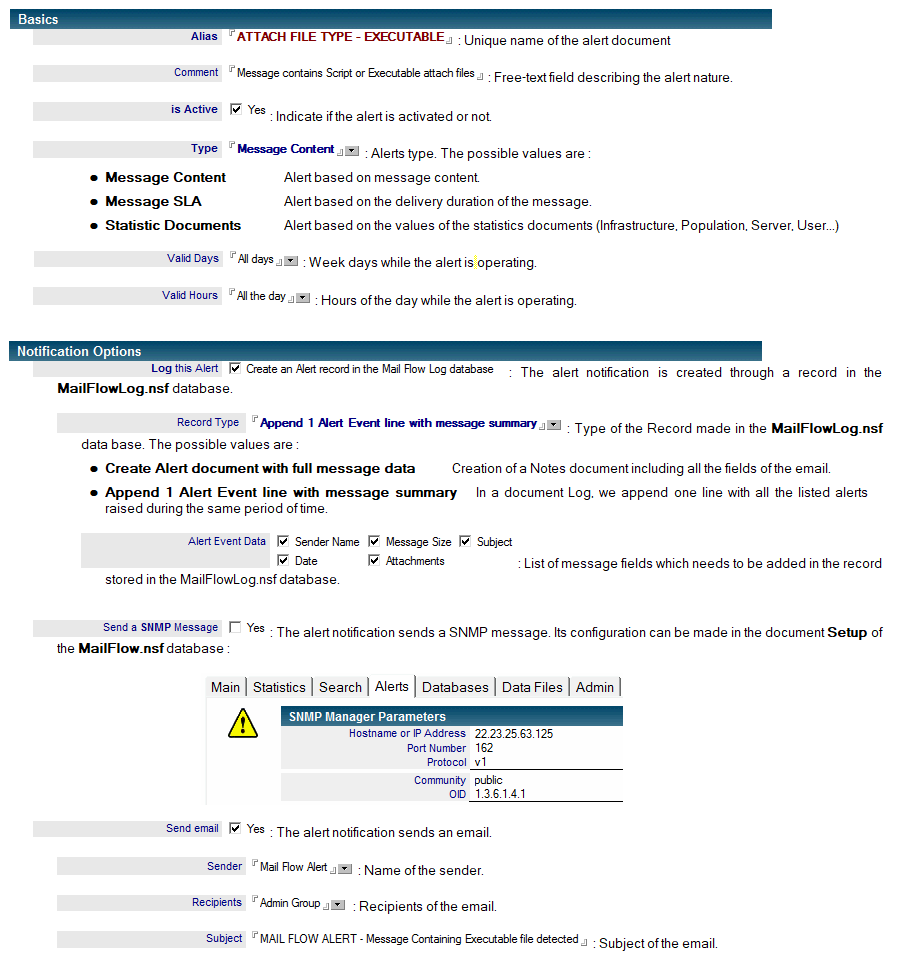
The criteria which trigger an alert are explained in the documentation related to the following three alerts types:
- Alerts created based on the message content.
- Alerts created based on message SLA.
- Alerts created based on Statistics.
Alerts Statistics
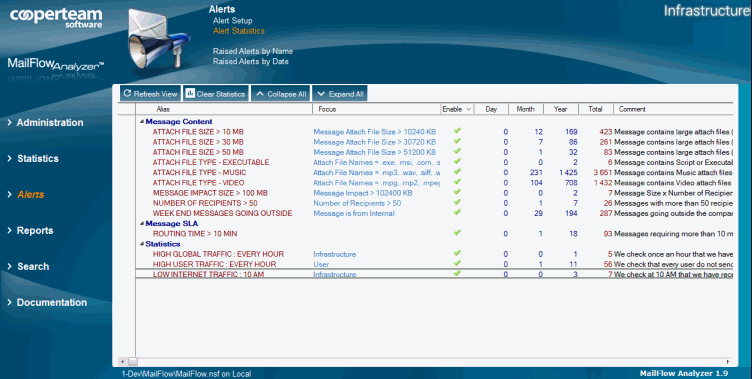
For every alert, Mail Flow stores the number of time the alert has been raised. Statistics are accessible in the view Alerts / Alerts / Alert Statistics with subdivisions such as day, month, year and total.
You may open these documents in order to access all the statistics details gathered on various rolling periods (last 7 days, last 4 weeks, last 12 months, last 5 years) and the monthly bar chart:
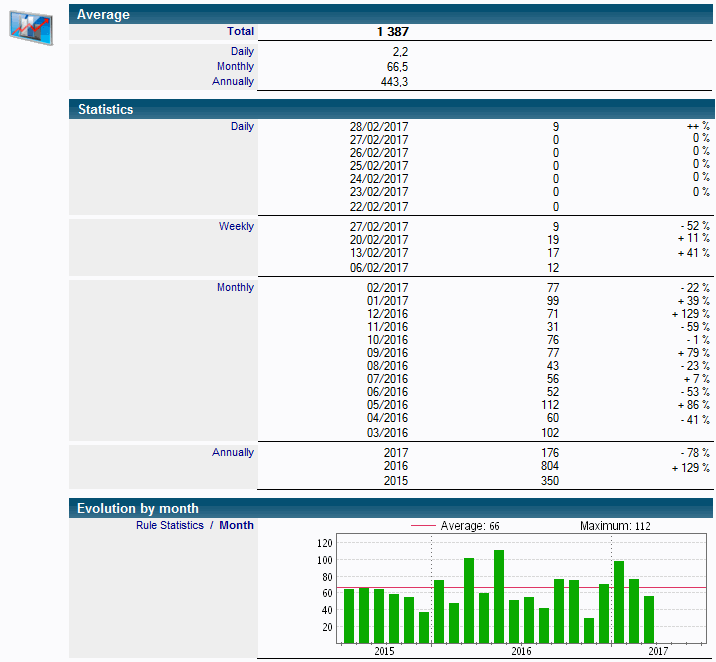
These Alerts Statistics documents can be used in Excel / Word Reports and provide information related to the number of raised alerts over a specific period of time.
Alerts Records
If you decide to enable the Create an Alert record in the Mail Flow Log database option located in the Notification options tab (for Alerts documents based on Message Content and Message SLA) every message, which are going to raise an alert, will be stored as Alerts Records in MailFlow Log database. You can access them from the Alerts / By Name and Alerts / By Date views.
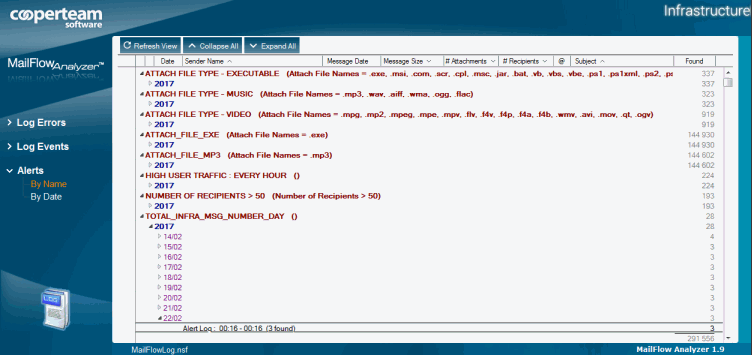
You can, in addition, directly access to these view through the MailFlow base, via Alerts / Alerts / Raised Alerts by Name or Alerts / Alerts / Raised Alerts by Date.
The level of message details kept in the MailFlow Log database depends on the Record Type option chosen:
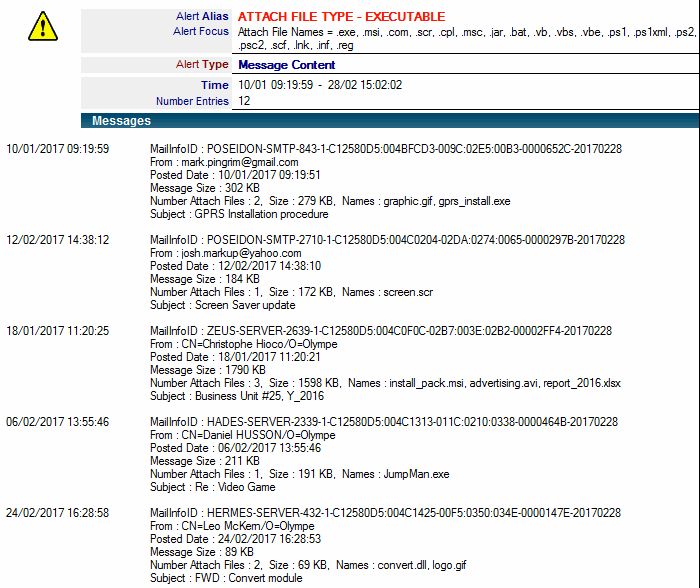
- Create Alert document with full message data: The document gathers all the information.
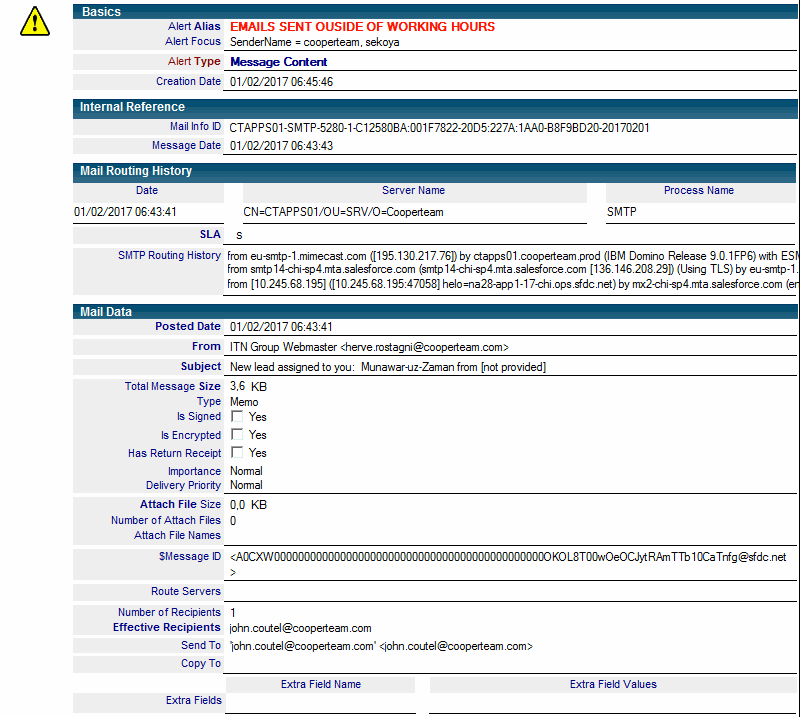
- Append 1 Alert Event line with message summary : We only keep certain fields (Sender, Date, Subject, Size....).
3. Creation of Alerts based on Message Content |
|
|
Message Content Alerts are used to monitor every message routed into the messaging infrastructure. We are looking at the message content (sender, recipients, files attached, size of the message....) and verify every piece of information that could damage the operating system of the messaging system (i.e. message to heavy, sending executable...).
We can compare Alerts based on message content to a real-time search engine. The criteria parameters of raised Message Content Alert are very similar to the one from the Request part of Mail Flow Search Engine.
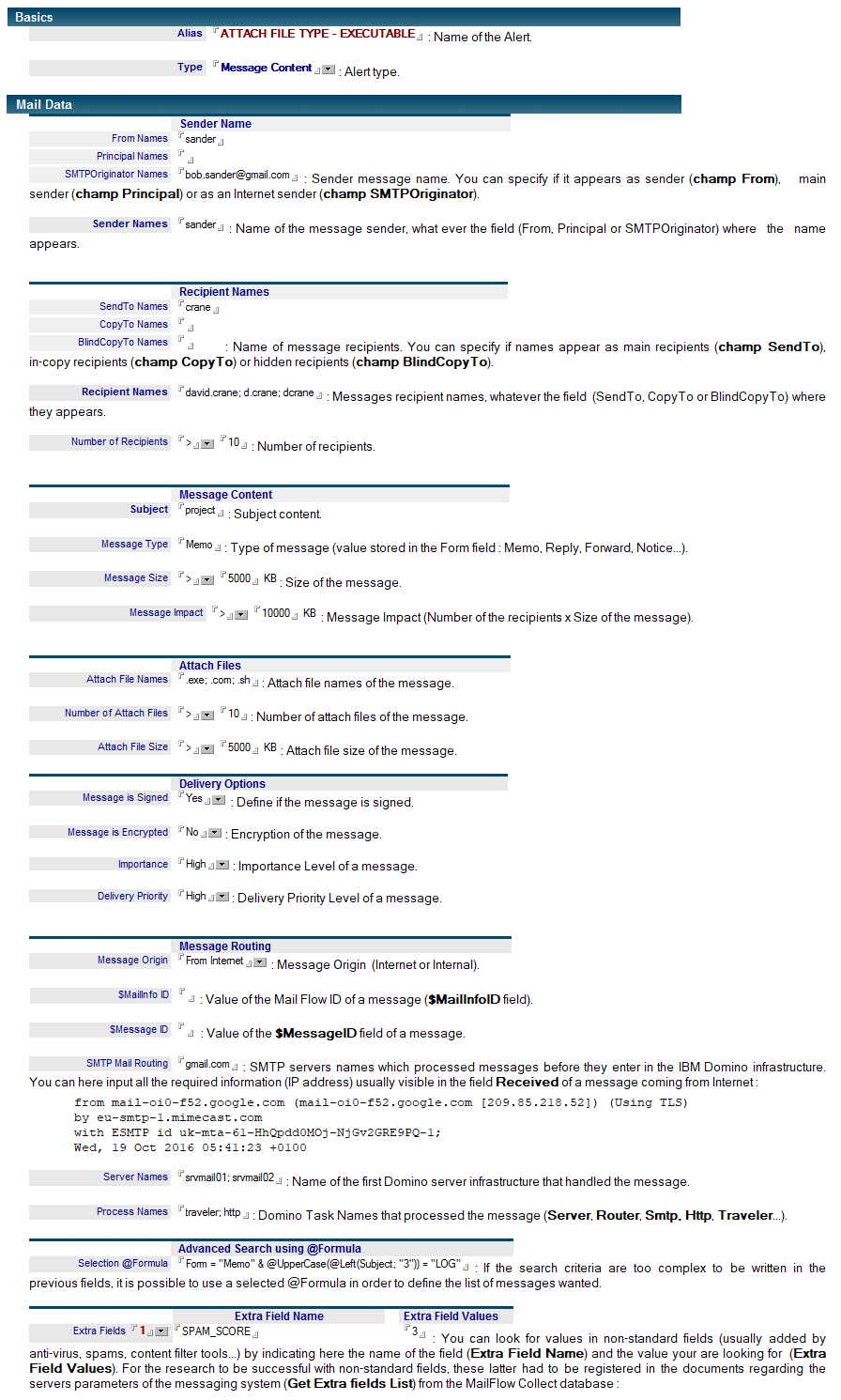
MailFlow Analyzer is going to analyze all messages passing through the messaging infrastructure and then apply a search criteria from Alerts based on Message Content. The search criteria respect the following rules:
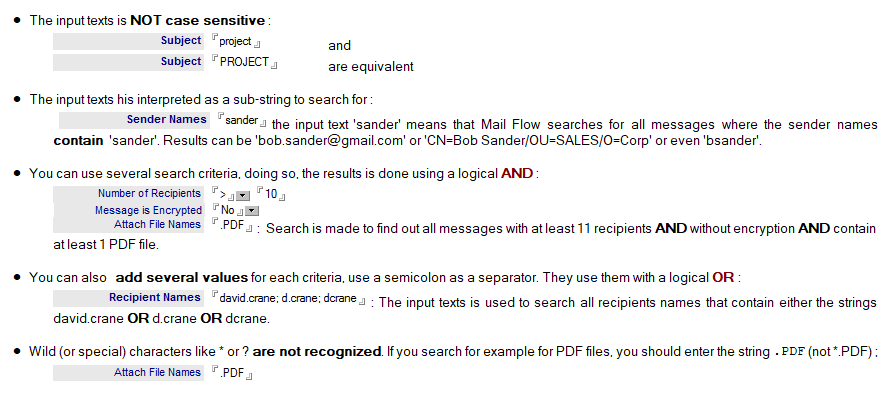
Example of Alerts based on Message Content
Search for Executable Files in Mails
Goal: We wish to be informed of any executable files found in Mails, as there are representing a danger for the computer safety.
- Alert Parameters:
- The alert can operate every day of the week (All days).
- The alert can operate all day long (All the day).
- We focus on the names of attached files in the message. Thus, we are mentioning in the the field Attach File Names all known extensions (.exe, .msi, .com, .scr...).

Search for Messages sent with a size over 50 MB
Goal: We wish to be informed of any attempt of sending oversize files. At the end, the message will be rejected by the server, but it would have travelled between the user computer and the server. To avoid this, we would like to be notified of such behaviors, in order to offer alternative solutions for oversize messages to be sent.
- Alerts Parameters:
- The alert operates every day of the week (All days).
- The alert operates all day long (All the day).
- We focus on the total size of attached files in the message. We use the operator > and the value 51200 KB (=50 MB).

4. Creation of Alerts based on SLA |
|
|
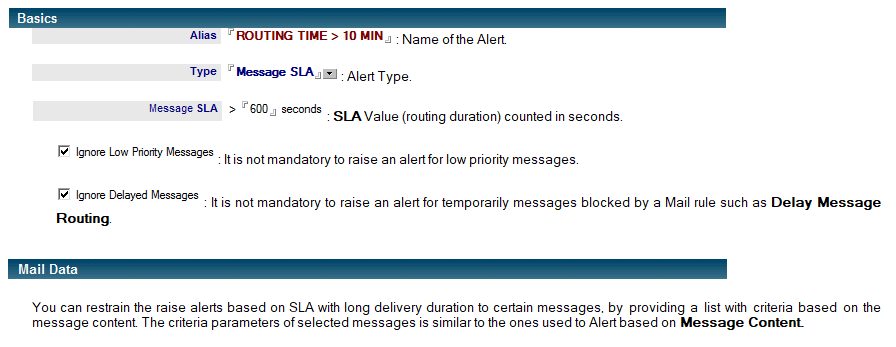
Alerts based on SLA are used to identify messages routed through the messaging infrastructure which has a long delivery duration. Mail Flow Analyzer calculates, for every message, the total routing duration (=SLA) of the message from the first time it has been processed by a Domino server to the last time it has been processed by a server. This value should remain very small (no more than few seconds), Every message with a high SLA could lead indeed to a flaw in the messaging infrastructure (high processing time caused by an anti-virus, a congestion in the mail box of one of the servers...).
The configuration of Alerts based on SLA is rather simple. You need to provide the SLA value from which you wish to raise an alert.
5. Creation of Alerts based on Statistics |
|
|
Alerts based on Statistic Documents are used to monitor the values stored in statistics documents available in MailFlowServer database (Infrastructure, Population, Cross-Population, Server, Cross-Server), MailFlowUser (User, Group of Users, NAB Groups) and MailFlow (Mail Rules Statistics). Every time a Statistic document is updated, Mail Flow engine enumerates all Alerts based on Statistic documents and verify if an alert has to be raised. In order to define if an alert based on statistics documents has to be raised, we need to evaluate a @formula. These alerts are able to catch unusual number of messages routed in the infrastructure (massive arrival of Internet messages, user sending high volumetric messages....).
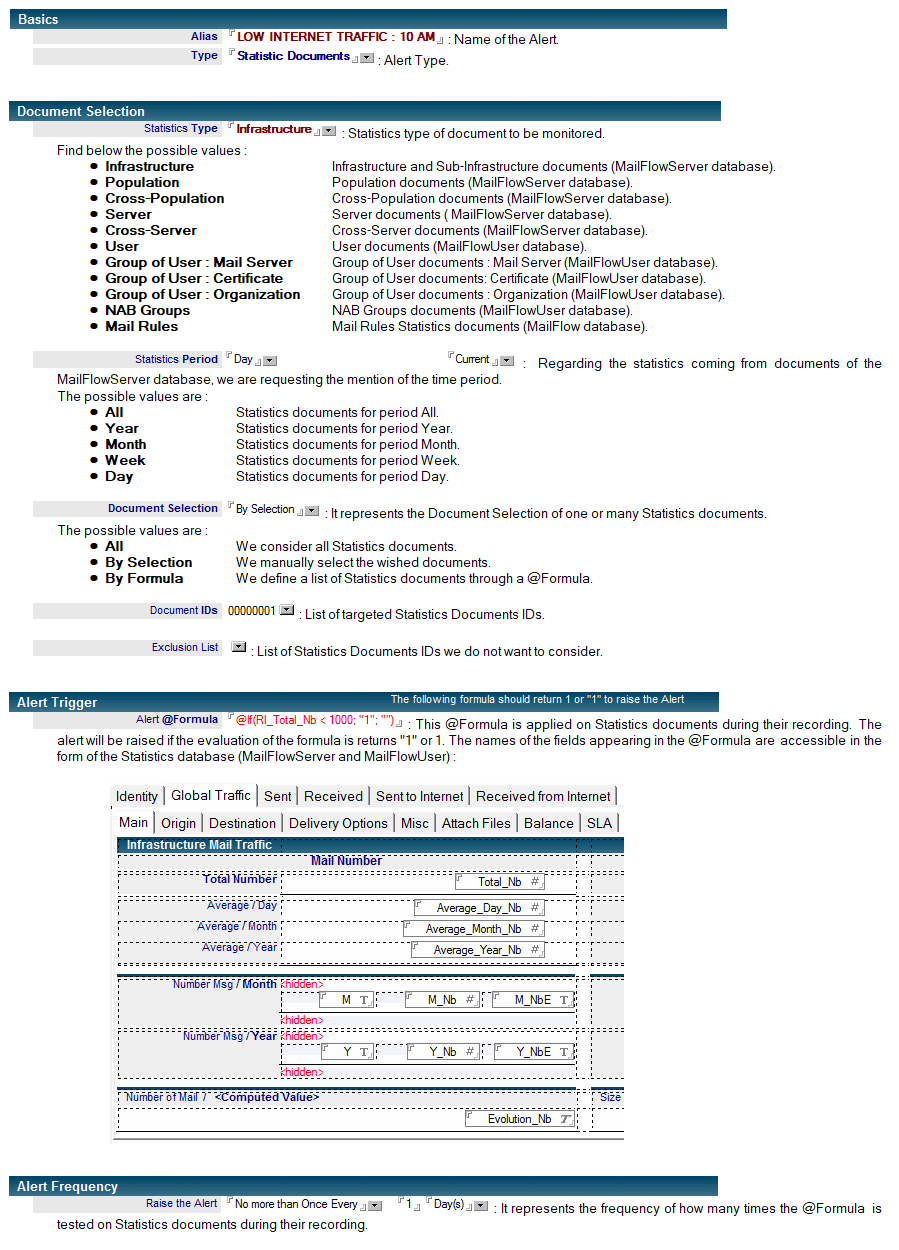
Examples of Alerts based on Statistics
Checking the Internet traffic
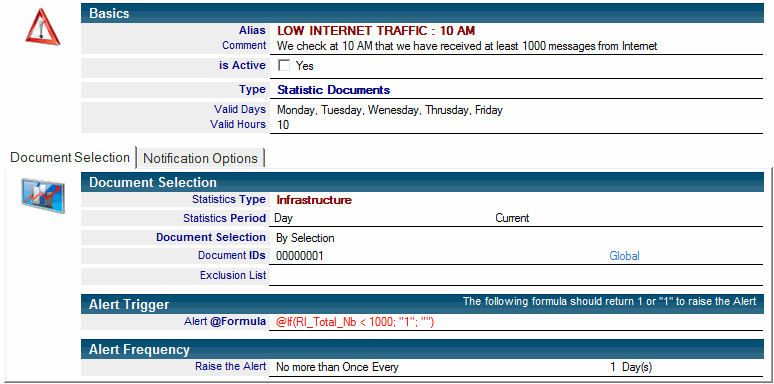
Goal: We wish to check, every morning at 10 am, that we have received at least a 1000 emails from Internet. If it is not the case, it could indicate a possible issue at the SMTP gateway.
Configuration of the Alert:
- The operational days of this alert are from Monday -> Friday (working days).
- The alert only starts once a day at from 10 am, thus we select 10 as the number of Valid Hours and regarding the frequency, we chose No more than Once Every 1 Day(s).
- We focus on the number of messages received during the day by the messaging infrastructure. So we select Infrastructure as the type of statistics documents and Day as a period. We want to visualize the actual day, so we select Current. As there is only one document for the global Infrastructure, the ID is usually 00000001 (Global).
- We want to test the number of emails received from Internet, we use the field RI_Total_Nb from statistics Infrastructure document and we compare it to the threshold value (here 1000). The @Formula is written as followed:
@If(RI_Total_Nb < 1000; "1"; "")
If the number of emails received from Internet is below 1000, the alert is activated
Checking the incoming+outgoing traffic of the Users Mail File
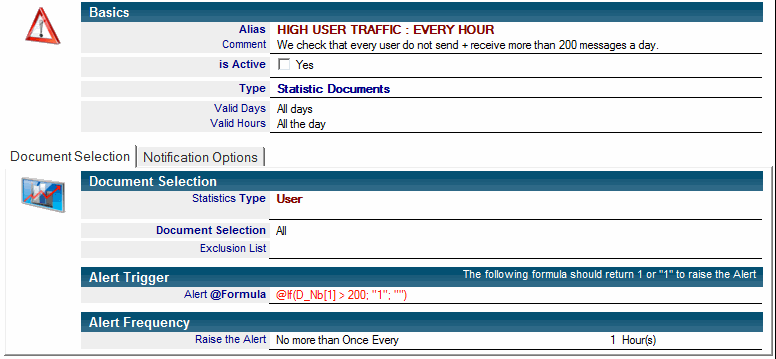
Goal: We wish to verify that one user only receives or sends no more than 200 messages per day. If it was the case, it could mean that there is an issue with the automatic re-routing rule of messages in his mail file or it might be due to a targeted SPAM campaign.
Configuration of the Alert:
- The operational days of this alert represent all the day of the week (All days).
- The alert works all day long (All the day), once an hour (No more than Once Every 1 Hour(s)).
- We focus on received and sent messages from users. We select thus User as the type of Statistics document. If we want to monitor mail traffic for all the users, select All value in the Document Selection field.
- We want to test the number of emails received + sent, so we use the field D_Nb from statistics User document and we compare it to the threshold value (200). As the field D_Nb is a multi-value field, we select the first entry of the field (messages number of the day) using operator [1]. The @Formula is written as followed :
@If(D_Nb[1] > 200; "1"; "")
If the number of emails received + sent is above 200, then the alert is activated.
Comments
0 comments
Article is closed for comments.