
 |
 |
1. Overview |
| 2. Creating a Preference document | ||
| 3. Applying a Preference document to a user | ||
| 4. Using %, # and @ keywords |
1. Overview |
|
|
 Back to Top
Preference documents allow the forcing the of values of certain fields in the following configuration documents :
- Connection documents in the user's local NAB
- Location documents in the user's local NAB
- Account documents in the user's local NAB
- Program documents in the user's local NAB
- Calendar Profile documents in the user's local NAB
- Directory Profile documents in the user's local NAB
These configuration documents (Connection, Location...) must already exist in the Notes configuration of the user. In contrast with Template documents which can create these types of configuration documents, Preference documents only modify certain values in documents which already exist on the user workstation.
Preference documents can be used in Profiles and Tasks in Desktop Manager. The use of Preference documents in a Profile allows one to force the setting of certain Notes configuration parameters each time Desktop Manager is started. Their use in a Task allows the making of 'one-off' changes to the configuration. The motivation for setting up Preference documents with Desktop Manager comes from the administrators need to better manage and control some of the configuration parameters in the users' Local Address Book and mailbox.
2. Creating a Preference document |
|
|
Preference documents are created in the Desktop Manager database using the  button in the Enforce Notes configuration / Templates, Hooks, ECLs view. They are composed of a header table (Main / Summary) and an area for the definition of fields that are to be set, which depends on the type of Preference (Connection, Location, Account...):
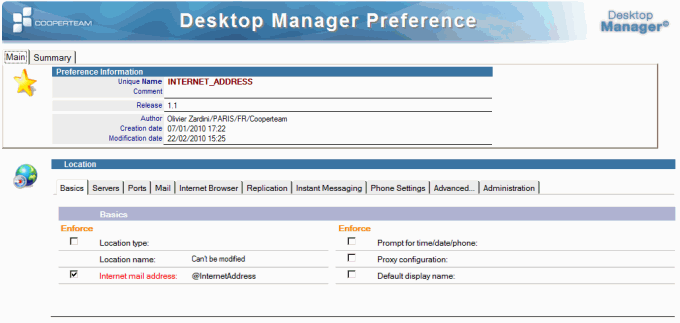
So that these Preference documents (Connection, Location, Program, Calendar and Delegations, Directory) are valid, a certain number of fields need to be filled in:

 : Unique name of the Preference document in the Desktop Manager database. This name is used as a reference in both Profile documents and Tasks.
 : Free text field for indicating the type of Preference document or related information.
 : Name of the last person who modified the document.
 : Date of creation of the document.
 : Date of the last modification to the document.
Following this it is necessary to choose the parameters whose values we want to set on the users' workstations. For this, all that needs to be done is to check the box in the column named 'Enforce' corresponding to the parameters which are are required, and to fill the values into the fields provided. If a value is left empty, this will force an empty value into this field in the user's document. Some fields are not modifiable, usually because they are a primary key for the document (e.g. name of the document for the Location and Account documents). Since Preference documents are intended for making changes in the configuration documents of the users, certain fields such as the User Name, the name of the mail file, the name of the mail server, are contextual (i.e they change for each user). These fields are indicated in red in the documents and are generally intended to hold @Keywords:
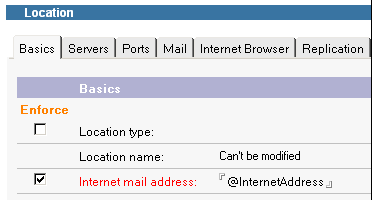 : The field Location type will not be modified (de-selected). The field Location Name is not modifiable (primary key of the Location document). The field Internet mail address set (Enforced) with the e-mail address of the user (using an @Keyword).
The list of fields which will be set (Enforced) in the Preference document are listed in the Summary section :

3. Applying a Preference document to a user |
|
|
To apply a Preference document to a user, you can use either a Profile or Task document associated with the user. You need to indicate the name of the Preference document as well as all of the user's configuration documents that the changes will apply to (Target documents):

The selection of the targeted documents (Target documents) uses the generic document selection Wizard, called with this button  :
:
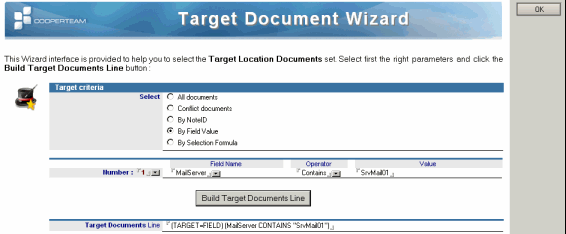
It is easiest to start by choosing the way in which the documents will be selected:
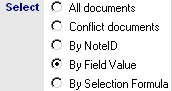 : The selected documents (Location, Connection, Account...) correspond to the type of Preference document . If the Preference document is a Location document, the selection of All documents in the Wizard selects all the Location documents from the Personal Name and Address Book.
Depending on the previous choice, it will be necessary to supply the necessary items for selection of the documents (i.e. NoteID, field values, @Formula). It is possible to use Keywords (%, # or @) in the fields of the Wizard:

Following the above click on the  button in order to create command line which represents the selections made above:

Close the window using the following  button. This transfers the command line into Target documents field of the Preference document:

4. Using %, # and @ keywords |
|
|
As with the Profiles, Task and the Templates, it is possible to use, in all the Preference document fields, @ (Notes variables), # (Notes.ini variables) and % (environment variables) keywords. During the application of the Profile or Task on the user workstation, these keywords will be replaced by their intended true values, the bulk of which are extracted from Person document of the user in the Enterprise address book (for the @ variables) and the environment variables of the user session on their workstation (for the % variables).
As opposed to Tasks which can be personal and individual, the universal aspect of the Profile document and the Preferences which are attached, make the use of generic Keywords useful.
Comments
0 comments
Article is closed for comments.