
 |
 |
1. Implementation of Backup, Restore et Roaming procedures |
| 2. Backing up configuration files | ||
| 3. Restoring configuration files | ||
| 4. Roaming configuration files |
1. Implementation of Backup, Restore et Roaming procedures |
|
|
 Back to Top
With Desktop Manager, the Notes client's configuration files may be processed in order to be saved (Backup), restored to the desktop (Restore) and transferred to another desktop (Roaming) so that the user can go on working in a familiar environment. Backup, Restore and Roaming procedures are interdependent since files restored or transferred to a new desktop are those that were previously saved with the backup procedure. These procedures should be symmetrically implemented, i.e. first back up the files that you will need to restore later. These procedures are flexible: not only they can process any configuration file (it's up to you to define what should be backed up and restored), but also they are based on a programming language that you can adapt to your needs and constraints, rather than on rigid settings.
All these procedures use Pre-Session Scripts (for Roaming) and Post-Session Scripts (for Backup and Restore) in order to process Notes configuration files out of the user Notes session (before for the Pre-Script, after for the Post-Script). These Script files (DskMgrPre.ini and DskMgrPost.ini) are defined in Profile documents and deployed on client desktops during Profiles application. For more details on the creation of Script files and their deployment on user desktops, see section 5.1: Program Scripts using the Desktop Manager Script API in this documentation.
We define Backup, Restore and Roaming as follows:
|
Backup
|
Backup of some of the Notes client's configuration files, either to a network drive, either to the desktop disk drive. Several backups may be stored (one per day over the X last days). | |
|
Restore
|
Restore of the previously backed up Notes configuration, with the ability to restore an earlier configuration (not necessarily the last one). | |
|
Roaming
|
Copy of configuration files on another desktop than the one used to back up data. Usually you should copy the latest backup files. |
The Backup procedure should be adapted according to backed up file usage. If the aim is to provide a file restore service with a X days history, the Backup procedure should save useful files in time stamped folders, storing the X last folders and purging the oldest ones. Restored files are usually saved on the user PC's local hard drive. If the Backup procedure is implemented for Roaming, there is no need to save history over several days, since only the latest backup will be used. In such a case, files are backed up on a network drive, so that they can be accessed from the new desktop. The Backup procedure is automatic and is run daily at the end of the Notes session by the DskMgr.exe component, when files are not modified anymore by the Notes client.
Files that are usually backed up are the following:
- Names.nsf
- Bookmark.nsf
- Desktop.ndk
- Notes.ini
- User's ID file
The Restore procedure is used to fix a damaged Notes configuration (file corruption, accidental data deletion...).This is the reason why you usually restore a configuration backed up earlier, when it was still OK. The restore request is generally sent by the user to the Helpdesk. The restore date is also selected by the user among the available dates. So the Restore procedure is an action aimed at satisfying a user request. It never runs automatically.
It includes a series of user actions and helpdesk actions:
- The user contacts the Helpdesk to report a problem or to request a configuration restore.
- The Helpdesk person creates a Task in order to restore configuration files, accesses the list of available backup dates for this user, validates the date with the user, checks the Notes client restart option and saves the Task.
- The user clicks on the Desktop Manager server database icon or restarts his Notes client.
- The Desktop Manager application starts, Task is run, the Notes client automatically stops. The DskMgr.exe program restores files and restarts the Notes client.
- The user enters his password and can work in a restored configuration.
The implementation of the Roaming procedure is complex as there are several possible application areas:
-
Master Desktop: The user has a main desktop and the files of this desktop are backed up. For once, this user may have to work on another desktop (secondary desktop). Therefore, his configuration files should be copied to the secondary desktop so that he can work there. No backup is made on the secondary desktop. Backed up files come from a unique source and the source desktop's configuration files are never overwritten by the secondary desktop's files.
-
Multi-desktop: The user equally uses two desktops. As soon as he starts working on a desktop, he wants to automatically retrieve the latest configuration. So the two desktops are at the same level and their configuration files are backed up. Each time the Notes clients starts on one of the two desktops, the Roaming procedure checks the presence of later files and replaces them by new ones if needed.
The Roaming procedure is also complex because files are not restored to the same configuration. File names and locations should therefore be modified, as well as the Notes.ini file content in order to have the Notes client point again towards the right data (Location=). The Roaming procedure should be both automatic (and not copy anything if the current configuration is the right one) and user oriented (ask for validation before overwriting the current configuration) if an update action should be performed.
2. Backing up configuration files |
|
|
Backup folder
Configuration file backup consists in copying some Notes configuration files to a folder on the user drive (Backup Folder) or on the network (Roaming Folder). For easier location of these two folders, the User document includes two fields where you can store these values and refer to them using the @BackupFolder et @RoamingFolder keywords.
The User document's Backup Folder and Roaming Folder fields are located in the Desktop Manager Settings / Desktop Manager Options section:

The values of these two fields can be manually entered in User documents or massively modified via the  button located in most of the Desktop Manager database's Audit views. These two fields also exist in Setup documents and values will be transferred in User documents of new users using this Setup.
The Backup folder is usually stored locally on the desktop for quick access times and a large disk space. The Roaming folder is generally located on a network drive so it can be accessed from other desktops. None of these folders should be located in the Notes Data sub-tree structure, since as configuration files are copied by the system, they keep their Notes attributes like the ReplicaID. Therefore, several files with the same ReplicaID should not be located in the Notes client's Data tree structure.
Post-Session Script
Once the backup folder has been defined for users, just place the Post-Script code lines in one of the Profile documents (Execute Script / Post-Session Script section) and check the Activate a Post-Session Script option:
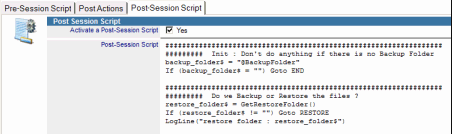
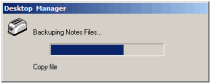
These lines will be transferred to the DskMgrPost.ini file during Profile application and at the end of the Notes session, after the closing of the Notes client, the DskMgr.exe component will process the DskMgrPost.ini file commands in order to save files in the Backup folder. During this process, a progression bar window is displayed on the screen:
If files are backed up over a few days period, the backup folder will include a set of sub-folders, each one including backed up files for one day. Sub-folder names will include the backup date so they can be identified more easily:
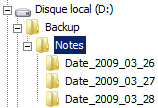 : The Backup folder path is d:\Backup\Notes\ and sub-folder names are Date_2009_03_26, Date_2009_03_27 and Date_2009_03_28.
Auditing the Backup folder contents
During the Audit of the desktop's Notes configuration by Desktop Manager, the application will collect files located in the Backup folder. This data is stored in the Notes Install document in the Notes Files / Backup Folder section:

Script example for file backup
The following Script gives an example of Notes configuration files' Backup (names.nsf, bookmark.nsf, desktop.ndk and notes.ini) with the creation of sub-folders and the storage of 5 day history. File restore is authorized via a Task.
 1        #### Init : Don't do anything if there is no Backup Folder
 2        backup_folder$ = "@BackupFolder"
 3        If (backup_folder$ = "") Goto END
 4
 5        #### We BACKUP the Notes files
 6        error$ = SetWindowTitle("Backuping Notes Files...")
 7
 8        ## Prepare Backup sub folder
 9        year$ = GetCurrentDate("Year")
10        month$ = GetCurrentDate("Month")
11        day$ = GetCurrentDate("Day")
12        backup_path$ = "backup_folder$\Date_year$_month$_day$\"
13
14        ## Copy the files
15        error$ = CopyFile("@NotesDataFolder\Names.nsf","backup_path$\Names.nsf")
16        error$ = CopyFile("@NotesDataFolder\Bookmark.nsf","backup_path$\Bookmark.nsf")
17        error$ = CopyFile("@DesktopPath","backup_path$\@DesktopName")
18        error$ = CopyFile("@NotesIniPath","backup_path$\Notes.ini")
19
20        ## Purge older Backup folders
21        error$ = PurgeFolder("backup_folder$","5")
22
23        END:
Comments:
| Lines 2 et 3 | Retrieves the backup folder path via the @BackupFolder keyword. If it is empty, there is nothing to do but leave the script. | |
| Line 6 | Changes the message in the window displayed for the user. | |
| Lines 9 à 12 | Retrieves the current date (year, month and day) and creates the sub-folder name using the date (Date_YYYY_MM_DD) and the backup folder path. | |
| Lines 15, 16 | Copies files located in the data folder (@NotesDataFolder): Names.nsf and Bookmark.nsf | |
| Line 17 | Copies the Desktop.ndk file. As its name depends on the Notes client (Desktop5.dsk, Desktop6.ndk, Desktop8.ndk...), @DesktopPath and @DesktopName keywords are used. | |
| Line 18 | Copies the Notes.ini file. As its location is not known in advance, the @NotesIniPath keyword is used. | |
| Line 21 | Purges the Backup folder by keeping only the 5 latest sub-folders. | |
This example is provided for learning purposes, to help you understand the basic mechanisms that should be implemented for file backup. In order to get a Script than can be used, see the Script example provided in the following section (see Restoring configuration files).
In addition, if the Script should be used to implement Roaming, you should also copy the files to the Roaming folder, including the following lines:
23        #### Roaming : Don't do anything if there is no Roaming Folder
24        roaming_folder$ = "@RoamingFolder"
25        If (roaming_folder$ != "") Then
26            ## Copy the files to network drive
27            error$ = CopyFile("@NotesDataFolder\Names.nsf","roaming_folder$\Names.nsf")
28            error$ = CopyFile("@NotesDataFolder\Bookmark.nsf","roaming_folder$\Bookmark.nsf")
29            error$ = CopyFile("@DesktopPath","roaming_folder$\@DesktopName")
30            error$ = CopyFile("@NotesIniPath","roaming_folder$\Notes.ini")
31        EndIf
32
33        END:
3. Restoring configuration files |
|
|
Creation of the restore Task
The restore of Notes configuration files requires the creation of a Mono-User Task by an administrator or by a Helpdesk person, using the  button available in Audit and Task views. As for any Task, you should first enter the target user name, which connects the result of the user desktop audit to the task. Go to the Execute Script / Restore Files section and check the Restore Backuped Files option:

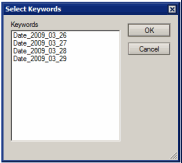
Then, select the restore date among those available in the Notes Install audit document. Dates displayed in the window are also the names of sub-folders located in the Backup folder. This is why it is recommended that sub-folder names include the file backup date (see: Backing up configuration files):
To complete the Task, just modify preferences in the Task Options section in order to force the Notes client closing and its restart after file restore. It may also be interesting not to apply Profiles nor the Audit phase in order to speed up the client closing. Anyway, there is no need to modify (Profile) nor to audit (Audit) a Notes configuration that will be replaced with new files. Checking options are as follows:
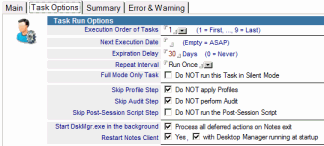
To start the Task, the user can click on the Desktop Manager database icon  present on his workspace, or restart their Notes client if Desktop Manager is set up to start with each Notes client startup.
File restore
When the file restore Task is run, it just creates a DskMgrRestore.ini text file including the selected sub-folder name. This sub-folder contains the files to restore. The DskMgrRestore.ini file is created in the same folder as the DskMgr.ini and DskMgrPost.ini files.
File restore is processed by the DskMgr.exe component when it runs the DskMgrPost.ini Script file commands at the end of the Notes session. The DskMgrPost.ini file both includes file backup commands (Backup) and file restore commands (Restore). As you should generally restore what has been previously backed up, the command symmetry is obvious. Then, a restore request means there is no need to back up files since they will be overwritten by other ones.
So the DskMgrPost.ini Script file usually contains 4 main sections:
- Code determining if a backup folder exists for this user
- Code determining if a Backup or a Restore should be performed
- Code performing file backup if requested
- Code performing file restore if requested
Most of the time, backup is performed. Earlier files are only restored if a Task has been specifically created for this purpose.
Script example for file backup and restore
The following Script is an example of Notes configuration files' Backup and Restore. It carries on with the items that were already integrated in the Backup Script, adding action type detection (Backup or Restore) and file restore.
 1        #### Init : Don't do anything if there is no Backup Folder
 2        backup_folder$ = "@BackupFolder"
 3        If (backup_folder$ = "") Goto END
 4
 5        #####################################################################
 6        #### Do we Backup or Restore the files ?
 7        restore_folder$ = GetRestoreFolder()
 8        If (restore_folder$ = "") Then
 9            #################################################################
10            #### We BACKUP the Notes files
11            error$ = SetWindowTitle("Backuping Notes Files...")
12
13            ## Prepare Backup sub folder
14            year$ = GetCurrentDate("Year")
15            month$ = GetCurrentDate("Month")
16            day$ = GetCurrentDate("Day")
17            backup_path$ = "backup_folder$\Date_year$_month$_day$\"
18
19            ## Copy the files
20            error$ = CopyFile("@NotesDataFolder\Names.nsf","backup_path$\Names.nsf")
21            error$ = CopyFile("@NotesDataFolder\Bookmark.nsf","backup_path$\Bookmark.nsf")
22            error$ = CopyFile("@DesktopPath","backup_path$\@DesktopName")
23            error$ = CopyFile("@NotesIniPath","backup_path$\Notes.ini")
24
25            ## Purge older Backup folders
26            error$ = PurgeFolder("backup_folder$","5")
27        Else
28            #################################################################
29            #### We RESTORE the Notes files
30            error$ = SetWindowTitle("Restoring Notes Files...")
31            restore_path$ = "backup_folder$\restore_folder$"
32
33            ## Copy the files
34            error$ = CopyFile("restore_path$\Names.nsf","@NotesDataFolder\Names.nsf")
35            error$ = CopyFile("restore_path$\Bookmark.nsf","@NotesDataFolder\Bookmark.nsf")
36            error$ = CopyFile("restore_path$\@DesktopName","@DesktopPath")
37            error$ = CopyFile("restore_path$\Notes.ini","@NotesIniPath")
38        EndIf
39
40        ## End of Script
41        END:
Comments:
The selection between file backup and restore is performed on line 7, using the GetRestoreFolder function. It searches for the presence of a DskMgrRestore.ini file (created by the restore Task) and extracts from it the path of the sub-folder where files to restore are located. If the DskMgrRestore.ini file doesn't exist, it means no restore Task has been run. So the Script will run in file backup mode (Backup). If the file is present and if the sub-folder it contains is valid, the Script will run in file restore mode (Restore).
Script sections used for file backup (lines 9 to 26) and file restore (lines 28 to 37) are symmetrical. Previously backed up files are restored. The Backup section is slightly more complex since it should generate the name of the sub-folder where the files are to be copied (lines 13 to 17) and purge folder (line 26).
4. Roaming configuration files |
|
|
Roaming desktop files requires the implementation of a Post-Session Script to backup Notes configuration files in a user-related folder. This folder will be located on a network drive so that the backup performed on a desktop can be accessed from another desktop. The first issue to solve is to find a common storage area for all monitored desktops. Then, the Post-Session Script that will copy configuration files into this storage area should be implemented via a Profile document. It is possible to declare this folder in the User document's Roaming Folder field and to refer to it from the Script files using the @RoamingFolder keyword. The easiest path to implement is a path where the user name does not appear, and that is the same for everybody (ex: u:\Notes\Data\Backup\). In order to write the backup script of configuration files, see the Backing up configuration files section.
During file backup, it is recommended to create in the Roaming folder a settings file mentioning the name of copied files. This is relevant for files whose name may change between two configurations (desktop.dsk, user.id, base mail). When copying again these configuration files, the Roaming Script code will use the content of this file to locate files in the Roaming folder. The contents of the settings file could be as follows:
names=Names.nsf
bookmark=Bookmark.nsf
desktop=Desktop6.ndk
userid=mjohnson.id
notesini=Notes.ini
Le code pour générer le contenu d'un tel fichier (param.txt) au fur et à mesure de la copie des fichiers vers le répertoire roaming est le suivant :
## Copy the files
error$ = CopyFile("@NotesDataFolder\Names.nsf","roaming_folder$\Names.nsf")
error$ = SetFilePrefVar("roaming_folder$\param.txt","names","Names.nsf")

error$ = CopyFile("@NotesDataFolder\Bookmark.nsf","roaming_folder$\Bookmark.nsf")
error$ = SetFilePrefVar("roaming_folder$\param.txt","bookmark","Bookmark.nsf")

error$ = CopyFile("@DesktopPath","roaming_folder$\@DesktopName")
error$ = SetFilePrefVar("roaming_folder$\param.txt","desktop","@DesktopName")

error$ = CopyFile("@UserIDPath","roaming_folder$\@UserIDName")
error$ = SetFilePrefVar("roaming_folder$\param.txt","userid","@UserIDName")

error$ = CopyFile("@NotesIniPath","roaming_folder$\Notes.ini")
error$ = SetFilePrefVar("roaming_folder$\param.txt","notesini","Notes.ini")
Copying again backed up files (roaming), instead of the current configuration files, it requires the implementation of a Pre-Session Script file. This file is declared in a Profile document, in the Execute Script / Pre-Session Script section:
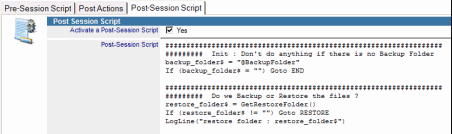
The commands of this Pre-Script (DskMgrPre.ini) file will be run at Notes client startup, by the nDskMgrHook.dll component, before the authentication request. So configuration files may be copied again before Notes accesses to them. It is also possible to design an architecture in which file copy would require a manual action from the user, by clicking on a Windows workspace shortcut that would start the roaming Script execution via DskMgr.exe (-SCRIPT option). Whatever the chosen method, Desktop Manager must be installed on the desktop where roaming files are already present.
The DskMgrPre.ini file is searched on the drive in the user's Ini file available paths (temporary folder, user data folder, Exe installation folder). To run the Pre-Session Script file on a desktop to which the user has never connected, it is possible to deploy a Pre-Session Script in a folder different from the default ones and to specifiy the path of this file with the Notes.ini's DskMgrPrePath variable (ex: DskMgrPrePath=u:\Notes\Data\Backup\DskMgrPre.ini). This variable takes precedence over default paths. You can use Windows environment variables (%variable%) or Notes @Keywords (@NotesDataFolder or @NotesProgramFolder) in the value of the Notes.ini (ex : DskMgrPrePath=%UserProfile\DskMgr\DskMgrPre.ini).
Given all the opportunities provided by Script commands and the variety of Notes installations, it is difficult to provide a generic Script that will work everywhere and that will immediately satisfy expressed needs. Hereafter, we provide the elements required to initialize a Roaming Script.
So the DskMgrPre.ini script file usually includes 5 main sections:
- Code determining if a Roaming folder exists for this user
The aim here is to check if the @RoamingFolder keyword is entered for this user and if the folder actually exists (connected network drive...).
- Code checking if this user has already used this desktop
If the user has never used this desktop, the copy of configuration files should be suggested. In order to determine if the user has previously used this desktop, it is possible to check that no User.id file belonging to the user exists in the Notes client's Data folder (or in the folder hosting IDs). File existence is checked with the IsFileExist function. The user's User.id file can be retrieved during Backup with the @UserIdName keyword and can be stored in a settings file (param.txt) with the SetFilePrefVar function. The presence of the user's UserID file in the Notes Data folder is tested using the following code:
notes_data_path$ = GetNotesKeyword("@NotesDataFolder")
If (notes_data_path$ = "") Goto END
user_id$ = GetFilePrefVar("roaming_folder$\param.txt","userid")
If (user_id$ = "") Goto END
is_file_exist$ = IsFileExist("notes_data_path$\user_id$")
If (is_file_exist$ = "0") Goto FIRST_INSTALL
- Code checking if configuration files backed up in the Roaming folder are newer than current configuration files
It is only relevant to suggest a restore if the configuration files to copy are newer than the existing ones. It is possible to test this by comparing the modification date of similar files (GetFileLastModifDate function) like bookmark.nsf:
notes_data_path$ = GetNotesKeyword("@NotesDataFolder")
If (notes_data_path$ = "") Goto END
bookmark_config_date$ = GetFileLastModifDate("notes_data_path$\Bookmark.nsf")
bookmark_roaming_date$ = GetFileLastModifDate("roaming_folder$\Bookmark.nsf")
If (bookmark_roaming_date$ > bookmark_config_date$) Goto COPY_FILES
- Code asking the user whether configuration files should be copied on the desktop
Unlike a restore procedure following a user request, copying the files again for roaming is not a process that the user necessarily waits for when starting his Notes client. So he should be asked for an authorization before the current configuration is overwritten. Previous steps should allow knowing whether there is a need to replace the current configuration with a new one. Nothing should be asked if nothing should be done on the desktop. The user request is sent with the MessageBox function.
answer$ = MessageBox("Restore Notes Files","Do you want to restore the files ?","YESNO")
If (answer$ = "NO") Goto END
- Code copying files and reconfiguring the Notes.ini file
A new copy of configuration files requires the calling of the CopyFile function. For files whose name changes (Desktop, UserID file), the source file path (in the roaming folder) will be created by searching for the file name in the settings file (GetFilePrefVar function):
notes_data_path$ = GetNotesKeyword("@NotesDataFolder")
If (notes_data_path$ = "") Goto END
user_id$ = GetFilePrefVar("roaming_folder$\param.txt","userid")
If (user_id$ = "") Goto END
error$ = CopyFile("roaming_folder$\user_id$","notes_data_path$\user_id$")
Then, copied files should be linked to associated values in the Notes.ini file. For the UserID file, the KeyFilename variable should be modified with the SetNotesIniVar function:
error$ = SetNotesIniVar("KeyFileName",user_id$)
Comments
0 comments
Article is closed for comments.