
 |
 |
1. Overview |
| 2. Creating a Template document | ||
| 3. XML or PREF Template documents | ||
| 4. Applying a Template document to a user | ||
| 5. Checking Templates applied to a user | ||
| 6. Using %, # et @ keywords |
1. Overview |
|
|
 Back to Top
Template documents are used to create or update the contents documents or the following parameter/tuning files used by Lotus Notes :
- Documents in the local NAB (Connection, Location, Account, Program, Cross Certificates),
- Documents in the Mail database (Messaging Rules)
- XML or PREFS files present in the directory hierarchy Data\Workspace\.
The application of a Template from a Task allows the 'one-off' application of a configuration (as might be required for the rapid deployment of a Connection document...). The daily application of a Template (via a Profile document) at the startup of a Notes client allows the reinforcement/reapplication of key parameters in the Notes client configuration, without worrying about user actions :
- If the user deletes the configuration documents from their workstation, these are automatically re-created.
- If the user modifies values in the configuration documents or files, the values present in the Template definition files are reapplied.
The deployment of identical configuration documents (Connection, Cross Certificates...) onto user workstations enables the standardization of the machines and their maintenance in good working order. The control of configuration documents via Templates avoids configurations from varying due to historical actions by successive administrators and changes performed by users themselves.
The act of linking the configuration documents present on the user workstations to a Template document present in the Desktop Manager database on the servers, allows the centralization of changes : If a change is made to a value in a Template document on the server, the next morning, the value will automatically be modified on all the user workstations linked to the Template.
2. Creating a Template document |
|
|
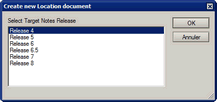
The Template documents are created in the Desktop Manager database on the server using the  button found in the view Enforce Notes configuration / Templates, Hooks, ECLs. As users in a business do not necessarily all have the same version of the Notes client, a dialog box allows the selection the correct version of Notes to use for the document. Since the document created using this form well be transferred into the NAB or Mail database of the user, it is essential to correctly choose the version which will be used, so as not to encounter incompatibility between the Notes client and the document which has been created using the template.
For Template documents to be valid, a number of fields need to be completed:

 : A unique name for the Template document in the Desktop Manager database. This name is used as a reference in Profiles or Tasks to designate this template.
 : Free text field for indicating the type of Template document or related information.
 : Name of the last person who modified the document.
 : Date of creation of the document.
 : Date of the last modification to the document.
 : A list of fields which should not be synchronized. This might also signify also that the user may be allowed to modify the field's values in their document (either present in their Personal NAB or in their Mail database) being replaced by the application of of a Template via a Profile or a Task.
Because the Template documents are intended for configuring the users' Lotus Notes environment, some fields will have to contain values directly linked to the user such as their name, their em-mail address, the path to their mailbox etc... In order to better recognize these fields, their labels are highlighted in red in the Template document:
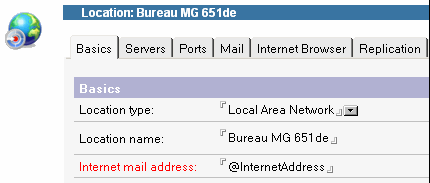
In addition, these fields will frequently need to contain @Keyword keywords (e.g. @FullName, @InternetAddress, @MailDbName...) so that a single Template document can be used for several users (The @Keyword resolution happens at the same time as the application of the Template document onto the user workstation).
3. XML or PREF Template documents |
|
|
Templates of type XML and PREF are used to deploy or modify Notes client parameters stored in text files (XML or Prefs format). The fields required for the create of these documents are:

 : Unique name for the Template document in the Desktop Manager database. This name is used as as reference in Profiles or Task documents.
 : Free text field for indicating the type of Template document or related information.
 : Name of the last person who modified the document.
 : Date of creation of the document.
 : Date of the last modification to the document.

 : Path to the file concerned. The use of keywords in the path is permitted.
 : Type of modification provided by the Template.
- Either the modification of an existing value in the file,

- The complete synchronization of the contents of a file.
4. Applying a Template document to a user |
|
|
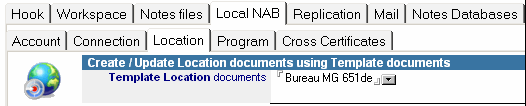
To apply a Template to a user, it is only necessary to declare it in a Profile or Task associated with the user:
5. Checking Templates applied to a user |
|
|
To identify configuration documents linked to a template Template, you need to go to the User Audit Results / Notes Configuration view:
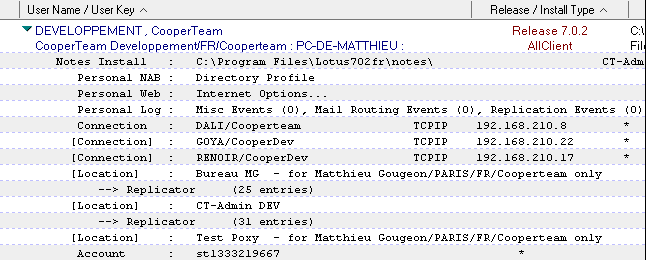
Within the audit results, documents which have inherited from a Template have their 'type' surrounded by square brackets [ ] ([Connection], [Location], [Account]...). This flag [ ] is also visible Notes Install audit documents, on the Local NAB tab:

6. Using %, # et @ keywords |
|
|
As with the Tasks and with Profiles, it is possible to use, in all the fields of the Template documents, the @ keywords (Desktop Manager specific variables), # keywords (Notes.ini variables) % keywords (environment variables). During the application of a Profile on a user workstation, these keywords will be replaced by the true values, of which most are extracted from the Person document of the user in the Enterprise address book, (for the @ keywords) and the environment variables of the user's workstation session (for the % keywords).
As opposed to Tasks which be individualized, the universal aspect of Template documents makes the use of keywords generic, since with a single configuration document, multiple different values can be deployed to a variety of users.
Comments
0 comments
Article is closed for comments.