
 |
 |
1. Task Overview |
| 2. Quick Action Tasks | ||
| 3. Single-User / Multi-Users Tasks | ||
| 4. Tasks using Audit Results | ||
| 5. Re-use / Remove Tasks | ||
| 6. Wizard interface usage | ||
| 7. Using %, # and @ keywords |
1. Task Overview |
|
|
 Back to Top
Les Tâches utilisateur
One of Desktop Manager's key capabilities is the Tasks feature. With the Tasks feature, configuration operations can be performed remotely and quickly. Tasks can include changes to user preferences, deleting the cache.ndk file, setting up new database replicas, file deletion, database compacting, notes.ini update, file installation, adding of databases to the workspace...
With Tasks, it is possible to execute a set of modifications on one or more user desktops. As soon as the user opens the Desktop Manager database, the list of Tasks assigned to this user is executed. Once completed, the task remains in the database but its status is set to "completed" and it will not be used anymore (each task can only be used once). The administrator checks that the process has been completed successfully by looking at the task document report used to describe the modifications to perform. For repetitive processes (monthly compacting of the Mail database local replica, for example), it is possible to define recurring Tasks by defining their frequency. It is also possible to set up a task in advance and to assign it an execution date. While this date is not achieved or overdue, the task will not be not executed on the user desktop.
The only people able to create or modify tasks are those people having the role [ HELPDESK ] or [ ADMIN ] in the ACL of the Desktop Manager database and whose name is defined in the Setup document of the users (Task Administrator List) concerned with the Tasks. For the people having role [ HELPDESK ], roles [ TASK_LEVEL_1 ], [ TASK_LEVEL_2 ] and [ TASK_LEVEL_3 ] define the type of actions (1 = weak impact on mail configuration of the station, 3 = strong impact on the configuration of the station) which it is possible to program. Administrators with role [ ADMIN ] have all rights and can carry out all the possible actions of the Task Documents. This segmentation makes it possible to delegate a part of work of management of the workstations to a group of Helpdesk staff without having to give the power to create potentially damaging tasks to those people who should not have it.
There are several types of Tasks available: tasks that will process Notes installation databases (Install Task) and tasks that will be used to modify an existing parameter (User Preferences Task to modify user preferences, Location Task for Location documents, Connection Task for Connection documents, etc...). All Tasks work the same way, whatever their type is: the Task runs on the client desktop when the desktop is using the Desktop Manager database in full mode; it then processes the requested modifications and updates its status. In case of problems, it specifies the causes of the failure.
Task summary:
| Install | Mono or Multi-users Task, recurring or not, used for desktop database maintenance (Compact, Fixup, Replicas, icons...) | |
| Location | Task modifying one of the Location documents of the personal address book. | |
| Connection | Task modifying one of the Connection documents of the personal address book. | |
| Account | Task modifying one of the Account documents of the personal address book. | |
| Program | Task modifying one of the Program documents of the personal address book. | |
| Replicator | Task modifying the Replicator tab of one of the Location documents of the personal address book. | |
| User Preferences | Task modifying user preferences for desktop, smart icons, workspace display options... | |
| Directory | Task modifying the Profile document of the local personal address book. | |
| Perweb | Task modifying the Profile document of the local Perweb.nsf database. | |
| Mail Rule | Task modifying one of the Messaging Rules documents of the server's Mail database. | |
| Calendar | Task modifying the Calendar Delegation Profile document of the server's Mail database. | |
| Archive | Task modifying the Archive Profile document of the server's Mail database. |
Only the Install Tasks can be dedicated to several users. The multi-user mode is not applicable to Tasks that modify existing data, since this is different on all desktops. Tasks should not be seen as a way to standardize user desktops, but rather as a mechanism used to trigger administration processes (recurring or not) or occasional targeted modifications. In order to standardize the client desktop configuration, use Profiles.
In order to modify all documents of a specific type (ex: Archive Profile) for a large user group, it will be easier to schedule a generic agent with LotusScript and to run it via a Task or a Profile, rather than to manually create all Tasks (ex: Archive) for all these users.
If Desktop Manager runs in Silent Mode and if tasks are pending for the user, the application will immediately turn into Full Mode in order to process the tasks.
2. Quick Action Tasks |
|
|
To set up simple Task simples (change one parameter for one user), it is possible to create a Quick Action Task using the  /
/  button. A selection window presenting the list of available Quick Action Tasks is displayed:
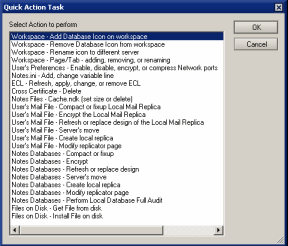
The Quick Action Task document is very similar to that used for regular Tasks, but without all the options. Start by supplying the name of the user that the Task is intended for (User Name):
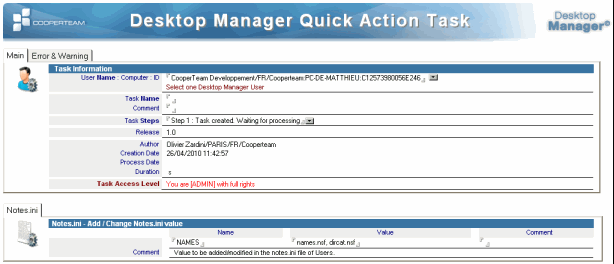
In the lower section of the document, supply the necessary parameters for the action previously selected:

The execution of a Quick Action Task on a user work station is exactly the same as that of a regular Task. Once the Task has been executed, The document changes to Completed status.
List of available Quick Action Tasks:
|
Workspace - Add Database Icon on workspace : |
Add an icon to the workspace. | |
|
Workspace - Remove Database Icon from workspace : |
Delete an icon from the workspace. | |
|
Workspace - Rename icon to different server : |
For all the icons pointing to database on one server, change the server name to that of a new server. | |
|
Workspace - Page/Tab - adding, removing, or renaming : |
Add, rename or delete a page on the workspace. | |
|
User Preferences - Enable, disable, encrypt, or compress Network ports : |
Activate, deactivate, remove or compact a network port. | |
|
Notes.ini - Add, change variable line : |
Add or modify a line in the Notes.ini. | |
|
ECL - Refresh, apply, change, or remove ECL : |
Refresh, apply, modify or delete from the Execution Control List. | |
|
Cross Certificates - Delete : |
Delete a Cross-certificate. | |
|
Notes Files - Cache.ndk (set size or delete) : |
Define the size or delete the cache.ndk file. | |
|
User's Mail File - Compact or fixup Local Mail Replica : |
Perform a compact or fixup on the local replica of the user's mail file. | |
|
User's Mail File - Encrypt the Local Mail Replica : |
Encrypt the the local replica of the user's mail file. | |
|
User's Mail File - Refresh or replace design of the Local Mail Replica : |
Refresh or Replace the design of the local replica of the user's mail file. | |
|
User's Mail File - Server's move : |
Reconfigure the user's local mail setup (replicator, icon, location document) following a change of mail server. | |
|
User's Mail File - Create local replica : |
Create a local replica of the user's mailbox. | |
|
User's Mail File - Modify replicator page : |
Modify the mail file entry for user on their Replicator Page. | |
|
Notes Databases - Compact or fixup : |
Perform a compact or fixup on a Notes database. | |
|
Notes Databases - Encrypt : |
Encrypt a Notes database. | |
|
Notes Databases - Refresh or replace design : |
Refresh or Replace the design of a Notes database. | |
|
Notes Databases - Server's move : |
Reconfigure a local Notes database (replicator page, icon) following a change of server. | |
|
Notes Databases - Create local replica : |
Create a replica of a Notes database. | |
|
Notes Databases - Modify replicator page : |
Modify a replicator page entry for a Notes database | |
|
Notes Databases - Perform Local Database Full Audit : |
Perform a full audit of a local Notes database | |
|
Files on Disk - Get File from disk : |
Retrieve a file present on the user's workstation. | |
|
Files on Disk - Install File on disk : |
Detach a file onto the user's workstation. | |
|
Desktop Manager - Collect DskMgr Log Files : |
Collect and Zip the Log files from Desktop Manager on user's PC (%TEMP%\DskMgr folder). |
3. Single-User / Multi-Users Tasks |
|
|
Install Task: local database administration
There are two types of Install Task documents: Single User Tasks and Multi User Tasks. Their features are the same but they are designed for different purposes. The first type of document is targeted at one user, and the interface used for selecting the Tasks to execute on the desktop relies on the information that is generated by the desktop audit and stored in the Install document. The second Task type is targeted at several users and can be activated for instance to deploy a new database on a set of desktops. For multi-users Tasks, a copy of the task is made for each user during task processing, so that the administrator gets a result document for each of them. The multi-user task can be deleted once all users have been processed.
To create an Install Task document, you have to use the  button available in the Audit Results views or from the Modify Notes Configuration / All Tasks view of the Desktop Manager database. There are 4 different types of Task:
 : Quick Action Task for one user
 : Install Task for a single user
 : Install Task for several users
 : Task which allows you to create new document into the Personal Address Book of a user (Location, Connection or Account)
 : Task which allows you to modify an existing document of a user (Location, Connection, Account...)
When creating a single-user Task, the  button available in the task document may be used in order to review the Install document that includes all the information related to the user's Notes installation.
The Task document includes a number of mandatory fields:
Main

 : The list of users for whom this task is inteded. Selection of users is done using a Wizard (
 button):
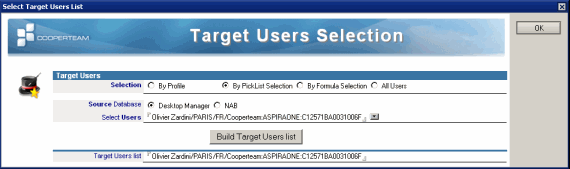
It is possible to select users via:
| The Notes Fullname | The Task will be applied to this user (Fullname), whichever machine they use | |
| The Desktop Manager Primary Key | The Task will be applied to this user (Fullname) only on the machine defined by th User Key (User Name + Machine Name + ReplicaID of the local NAB | |
| A Desktop Manager Profile | The task will be applied to all users who have had this Profile applied to them, whatever machine they use. tiT will run onyl if the Profile runs the same day. If the Profile has some execution conditions enabled, the Task will use the same | |
| The keyword @ALL | The Task will be applied to all users present in the Desktop Manager database |
 Primary key specifying which user(s) the Task is targeted at. For the Multi-Users Tasks, you may use keyword @All to indicate that this Task should run for ALL the users, or a Profile name (cf Profile document) to make the Task to be executed by all the users having this Profile. For the Single User Tasks, you may enter a FullName (instead of the user key). This is convenient to create Tasks for people not yet entered in the Desktop Manager database, and such Tasks will run the first time the user will enter the database.
 : This is the Task name field. As more than one Task can be associated to a user, it can be helpful to name it correctly in order to clarify execution log and views.
 : Free text zone used to specify the Task document type and the related information.
 : Current status of the Task document. If the task has just been created, it is pending and it will be processed when the user will open the Desktop Manager database. If its status is set to 2, the Task has been processed. An already processed Task may be reactivated by resetting the status to 1.
 : Name of the last person who edited the document.
 : Task creation date in the Desktop Manager database.
 : Date when the Task has been processed on the user desktop.
 : Time spent (in seconds) to process the Task on the user desktop.
 : Indicates to the person creating the Task his or her access level to the functionality offered by the Tasks. The level of access depends on the roles of the ACL. The 3 levels are as follows:
[ADMIN] or [HELPDESK] + [TASK_LEVEL_3] |
[HELPDESK] + [TASK_LEVEL_2] |
[HELPDESK] + [TASK_LEVEL_1] |
||
Transactions likely to have a significant impact |
Transactions likely to have a moderate impact |
Transactions likely to have a low impact |
||
| Remove pages from the workspace | Purge the log file log.nsf | Change the Location document | ||
| Remove the Desktop.dsk file | Restore the icons of the workspace | Change the display options of the workspace | ||
| Remove bases local Notes | Remove icons of the workspace | Backup the icons of the workspace | ||
| Change the values of the fields of the docs in local dbs | Update the ECL of the workstation | Add icons of databases on the workspace | ||
| Change the names of servers for dbs on the replicator page | Remove Cross Certificates from the local NAB | Create/modify Workspace pages | ||
| Change the server names for db icons on the workspace | Remove databases from the replicator pages | Add/modify of the values of the Notes.ini file | ||
| Change replica ID of the local dbs | Remove databases from the Bookmarks | Add databases to Bookmarks | ||
| Change the ACL of the local dbs | Remove the Full Text indexes from local dbs | Refresh the Design of dbs | ||
| Change the quota of the local dbs | Replace the Design of a local db | Restart the Notes client | ||
| Modify the histories of replication | Encrypt/decrypt local dbs | Modify the maximum size of Cache.dsk | ||
| Run an agent locally | Change the values of the replicator page | Erase the replication history of the local dbs | ||
| Modify keys of the Windows registry | Change the replication flags in a db | Modifache.dsk | ||
| Schedule the execution of programs (file exe or bat) | Change the database options | Create local replicas of Notes dbs | ||
| Modify or Remove storage blocks in Notes.ini | Detach files onto the local disk of the user | Create local copies of Notes dbs | ||
| Recover files from the local disk drive of the user | Rebuild the view indexes of the local dbs | |||
| Rebuild the Full Text indexes of the local dbs | ||||
| Remove the Cache.dsk file | ||||
| Update the local private views | ||||
| Run Fixup on the local dbs | ||||
| Compact the workspace |
If a person has only the [HELPDESK] role in the ACL, he won't be able to create any Tasks. He will only be capable to read the audit results documents for all users.
Options

 : For multi-users Task, It is possible to create a child Task document (associated to the 'Parent' document) for each user running the Task. It helps you to follow user from the Task view which have run the task. If some errors occur during the execution, an error message will be logged into the child Task document, however, they will be shown in the User document. If this option isn't checked, you can verify if the Task has run by reading the Errors & Log / Desktop Manager Task Events field of the User document.
 : When multiple tasks are sent to the same machine, sometimes it is helpful to be able to specify the order in which the tasks will run. The Execution Order of Task field allows you to specify this, with the lowest number going first, and the greatest number going last.
 : When running this Task, we ask Desktop Manager to display only the Task title, not every actions performed by this Task.
 : If this option is selected, the Task will be executed Immediately, without waiting for the next run of Desktop Manager. To use it, the Administrator starts by creating the Task in the Desktop Manager database. The background synchronization process on the user workstations, which forwards tasks to the user once every 2 hours (frequency definable in the Setup document), recovers the new configuration documents, including the Task. Because the process detects that it is an Emergency Task, it forces Desktop Manager to execute it immediately, in order to process the Task.
 : Next date from which this task will be executed on the user desktop. If this field is left empty, the Task will be executed as soon as the application opens in full mode.
 : Number of days before the Task expires (Step 4 : Task has expired). Calculation is done from the last modification date of the document. By default, the value is 30 days.
Task expired when the clean-up agent "Process Expired Tasks" has run.
 : For repetitive Tasks, this field is used to set the run frequency (once a week, every 2 weeks, once a month, etc...). For occasional Tasks, just select Run Once.
 : If the user starts Desktop Manager in silent Mode and if a Task is pending, he is going to turn into Full Mode to run this Task. This option limits the execution of a Task in Full Mode only, and not to turn a Silent Mode into Full Mode. So, the execution of this Task will wait for the next Full Mode run.
 : For performance reason or to avoid any interaction with other Desktop Manager functions (such as a restart of the Notes client, files restoration...), it is possible to skip some of the processes which usually come after running the Task (Profiles, Audit, Post Script). To do so, you only need to select the process to skip when the Task will be applied.
 : This is a way to process, at the end of the Notes session (when the user quits Notes), all the tasks performed by the DskMgr.exe when the Notes client is not running (workspace icon removal, deletion of the Cache.ndk, move files...). If this option is checked, DskMgr.exe program is started in the background by Desktop Manager, and it waits until the end of the Notes client to process the DskMgr.ini file. If this option is already enabled in the Setup document, there is no need to select it.
 : Specifies that the Notes client will be restarted after all the Desktop Manager processes (Task, Profile, Audit). This makes it possible to process of all the tasks that are only possible when the Notes client is not running (for example, the removal of workspace icons...). The program DskMgr.exe is started as a background task, invisible to the user. When the Notes client stops (when Desktop Manager database close), the program DskMgr.exe execute all the scheduled tasks (defined in the DskMgr.ini file) and it restarts the Notes client. The modifications are applied immediately, with no need to wait for the next restart of the PC.
 : When the Notes client will be restarted, you can run Desktop Manager at startup.
 : Ask Notes client to change/reload the Location document (current one or another one) after all the Desktop Manager processes (Task, Profile, Audit). This can be useful especially after modification in the replicator or in the Location document, to force Notes client to refresh the in-memory data.
 : If the LotusScript Agents launch by this Task want to modify the User document, check this option to let Desktop Manager update the User the document before running the agents. So data won't be lost and the modifications done by the agents will be take into account.
Conditions

There are many ways to control if a Task shoud be applied or not to a User during the Desktop Manager session:
 : Will run this Task only for users having a Laptop.
 : Will not run this Task for users having a Laptop.
 : Will run this Task only for Virtualized Users (CITRIX...).
 : Will not run this Task for Virtualized Users.
 : Will run this Task only for Users hosted by one of the following Mail servers.
 : Will run this Task only for Users having one of the following Mail Domain.
 : Will run this Task only for Users having such certificates.

 : Will run this Task only for users using Eclipse Notes client.
 : Will run this Task only for Users having a Notes client release specified in this field .
 : Will only run this Task for Users having a Notes client's Build Version as defined.
 : Will run this Task only for Users using a Desktop Manager language interface specified in this field.
 : Will run this Task only before or after the specified time/date.
 : Will run this Task only for Users having a IP Address matching the IP Address ranges.
 : Will run this Task only if the Notes.ini value equals (or not) the specified value.
 : Will run this Task depending on the values of environment variables.
 : Will run this Task depending on the values of Windows register keys.
 : Will run this Task only for Users runing (or not) Desktop Manager for the first time.
 : Limits application of this Task to some Location documents. This way, a Task having some settings to force the replication of databases cannot be applied to a location defined as not connected to the server. This field should be left empty in order to allow application of this Task document, regardless of the current location.
Summary

 : Action list done by the Task when Desktop Manager is executed on user's workstation. This list is sorted by execution order.
 : Some of the actions need to be done when the Notes client is off. This list shows actions done by the file DskMgr.exe at the end of the Notes session Notes (action list are awaiting in the DskMgr.ini file).
Error & Warning

 : Parameter List showing the incorrect functions like servername is not named in canonical format (CN=..../O=...), database name extension which isn't ".nsf" ou ".ntf"... The parameter analysis is done when the document is saved.

 : Error message during the execution of the Task on the user's workstation. For Multi-User Task, error are displayed into the User document.
Workspace

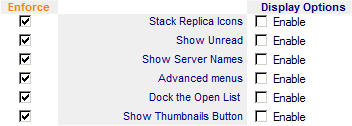 : Modification of the Workspace Display Options (Stack replica Icons, Display unread documents count, Display Server Names). As this process cannot be run when the Notes client is open, it is postponed at the end of the Notes session, using both the DskMgr.exe executable file and the DskMgr.ini command file.

 : Compacts the workspace file.
 : Backup the Workspace current status (database icons, pages, display options) and keep up to X days of history. This backup is performed in the Temp folder of the user, as binary files named DskMgrWorkspace_20070417.bin (where 20070417 is the day date of the backup : 17th April 2007). The backup of the Workspace status allow a restore process (see below). As this process cannot be run when the Notes client is open, it is postponed at the end of the Notes session, using both the DskMgr.exe executable file and the DskMgr.ini command file.
The DskMgrWorkspace_*.bin files can be copied from a computer to another one, in order to transfer the full Workspace settings (database icons, pages, display options).
 : Restore the Workspace configuration (database icons, pages, display options) as it was at a previous date. It is possible to choose the date among the ones available (the previous backup dates). As this process cannot be run when the Notes client is open, it is postponed at the end of the Notes session, using both the DskMgr.exe executable file and the DskMgr.ini command file. To force an immediate restore process, you can check the Task option 'Restart Notes Client'.
 : Checkbox used to delete the Desktop.ndk (or Desktop8.ndk) file on the user desktop. Beware that this will remove all icons from the user workspace. As this process cannot be run when the Notes client is open, it is postponed at the end of the Notes session, using both the DskMgr.exe executable file and the DskMgr.ini command file.

 : List of databases to add to user workspace. These databases are neither copied nor replicated onto the workspace and only a link, (represented by an icon on the workspace) is provided. Nothing will occur if the database already exists in the workspace.
 : List of the icons to be moved. The parameters are the name of the database, the name of the Page and the new X - Y coordinates. The destination Page can be defined with its name or position. If the position is used, the required syntax is "Page #" + number (example : Page #3 for page number 3). The pages are numbered from 1 to 32 (maximum number of page). The X - Y coordinates for an icon define its position on the workspace. The number starts from 1. The coordinates for the sample icon (see below) are 5 - 2:
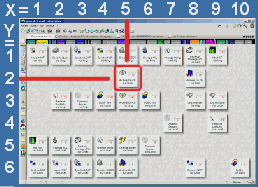
As this process cannot be run when the Notes client is open, it is postponed at the end of the Notes session using both the DskMgr.exe executable and the DskMgr.ini command file.
 : List of the icons to be deleted on the workspace. As this process cannot be run when the Notes client is open, it is postponed at the end of the Notes session using both the DskMgr.exe executable and the DskMgr.ini command file. The wildcard character '*' can be used to specify a set of databases to be removed (Application\*.nsf). If you use the keyword MISSING_DATABASES, all the local missing databases icons will be removed.

 : Changes to be carried out in all the database icons in the local Desktop.dsk file. The icons either point to local or server databases. If one wants to make global changes, specify the substring to be matched and the string that should be placed instead. For a database stored on a server, the string should be modified in the form of SERVER!!Database, with the server name written in canonical format (CN=../O=). If the database is local, it is enough to specify the just the database name. For a global change, for example to update all the icons that are on server1 to server2. To make multiple changes at once, specify the number of changes to be made in the number field, and fill in the source and replace strings for each. As this process cannot be run when the Notes client is open, it is postponed at the end of the Notes session, using both the DskMgr.exe executable file and the DskMgr.ini command file.

 : List of workspace Page to be created or moved. For each page, the required parameters are the name, the color and the position. If the page already exist, the syntax Page # can be used. The color code is a number between 1 and 240. This number is the position of the color in the following color table. The first colors are : black (1), white (2), red (3), light green (4), light blue (5):

The pages are numbered from 1 to 32 (maximum number of page). If the page doesn't exist, it will be created (empty). If it already exist, it will be colored or moved. As this process cannot be run when the Notes client is open, it is postponed at the end of the Notes session using both the DskMgr.exe executable and the DskMgr.ini command file.
 : List of workspace Pages to be renamed. The destination Page can be defined with its name or position. If the position is used, the required syntax is "Page #" + number (example : Page #3 for page number 3). The pages are numbered from 1 to 32 (maximum number of page). As this process cannot be run when the Notes client is open, it is postponed at the end of the Notes session using both the DskMgr.exe executable and the DskMgr.ini command file.
 : List of Pages to be removed from workspace. The Page can be defined with its name or position. If the position is used, the required syntax is "Page #" + number (example : Page #3 for page number 3). The pages are numbered from 1 to 32 (maximum number of page). Beware, the removal of a Page will also remove all the database icons displayed on this page. As this process cannot be run when the Notes client is open, it is postponed at the end of the Notes session using both the DskMgr.exe executable and the DskMgr.ini command file.
Notes Files

 : Sets a maximum size for the cache.dsk file. As this process cannot be run when the Notes client is open, it is postponed at the end of the Notes session using both the DskMgr.exe executable and the DskMgr.ini command file.
 : As this process cannot be run when the Notes client is open, it is postponed at the end of the Notes session using both the DskMgr.exe executable and the DskMgr.ini command file.

 : Set the Workspace icon
  in the left part of the screen, under the Replicator icon
  . It is possible to define the Workspace as the Notes Default Page.
 : Add database icon on the Bookmark, either on the Database folder or on the root of the left tool bar. If the Frameset is filled, the database icon will open on this frameset name or using the standard database properties Frameset. It is also possible to define a database as the start Page of the Notes client (Is Default Page).
 : List all the Databases (located on the Database folder or on the root of the left tool bar) to be deleted from Bookmark. The databases are identified either by their Names (path), Titles or Replica IDs. It is possible to use Joker character (*).

 : Value List to be added/modified in the notes.ini file of Users.
 : Lines to be added into the Notes.ini. Here, it's possible to add any type of line (comment line, section start line, etc...). As this process cannot be run when the Notes client is open, it is postponed at the end of the Notes session using both the DskMgr.exe executable and the DskMgr.ini command file.
 : List of the lines to be deleted in the user's Notes.ini file. Any line type can be specified here. As this process cannot be run when the Notes client is open, it is postponed at the end of the Notes session using both the DskMgr.exe executable and the DskMgr.ini command file.

 : XML document list which be installed/synchronized with existing documents present into the user's workstation.

 : List of values coming from XML files you want to modify. The required parameters are:
- The full path of the XML file (you can use @Keywords)
- The name of the variable to modify (specify the full path of this variable within the XML file tree):
<?xml version="1.0" encoding="UTF-8"?>
<providerConfig lastModified="Thu Mar 25 12:14:39 CET 2010">
 <communities>
 <community alwaysEditActiveText="true" alwaysEditAwayText="true" alwaysEditDndText="true" ...
- The value we want to set (you can use @Keywords)
- The key used to identify the right variable:
For some XML files, it may be difficult to define the unique path of a varibale (connection-context.connection.proxyHost) because numerous variables my have the same path:
<?xml version="1.0" encoding="UTF-8"?>
<connection-context>
 <connection connectionType="tls-direct" proxyHost="192.168.210.10" proxyPassword=""/>
 <connection connectionType="tls-proxy" proxyHost="192.168.210.25" proxyPassword=""/>
 <connection connectionType="tls-vpn" proxyHost="192.168.210.59" proxyPassword=""/>
</connection-context>
To identify the variable connection-context.connection.proxyHost without any doubt, we have to provide a key used to target the right variable:
Variable Name :           connection-context.connection.proxyHost
Value :                   192.168.210.25 (new value)
Key Name :                connection-context.connection.connectionType
Key Value :               tls-proxy
- The options regarding the insert of the value in the XML file:
The following XML file:
<?xml version="1.0" encoding="UTF-8"?>
<providerConfig lastModified="Thu Mar 25 12:14:39 CET 2010">
  <communities>
    <community alwaysEditActiveText="true" alwaysEditAwayText="true" ...
      <statusTexts>
        <activeText>I am available</activeText>
        <awayText>I am away from my computer now</awayText>
uses the two kinds of variable formats (attribute or not):
providerConfig.communities.community.alwaysEditAwayText is an attribute (Is Attribute).
providerConfig.communities.community.statusTexts.activeText is NOT an attribute.

 : Pref document list which be installed/synchronized with existing documents present into the user's workstation.

 : List of values coming from PREFS files you want to modify. The first required parameter is the full path of the PREFS file (you can use @Keywords), the name of the variable to modify, the value we want to set (you can use @Keywords) and the options regarding the insert of the value in the PREFS file.
Local NAB : Account

 : List of Account documents from user's local NAB we want to create / update using Template documents.

 : List of Account documents (already existing in the user's local NAB) we want to modify using Preference documents. The list of target Account documents is defined using a Wizard interface (click the
  button).

 : The list of Account documents we want to delete from user's local NAB. The list of target documents is defined using a Wizard interface (click the button ).
Local NAB : Connection

 : List of Connection documents from user's local NAB we want to create / update using Template documents.

 : List of Connection documents (already existing in the user's local NAB) we want to modify using Preference documents. The list of target Connection documents is defined using a Wizard interface (click the button).

 : List of Connection documents we want to delete from user's local NAB. The list of target documents is defined using a Wizard interface (click the button).
Local NAB : Location

 : List of Location documents from user's local NAB we want to create / update using Template documents.

 : The list of Location documents (already existing in the user's local NAB) we want to modify using Preference documents. The target Location documents list is defined using a Wizard interface (click the button ).

 : The list of Location documents we want to delete from user's local NAB. The list of target documents is defined using a Wizard interface (click the button).
Local NAB : Program

 : List of Program documents from user's local NAB we want to create / update using Template documents.

 : List of Program documents (already existing in the user's local NAB) we want to modify using Preference documents. The list of target Program documents is defined using a Wizard interface (click the button).

 : List of Program documents we want to delete from user's local NAB. The list of target documents is defined using a Wizard interface (click the button).
Local NAB : Cross Certificates

 : List of Cross Certificates documents from user's local NAB we want to create / update using Template documents.

 : List of Cross Certificates documents we want to delete from user's local NAB. It is possible to use Joker character (*).
Local NAB : Directory Profile

 : List of Preference documents used to modify the Directory Profile document in the user's local NAB.
Replication : Local Databases

 : List of the server databases to be replicated locally on the desktop.Once the database has been replicated, a database replica stub is created and the database icon is added on the user's workspace. It is also possible to define which icon will be on the top of the stack. If the Replicate box is selected, replication will be launched immediately, if not, it will start replicating at the next schedule replication. At last, you can as well add a replication formula which will be applied on each replication. Finally, Flags field can be define if you wish to encrypt the new local database (EncryptSimple, EncryptMedium, EncryptStrong). By default, if the Flag field is blank, the new database isn't encrypted.
 : Local database list to be replicated once with a specific server. This allow you to add the servername into the Replication History of the database.
 : List of the databases whose Replication Flags should be modified. In order to process several databases; just change the value in column (Number). The flags (value True / False) to be modified are the following ones:
ReplicationFlag1 = Server's Replicator Task ignores this database (Disable Replication)
ReplicationFlag2 = Server's Replicator Task automatically deletes notes that are older than the cutoff date
ReplicationFlag3 = Server's Replicator Task Ignores this database (Never Replicate)
ReplicationFlag4 = Truncate large documents and remove attachments
ReplicationFlag5 = Don't replicate deleted notes into destination database
ReplicationFlag6 = Do not send deletions made in this replica to other replicas
ReplicationFlag7 = Do not send changes in local security property to other replicas
ReplicationFlag8 = Do not send changes in database title & catalog info to other replicas
Priority = Set scheduled replication priority for this replica (LOW / MEDIUM / HIGH)
You can also use the Wizard interface to create the command line by clicking the button.
 : List of databases whose Replica ID should be modified. Desktop Manager can generate a new random ReplicaID, you just have to set @Now command instead of a ReplicaID.
 : List of local databases whose Replication History should be modified. The purpose is to modify the reference to the remote database (server name, database path on the server). You have to specify the local database path, the 'current' server name / database path (using server!!database syntax) and the 'new' server name / database path (still using the server!!database syntax).
 : List of the local databases whose replication history should be deleted.

 : Define Notes client preference for Managed Replica.
Replication : Replicator Pages

 : You can change the name of the servers stored in the Replicator pages. You have to specify the name of the current server and the name of the new server. The servers have to use canonical names (CN=.../OU=...). You may use Joker character (*) in the name of the Current server (ex : CN=*/O=Cooperteam) to define a set of servers. If you specify a database name, the replace will be performed only for this database. If you do not provide any database (leave the field empty), all the 'current server name' will be replaced by the 'new server name'. You may specify several Location documents (user joker character * for all locations).
 : You can change the path of the databases stored in the Replicator pages. You have to specify the name of the current database path and the name of the new database path. The path can be absolute (c:\..) or relative to the Notes Data directory. You may specify several Location documents (user joker character * for all locations).
 : These fields are used to control replicator page options. For a given database (Replicated Database), it is possible to specify the replication's active or not status (Check), the server used for the next replication (Replicate with server), the replication direction (Direction), the truncation applied to exchanges (Trunc). As database replication options may be different according to the active Location document, the table begins by mentioning the location(s) upon which these options are applied. The wildcard (*) is used to indicate all locations.
 : You can change the position of the databases stored in the Replicator pages. You have to specify the name of the database and the new position (1- N). You may specify several Location documents (use wildcard character * for all locations).
 : List of the databases (local replica) to be removed from Replicator page of a Location document. You may specify several Location documents (user joker character * for all locations).

 : List of Location documents we want to modify in order to enable / disable the user's personal NAB Contacts synchronization option (displayed in the replicator page). This option is for Notes R.8x users only. If you want to synchronize contacts for R6.x / R7.x users, use the agent R6.x : Synchronize Address Book Contacts.
Mail : Mail File

 : Ask for the local Mail Replica to be compacted.
 : You can use the free space % to trigger the compact process.
 : You can ask the user the authorization before compacting its local mail replica.
 : Message to be displayed to the user.
Mail : Calendar Profile

 : List of Preference documents used to modify the Calendar Profile document in the user's Mail database.
Mail : Mail Rules

 : List of Mail Rules documents from user's Mail database we want to create / update using Template documents.

 : List of Mail Rules documents we want to delete from user's Mail database. The list of target documents is defined using a Wizard interface (click the button).
Notes Databases : Administration Tasks

 : List of the local databases to be compacted. If one database cannot be immediately compacted ( in used by the Notes Client like the names.nsf), it will be done later using both the DskMgr.exe executable and the DskMgr.ini command file.
 : List of the local databases to be fixed up.
 : List of the local databases whose view indexes should be rebuilt.
 : List of the local databases whose Full Text index should be rebuilt.
 : List of the local databases whose Full Text index should be deleted.
 : List of the local databases whose private view design should be updated. Private views are indeed created from the view model present in the database. A model change will not impact the occurrences of private views based on this design. This feature is aimed at updating the private view code according to the original view.
 : List of the local databases whose Deletion Stubs should be deleted.
 : This checkbox is used to purge the local Log.nsf database by deleting all documents that are more than X months old. As Desktop Manager parses the Log in order to sum up errors that occurred on the user desktop, the fact of not storing (useless) documents for years will speed up the analysis process.
 : List of local Notes databases you want to audit with all details. For each database, a Database Audit document is created in the Desktop Manager database:
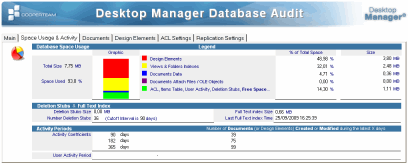
 : This feature updates the Notes client configuration in case of a database (used by the User) is moved from a server to another. The process will remove the old database icon to add the new one. If any local replica is detected, it will also renamed the server name of the Replicator Page to replicate with the new server. If the database is a Mail database ('is Mail Database' box), then the process will as well update Location documents and the MailServer line of Notes.ini.
 : Remove any reference to any database name or server name stored in the Location documents hidden fields ($StackFileNames, $LastFileNames...).
Notes Databases : Creata / Delete Databases

 : List of the databases to be copied locally. Once the database has been copied, its icon is added on the user's workspace.
 : List of the new databases we want to create from a Template. We can specify the database Title and the inheritance to the template.
 : List of the local databases to be deleted.
Notes Databases : Modify Database

 : Modify the field values of documents in a local database. It can run in Search / Replace mode (where a source sub-string is Searched and Replaced by another value) or directly in Set mode, without any concer about the previous value stored in the field:
- The 1st parameter (Local Database Name) gives the name (or path) of the local database to process.
- The 2nd parameter (Documents Selection @ Formula) is a documents formula selection (the same as we can encounter in View). It defines the set of documents to process (to process all the documents of a database, use @All). You can also set a Profile document name (CalendarProfile, ArchiveProfile, ...) instead of the @Formula to target the Profile document.
- The 3rd parameter (Fields to Process) define the list of fields to process (this parameter can be multi-valued). If you want to process all the fields, use the value *. When all the fields have to be processed (*), it is possible to define a field exclusion list, in the 4th parameter (this parameter is also multi-valued).
- The 5th parameter (Source String) defines the sub-string value we are searching for. For the canonical names (server names, user names), the full name is mandatory, with the CN= and the /O=. If we do not want to run as Search/Replace mode, but in Set mode (modify the field value whatever is the current value), specify * as Source String for this parameter.
- The 6th parameter (Replace String) is the sub-string used to replace the source one (Search / Replace mode) or to set in the field (Set mode). For the canonical names (server names, user names), the full name is mandatory, with the CN= and the /O=.
It is not allowed to use both * in the 3rd parameter (fields list to process) AND in the 5th parameter (Source String), because this would turn the process in Set mode for all the fields of the documents = replace all the fields values with the same value. Using * in the 3rd parameter (fields list to process) is only allowed if we run the Search / Replace mode (with a value in 5th parameter other than *).
You can also use the Wizard to create the command line by clicking the button.
 : Copy documents from a source database to a destination database. Documents selection is done using a @Formula.
 : Synchronizes the content of two Notes databases in a bijective relation (only one Destination database document is associated with one Source database document, and vice versa). This synchronization is done using a selection @Formula and a Primary key (unique identifiers for a Source database document). It is also possible to Delete document into the Destination database which don't have any match from the Source database.
 : List of the databases where we want to delete documents. The documents list is defined with a selection @Formula.
 : List of the databases whose Options should be modified. In order to process several databases; just change the value in column (Number). The options (values or flag True / False) to be modified are the following ones:
R5Option1 = Don't maintain unread marks (True / False)
R5Option2 = Document table bitmap optimization (True / False)
R5Option4 = Maintain LastAccessed property (True / False)
R5Option6 = Allow soft deletion (True / False)
R5Option7 = Don't support specialized response hierarchy (True / False)
R5Option9 = Allow more fields in database (True / False)
IconReplace = Allows or prevents the possibility of replacing the 'Icon' document during the replace/refresh Design (True = Protects from Replace Design, False = Allows Replace Design).
HelpUsingReplace = Allows or prevents the possibility of replacing the 'Using' document during the replace/refresh (True = Protects from Replace Design, False = Allows Replace Design).
HelpAboutReplace = Allows or prevents the possibility of replacing the 'About' document during the replace/refresh Design (True = Protects from Replace Design, False = Allows Replace Design).
CatalogFlag = Allow or prevent a database to be processed by the Catalog task, and so to appear in the Catalog database (True=The database must appear in the Catalog database, False=The database must NOT appear in the Catalog database )
Category = Define the category name used, for this database, in the Catalog database (Category = [Category name]).
LimitUpdatedBy = Define the maximun number of entries permited in the $UpdatedBy fields of database's documents (LimitUpdatedBy = [Number of entries], 0=No limit)
LimitRevisions = Define the maximun number of entries permited in the $Revisions fields of database's documents (LimitRevisions = [Nombre d'entrées autorisées], 0=No limit)
ExpireTime = Define the value for the field $Undelete for the database's documents (ExpireTime = [Number of hour]).
ReplicateUnread = Modification of the option related to the replication of Unread Tables (ReplicateUnread = Never / Clustered / All)
You can also use the Wizard to create the command line by clicking the button.
 : List of databases whose Quota should be modified (or set). The size are in Mega Bytes format (MB). If you do NOT want change one of the two values (Quota or Warning), just let it blank. If you want to apply the same local quota than the one defined in the Mail database of the server, just use the keyword @MailFileQuota.
Notes Databases : Change Database Design

 : List of the local databases whose structure should be refreshed. It is possible to specify the name of the server hosting the models.
 : List of the local databases whose structure should be replaced. The model should be stored locally.
Notes Databases : Database Security

 : List of the databases whose ACL should be modified. It is possible to edit entries, roles, administration options, etc... The detailed list and the ACL change command syntax is provided in Appendix 1: ChangeACL command syntax. In order to process several databases; just change the value in column (Number).
You can also use the Wizard to create the Change ACL command line by clicking the button.

 : List of the local databases to be Encrypted (Encrypt Simple, Encrypt Medium or Encrypt Strong) or Uncrypted. The databases will be compacted after the encryption process.
User Pref : Smart Icons


Using Task, It possible to define some of the values of the User Preferences. As the purpose is not to block all the User Preferences settings to a specific value, you have to declare the list of setting that you wish to update from this Task document and by defining the value.
To select the option to be modified, you need to check the Enforce box and enter the value:
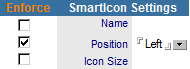 : In this example, Smarticon toolbar is set to be on the left side of the screen. but the label name and the icon size are free. The user will be able to modify the label name and the size but if the position is as well modify, when the Tasks will be applied, it will move to the Left.
For checkbox, the principle is the same, you select Preferences Option that need to be managed by checking the Enforce box, then you choose the status of the option by enabling or not the second checkbox.
 : In this sample, when the Task will be applied, the following display options from the Workspace properties change : Stack Replica Icons is forced to be unchecked and Icon will shown the number of unread documents. In order to do so, you select the checkbox related to the 2 options from the Enforce column, then by leaving (or not) the second checkbox, you define the option status. As this sample is not considaring updating the Show Server Names option, nothing is selected. User will be able to modify this option without any interaction from the Task.
Sametime

Using Task, It possible to define some of the values of the Sametime Preferences. As the purpose is not to block all the Sametime Preferences settings to a specific value, you have to declare the list of setting that you wish to update from this Task document and by defining the value.
To select the option to be modified, you need to check the Enforce box and enter the value like the User Preferences.

ECL

 : Change the ECL access as Read Only so the User can't modify it anymore. You can also reverse the process (let the User modify the ECL).
 : Option used to refresh the ECL (execution control list) on the user desktop. The ECL can by the Administration one (stored in the NAB) or a Named ECL (stored in Desktop Manager database).
 : Name of server and name of database hosting the reference ECL. If these fields are left blank, the program will use the address book (names.nsf) of the server hosting the Desktop Manager database. If we want to apply a Named ECL stored in the Desktop Manager database, you have to enter here the path of the Desktop Manager database hosting this Named ECL.
 : Name of ECL to apply (several ECLs may be managed in a database). This setting is generally left blank to specify the administration ECL (stored in the NAB). If you want to apply a Named ECL, stored in the Desktop Manager database, you have to enter its name here.
 : Add a new entry to the ECL. If the entry already exists, it won't be modified.
 : Security flags fot the entry tio be created.
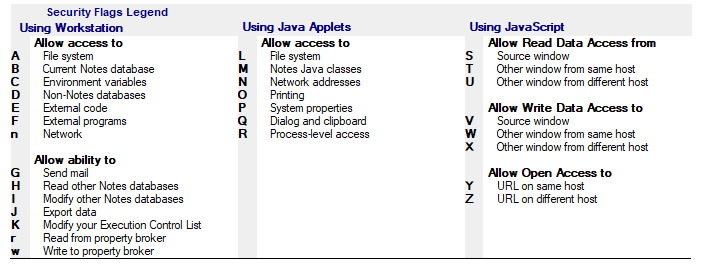
You can also use the Wizard to create the command line by clicking the button.
 : You have to choose in which parts of the ECL (Workstation security, Java applet security, JavaScript security) the entry has to be added.
 : Change the security options for an existing entry of the ECL. You can modify more than one entry by using wildcard character * (ex : CN=*/O=CooperDev). If the entry doesn't exists yet, it won't be created.
 : Security options you want to modify in the ECL entry. By adding a + character to the front of the option letter, you will add this option to the entry. If you add a - character to the front on the option letter, this will remove the option from the ecl entry (see below for options list).
 : You have to choose in which parts of the ECL (Workstation security, Java applet security, JavaScript security) the entry has to be modified.
 : Remove a entry from the ECL. You can remove more than one entry by using the wildcard character * (ex : CN=*/O=CooperDev). You can't delete the -Default- nor -No Signature- entries.
 : You have to choose in which parts of the ECL (Workstation security, Java applet security, JavaScript security) the entry has to be deleted.
 : Delete the ECL (execution control list) of the user.
 : You have to choose which parts of the ECL (Workstation security, Java applet security, JavaScript security) will be deleted.
Execute Script : Notes Agents

 : List of agents to launch when applying the Task on the desktop. In some cases, it is more straightforward to write a LotusScript agent performing a series of modifications than to use sequential tasks. Agents to be run must be located in the DskMgr.nsf database and signed by an ID compatible with the ECL of the desktop where the agent will be run.
 : List of LotusScript agents running in background (launched by the DskMgrTask.exe) after the audit step. These agents MUST NOT use functions coming from the UI class (UIWorkspace, UIDocument...).

 : List of agents located outside of the Desktop Manager database you want to launch when the Task is running. You can use a Replica Id or a database name. You can specify several server names so Desktop Manager will run the Agent on the first one which is ready.
Execute Script : Exe Files

 : List of the executable files (or command file) to be run on the user desktop. There are two run types available : a sequence run (Sequence) that processes the various programs one after the other, waiting for the end of the previous one to run the next one, and the detached mode (Detach) that runs all programs in parallel. The Sequence mode blocks the execution of the Desktop Manager application (it has to wait for the end of the execution to go on) where as in Detach mode, it can go on immediately. If the path of the Exe file you want to run contains space characters (c:\Program Files\...\my_exe param_1 param_2), think about adding some quote ("") around ("c:\Program Files\...\my_exe" param_1 param_2).

 : Launch in background any Notes related programs, like local administration Tasks (compact, convert, fixup, update...) available on the user's workstation. If you don't want to wait until the Task is completed, let the Timout Delay field as blank. If you need to wait for the Task to be completed before continuing the Desktop Manager execution, populate the field with a maximum timout delay in seconds (like 300 = 5 min). So the Task will run and Desktop Manager will wait for its completion. After the Timeout delay, if the Task is still running, Desktop Manager will continue its execution without waiting anymore. If the Task completes before the reach of the Timeout delay, Desktop Manager will continue its execution right after the end of the Task.
Execute Script : Pre-Session Script
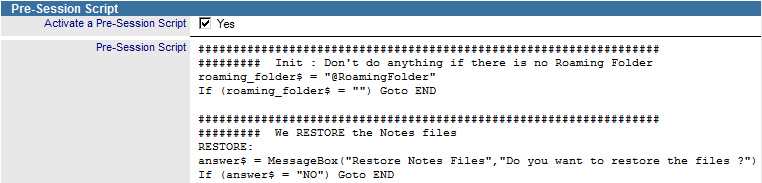 : The Pre-Session Script is a command file (DskMgrPre.ini) processed by the Hook component, at Notes Startup, before the password prompt. This script is usually set up for roaming purposes, in order to copy the Notes user files (names.nsf, bookmark, workspace, id file, notes.ini...) into the Notes Data folder, before the Notes program use them. This script is running in the context of the Notes client, so it can use functions modifying the Notes resources (change Notes.ini file variables, creation / modification of Notes documents into Notes databases...). To get more information regarding Script files, read the documentation 5.2- Create Scripts using Desktop Manager Script API functions.
Execute Script : Post Actions
Post Actions are usually commands (copy, delete, ...)done on files awaiting for the end of the Notes session to be executed by the DskMgr.exe. Actions will be executed by the declaration order of the Task.
Post Actions availables are :
| Copy File: | File Copy | |
| Move File: | File/Folder Move or File/Folder Rename | |
| Delete File: | File(s) Delete | |
| Zip File: | File compress into Zip format. | |
| Unzip File: | Unzip a File | |
| Modify File: | Modify File Content (search and replace a string having the same character number, from a text or hexa ascii format) | |
| Create Folder: | Folder Creation | |
| Delete Folder: | Folder deletion (and if needed, the content of it) | |
| Mount Volume: | Mount a File Volume | |
| Run Sequence Program: | Execute a program and the Task is await for the end of the process | |
| Run Detach Program: | Execute a program but the Task is not waiting for the end of the process |
Execute Script : Post-Session Script
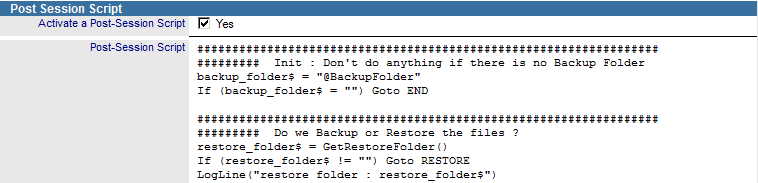 : The Post-Session Script is a command file (DskMgrPost.ini) executed by the DskMgr.exe, after the end of the Notes session, and execute commands from the DskMgr.ini (post actions) file. This script is usually used for backup user files (names.nsf, bookmark, workspace, Notes id, notes.ini...) into a dedicated folder. This script is executed after all modification done by Notes processes, so files are in a stable state and can be moved without any risk. As this isn't an active session when the Post Script is running, it's not possible to call Notes functions. For further information, see documentation : 5.2- Create Scripts using Desktop Manager Script API functions.
Execute Script : Restore Files
 : In case there is a Backup / Restore process via a Post-Session Script from a Task, it's possible to enable the script to restore Notes configuration file from a prior date. This action allow restoration of valid Notes files, due to a file corruption or deterioration. Usually, restart of the Notes client is as well scheduled using the Restart Notes Client option that files are immediately restored after Task execution and that Notes Client is restarted with all restored files.
Files on Disk

 : List of the files to detach on the user desktop. As these are not necessarily Notes files, absolute file paths should be entered. They can be command files (.bat) that will be run afterwards using the module described below.

 : List of the local files we want to upload into the Desktop Manager database. If the specified file is found on the user hard drive, a File document will be created in the Desktop Manager database, part of the user's Audit Results documents. It is possible to ask for a file compression (Zip) for the copy stored in Desktop Manager database, in order to limit the size of the file.

 : Copy an existing local on the user's workstation.

 : Copy a set of files available in a Source folder (Source Folder Path) to a Destination folder (Destination Folder Path). You have to specify the list of the files or folders to copy (wildcard character '*' may be used) and, if needed, the list of files or folders NOT to copy (wildcard character '*' may be used). If you check the option 'Process Sub Folders', the search for the file to be copied will be performed in all the sub-folders of the Source folder. In this case, the files folder-tree will be re-created under the Destination folder.

 : Synchronize a set of files available in a Source folder (Source Folder Path) to a Destination folder (Destination Folder Path). You have to specify the list of the files or folders to synchronize (wildcard character '*' may be used) and, if needed, the list of files or folders NOT to synchronize (wildcard character '*' may be used). If you check the option 'Process Sub Folders', the search for the file to be synchronized will be performed in all the sub-folders of the Source folder. In this case, the files folder-tree will be re-created under the Destination folder. The files available in the Source folder will be copied to the Destination folder only if the latest modification date of the Source file if greater than the Destination file (Source file modification date > Destination file modification date).

 : Zip a set of files available in a Source folder (Source Folder Path) into a Zip file (Zip File Path). You have to specify the list of the files or folders to zip (wildcard character '*' may be used) and, if needed, the list of files or folders NOT to zip (wildcard character '*' may be used). If you check the option 'Process Sub Folders', the search for the file to be zipped will be performed in all the sub-folders of the Source folder. In this case, the files folder-tree will be re-created within the Zip file.

 : Move or Rename a File or Folder on the user's workstation.

 : List files to remove from the hard disk of the user's computer. If the file cannot be removed immediately (if it is in use by Notes), it will be removed later on, via executable DskMgr.exe and the command file DskMgr.ini. It's possible to use the character * to delete more than one file (example : %TEMP%\DskMgrLog*.txt).

 : Create a folder on the user's workstation.

 : Delete an empty folder on the user's workstation. The option "Empty Directory" allow you to purge the content of the folder before his deletion.
Registry

 : Windows Registry keys to be modified. If the name of the key is empty (Key Name), the default value of the subkey will be modified. If the subkey or the key don't exist, they will be created. The data types available are the following :
| REG_SZ : | String | |
| REG_EXPAND_SZ : | String containing some Windows environment variables (%USERPROFILE) | |
| REG_DWORD : | Integer number (write using decimal format) |

 : List of Registry keys we want to delete.
4. Tasks using Audit Results |
|
|
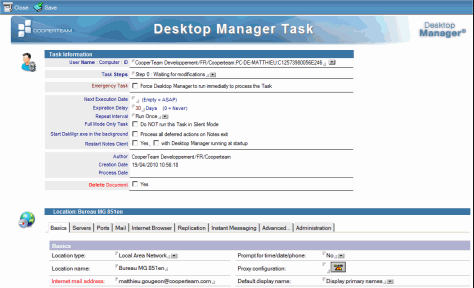
Existing items on the desktop may only be modified if their status is known. This is the purpose of the Desktop Manager audit feature, which brings copies of Location, Connection and Account documents from the personal address book as well as workspace user preferences into the DskMgr database. In order to modify one of these documents, simply open the DskMgr database Audit Results / Notes Configuration view and and click on then  /
/  button after having selected one of the documents available in the view (Location, Connection, Account, Replicator, Notes Install, Profile document, etc…). Modification does not occur directly in the documents generated by the audit feature, but in a copy whose header has been modified in order to convert this update request into a Task. For Location, Connection or Account documents, Desktop Manager uses the same forms as in the personal address book. Fields are updated seamlessly:
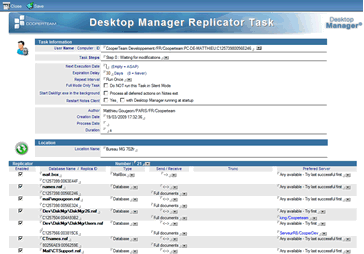
For Replicator or Notes Install documents whose information is not available as documents within Notes, Desktop Manager provides a data modification interface that is similar to the one used for displaying audit documents:
5. Re-use / Remove Tasks |
|
|
Single User Tasks
To launch again a Single User Task which has already ran, you can either:
- Select the Task document and click the
 button available in the views Notes Configuration / Tasks.
or
- Open the Task document and change the Task Steps field value as 1:

If the Task is recurrent or if it has to run at a specific date, you also have to clear the Next Execution Date field :

Multi-Users Tasks
To launch again, for 1 user, a Multi-Users Task which has already ran, you can either:
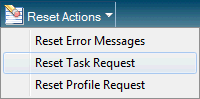
- Open the User document in Edit mode and click on the Reset Task Request button from Reset Actions menu:
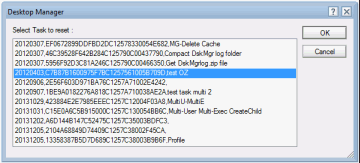
Select the Multi Users Tasks(s) you want to launch again:
or
- If the Multi-Users Task creates child documents, select the Child Task document and click the
 from one of the Notes Configuration / Tasks views (the Task Steps field value is set back to 1).
To launch the Multi-Users Task again, for ALL the Task's users, you have to :
- Select the Multi-Users Task document and click the button from one of the Notes Configuration / Tasks views. Desktop Manager will process all User documents having already launch this Task and it will perform a Reset Task Request action. So the Multi-Users Task will run again for these users.
Remove Tasks
Single User Tasks
To remove a Single User Task, you have to delete the Task document from the Desktop Manager database.
Multi Users Tasks
To remove a Multi-Users Task, you have to delete the Multi-Users Task document (including all child documents) from the Desktop Manager database.
6. Wizard interface usage |
|
|
In order to simplify the enter of mandatory parameters (options list, target documents...) required by Task documents functions, you have sometimes to use a Wizard interface by clicking on the  button. A window is displayed on the screen:
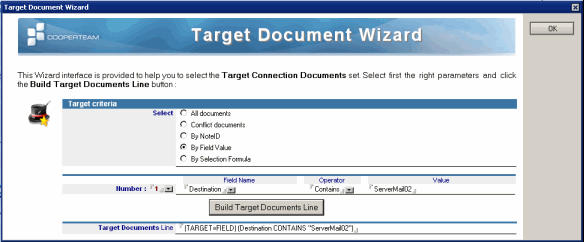
The kind of Wizard window displayed on the screen will depend on the parameters required by the function (NAB documents selection, Mail database documents selection, database properties, replication options, ECL options...).
All Wizard interface windows work on the same principle:
- Start by choosing the wizard options (database property, replication options...) or the way in which the documents will be selected (documents selection):
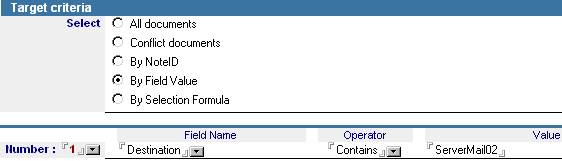
- Following the above click on the
 button in order to create command line which represents the selections made above:

- Close the Wizard window using the following
 button. This transfers the command line into the field of the Task document:

7. Using %, # and @ keywords |
|
|
With Tasks, the @ (Notes values), # (Notes.ini variables ) and % (environment variables) keywords may be used in all Template document fields or in all option values managed from the Profile document.. When the Task is applied on the user desktop, these keywords are replaced by real values that are mostly extracted from the user's Person entry in the corporate address book (for @), Notes.ini variables ( for #) and from environment variables of the desktop user session (for %).
See the following sample, to create a local replica of user's mail file, you should complete the fields as below:

@MailServer matches with the Server name of the user and @MailDbName is the file name path on the server. In the MailCooper\ folder of the local workstation (under the Data directory), the server Mail file will be replicated locally and it will keep the same File name path (@MailFileName). The use of keywords allows the easy creation of multi-users Tasks.
However, instead of using the database file name (into all Task fields) , you can also use the Replica ID of the database, like:

Comments
0 comments
Article is closed for comments.