
 |
 |
1. Overview |
| 2. Creating a Hook document | ||
| 3. Applying a Hook document to a user | ||
| 4. Checking Hook documents applied to a user |
1. Overview |
|
|
 Back to Top
The Hook word defines a technology that allows administrators to monitor user actions during the entire Notes session. For example, a Hook may be defined to control the maximum size of emails that a user can send. If a Hook of this type is applied to a user, they will not be able to send a message of which the size exceeds that specified in the Hook. Unlike the Desktop Manager application which runs when the Notes client starts up (Task, Profile, Audit), the Hooks are effective throughout the entire Notes session. Even if the Desktop Manager Starter database has not been opened at client startup (full or silent mode), Hooks will be active during the Notes session. Once installed on the Notes client, they remain active until they are deactivated.
The following Hook types are available:
|
Mail Size Limiter |
Prevents the user from sending messages whose size is larger than that specified in the Hook document. | ||
|
Mail Impact Limiter |
Prevents the user from sending messages having a big impact on the network (message size x number of recipients). | ||
|
Mail Attachment |
Prevents the user from sending messages that include file types specified in the Hook (mp3, exe, video, etc.). | ||
|
Recipients Names |
Prevents the user from sending messages to specific recipients or groups in the NAB. | ||
|
Recipients Number |
Prevents the user from sending messages to large number of recipients. | ||
|
Mail Database Quota |
Prevents the user from sending messages if the mail database Quota has been exceeded. | ||
|
Prohibit Local Replica |
Prevents the user from creating a local replica of specific Notes databases. | ||
|
Prohibit Access Database |
Prevents the user from opening specific Notes databases. | ||
|
Prohibit Delete Database |
Prevents the user from deleting local Notes databases. | ||
|
Open Database Event |
Run an external Script as soon as the user opens specific Notes databases. |
Hooks enable users to specify different threshold values according to their needs. For instance, Hooks that limit the sending of emails according to their size may be authorized for larger sizes for users handling large files (legal and accounting professionals, graphic designers, etc.). Instead of specifying one overall size for everybody in the server settings document, Hooks are a way to set up a more customized configuration.
Another reason for using Hooks is the immediate notification of the user. If a user attempts to perform a forbidden action (e.g. sending an oversized email), a window will be displayed to reminding them that they are not allowed to do so. The alert message in the window is specified in Hook documents, which means it is prepared by Desktop Manager administrators in the user's own language. In the case of email sending, the fact that messages are being blocked from being sent avoids the message passing through the network, between the client desktop and the server, and being eventually rejected by the messaging server’s router, after having been handled by server processes such as anti-spam or anti-virus. Not only does this result in bandwidth savings, but it also avoids the user receiving a message from the router about email rejection. Experience shows that this message is usually misunderstood and that the user attempts to send his email several times.
If a user inherits several Hooks having the same type (Mail Size Limiter, Mail Impact Limiter or Recipients Number) but with different limit sizes (Mail Size Limit =20 MB, Mail Size Limit =30 MB, Mail Size Limit =50 MB), Desktop Manager will consider only the highest one (50 MB), which is also the more permissive. Indeed, it is useful to apply to everyone an average limit size (30 MB) and thus apply less restrictive sizes limits to allow some users to go beyond (50 MB) when required.
2. Creating a Hook document |
|
|
Hook documents are created in the Desktop Manager database, using the  button in the Enforce Notes configuration / Templates, Hooks, ECLs view. In order to ensure the validity of these documents, a number of fields must be filled in.

 : Name of this Hook document. As many Hook documents can be stored in the DskMgr.nsf database, each one should be given a unique name. This is a required parameter.
 : Full text edit box used to specify the Hook document type or information related to it.
 : Hook type (Mail Size Limiter, Mail Impact Limiter, Mail Attachment, Recipients Names, Recipients Number, Mail Database Quota, Delete Database or Local Replica).
 : Desktop Manager internal reference, used to identify the Hook document version (number of times changes occurred in the document).
 : Name of user who last modified the document.
 : Document creation date.
 : Last document modification date.

If the user attempts to perform an action forbidden by the Hook document (e.g. sending an email whose size exceeds the allowed limit size), Desktop Manager will immediately display the following window:
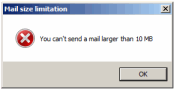
The message displayed in this window is the message entered in the Hook document. It includes the window title (Title) and the message within the window (Message). Depending on the user language (as defined in his User document), the message will display in its working language, if it has been filled in the Hook document. If the message is not available in the user language, it will be displayed in English (default language). In order to make this alert message as understandable as possible, it is recommended to define all the languages used in the Desktop Manager application:


For the Hook dealing with Mail recipients (Mail Impact Limiter, Recipients Names and Recipient Number), you may use NAB Groups and/or user names. In order to provide a fast group membership resolution, without impacting the Notes client performances, it is required to enable the local NAB Groups synchronization process, using the setting available in Setup documents :

Only the groups documents synchronized with this process will have their membership resolved.
- Mail Size Limiter: Prevents the user from sending emails whose size exceeds the limit size specified in the Hook document.

 : Maximum email size a user is allowed to send (message size + attached files size).
- Mail Impact Limiter: Prevents the user from sending emails whose global impact size (message size x Number of recipients) exceeds the limit size specified in the Hook document.

 : Maximum email impact size a user is allowed to send ((message size + attached files size) x Number of recipients).
- Mail Attachment: Prevents the user from sending emails containing file types specified in the Hook document (mp3, exe, video, etc.).

 : List of forbidden file extensions. Extensions begin with the ‘.’ character ('.mp3', not 'mp3'). Only the file name is checked, not its contents. Consequently, if sending .mp3 files is forbidden and if the user zips or renames the files, the Hook will not block the email.
- Recipients Names: Prevents the user from sending emails to specific NAB recipients or groups.

 : List of NAB users and groups to which the user is not allowed to send emails. The ‘*’ (wildcard) character may also be used to prohibit address ranges. Once the names are entered in the Recipients Names field, the
  button should be pressed in order to browse the address book and find all possible addresses (shortname, Internet address, etc.) for specified users. Blocking will apply to all these addresses.
 : We can let the e-mail go, but only if it is smaller than the specified size. It is usefull to prevent users to send large size emails to NAB groups.
- Recipient Number: Prevents the user from sending emails whose recipients number exceeds the limit number specified in the Hook document.

 : Maximum number of email recipients a user is allowed to send (send to + copy to + blind copy to).
- Mail Database Quota: Prevents the user from sending emails if the Quota of the Mail database (on server) has exceeded : mail database usage > quota.

 : The Quota sizes can be taken from the user's Mail Database on the Mail Server (Notes Native) or directly from the Hook document:
 : Sizes for Warning Threshold and Quota for the users getting this Hook. This can be useful if not quota is available in the Mail database on the server or if we nee to apply a more restrictive size.
 : If the option is checked, we will only check for Warning Threshold and Quota if the user is sending e-mails from a local database. So the Notes client can manage Quota for server hosted databases (where the Quota is set) and let the Hook deal with local databases quota (where quota are, most of the time, not set).
 : If the mail database (on the mail server) has reached the Warning Threshold (space usage > warning threshold), a pop-up window will be displayed to the user if he tries to send an e-mail. The purpose of the window is to warn the user that the quota could be exceeded soon, and that he has to think about performing some clean up tasks (delete e-mail, archive...). The e-mail will be sent.
 : If the mail database Quota (on the mail server) has exceeded (space usage > quota), a pop-up window will be displayed to the user if he tries to send an e-mail. The purpose of the window is to warn the user that he can't send e-mails anymore, and that he has to run some clean up tasks (delete e-mail, archive...) now. The e-mail will be blocked.
 : We can let the e-mail go, but only if there is no attached file in the e-mail. The user will receive the pop-up window.
 : We can let the e-mail go, but only if it is smaller than the specified size. The user will receive the pop-up window.
Remarks :
-
The Warning Threshold or the Quota Exceeded pop-up will only work if a Warning Threshold or a Quota have been defined for the user's mail database.
-
If the user send a e-mail from a mail database located on a domino server, we get the Quota information from this database. If the user is sending the e-mail from a local database (local replica, archive database...), we will open the user's mail database on the mail server to get Quota information from there.
-
If the database on the mail server can't be opened (no network...) to get the Quota information, the Hook will not be active (= the e-mail will be sent, without any check on quota).
-
You can use Quota information in the Pop-up Window messages, using pre-defined keywords:
| @DbSize | Current mail Database size (in MB) | ||
| @DbUsage | Current mail Database space usage (in MB). This value is used to check if the Threshold or the Quota has been exceeded. | ||
| @WarningSize | Database Warning Threshold size (in MB). 0 if not defined. | ||
| @QuotaSize | Database Quota size (in MB). 0 if not defined. | ||

- Prohibit Local Replica: Prevents the user from creating a local replica of specific Notes databases.

 : Table of databases whose replication should not be allowed on the user desktop. The user should enter the database path as well as the name of the server hosting the database, and then click on the Get ReplicaIDs button so that Desktop Manager can retrieve the database’s Replica ID. Multiple database names may be entered by modifying the Number field value. The database replication is blocked according to its ReplicaID, not according to its location. A replication is blocked regardless of the database hosting server. Specifying a database name and a server name is only useful here for retrieving the ReplicaID. You can use keywords @MailDbName (for database name) and @MailServer (for server name) in order to prevent user from creating a local replica of their mail file (the ReplicaID field will display keyword @MailReplicaID).
- Prohibit Access Database: Prevents the user from opening specific Notes databases.

 : Table of databases whose access should not be allowed to the user. You can use the wildcard character '*' to specify a set of databases. You may also use @keywords (@MailLocalReplica, @MailDbName...). The option Extend to Cluster Members List extends the list of servers to all the members of the cluster. Multiple database names may be entered by modifying the Number field value.
- Prohibit Delete Database: Prevents the user from opening specific Notes databases.

 : List of Notes databases to protect from a deletion. You can use the wildcard character '*' to specify a set of databases. You may also use @keywords (@MailLocalReplica, @MailDbName...)
- Open Database Event: Launch an external Script every time the user open the Notes database.

 : Defines where the list of database are stored (in this document or in a text file).
 : List of the databases to monitor.
 : A file located on the user's hard drive contains the list of the databases.
 : Frequency for running the external Script when one of the databases is opened. This may help to prevent the Script to be launched too often.
 : Script file path.
The Script is launched using the DskMgr.exe executable. The execution runs in background, without any window displayed (mode -SCRIPTNW). To learn more about Scripts, how they run / what they can do, read the section 5.2- Create Scripts using Desktop Manager Script API functions of the documentation.
3. Applying a Hook document to a user |
|
|
In order to apply a Hook document to a user, just mention the Hook document in one of the Profile documents applied to the user:

4. Checking Hook documents applied to a user |
|
|
In order to know the list of Hook documents currently applied to a user and the trigger statistics, just refer to the Hook List field of the User document in the Desktop Manager Settings / Desktop Manager Options section:
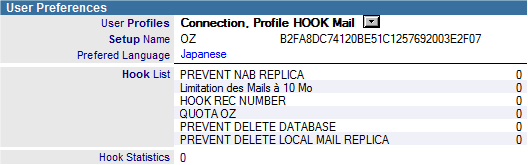
Hook documents are those installed by one of the Profile documents that are applied to the user. Profile documents are listed in the User Profiles field.
In order for Hook documents to run properly, it is necessary to install and activate the nDskMgrHook.dll component on the user desktop (statement in the EXTMGR_ADDINS line in the Notes.ini file). It is possible to check whether the component used to manage Hook documents is active on the user desktop by reviewing the Is DskMgr Hook active ? field in the User document:

Comments
0 comments
Article is closed for comments.