
 |
 |
1. Modify User Documents |
| 2. Handling Error messages | ||
| 3. Desktop Manager databases audit | ||
| 4. Application update | ||
| 5. Uninstalling the application |
1. Modify User Documents |
|
|
 Back to Top
The User Documents contain not only the results of the workstation audit, but also some parameters affecting the operation of Desktop Manager for that user:
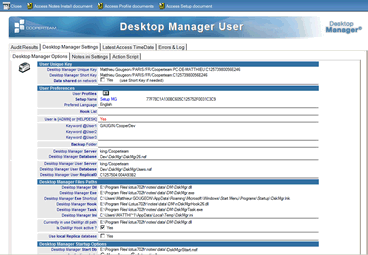
Among these parameters, there are several that could be modified after the installation:
- To use the short key (which does not contain the name of the machine) rather than the long key
- Add / Remove assign Profile
- To change the choice of the language for user (US/FR) -
- To define/Modify Keywords of the user (@User1, @User2 and @User3)
- To change the base Desktop Manager of reference (name of the waiter lodging the base, way of the base on the waiter)
- To change the options of automatic starting (frequency, days...)
For making a few simple changes, it is easy enough to open the User document and to directly modify the selected options. However if the modifications must be applied to several dozen users, or more, it can take a long time to open and modify all these documents. To modify several documents at once, switch to the Audit Results views or to the Administration / User DskMgr Settings view, select the documents you wish to modify, and click on the  button. This brings up a screen similar to:
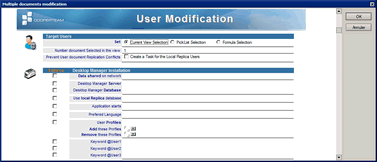
A window presenting the various options which it is possible to modify appears on the screen. As it is not likely that one would want to modify all the modifiable options at once, it is necessary to start by selecting the options that one wishes to modify, by checking the corresponding box in the Enforce column:
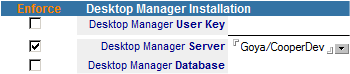
In the preceding example, one wishes to modify the name of the server hosting the Desktop Manager database used, one thus checks the corresponding box in the column Enforce and then indicates the name of the new server. The other options, which remain unchecked, will not be modified.
The options Add these Profiles and Remove these Profiles do not include a check box because the names of profile specified are added or cut from the list of profiles currently associated with the user. If one specifies the name of a Profile not associated with the user, it will not do anything. In the same way, if one wants to add a Profile to a user having already this Profile, nothing will occur either. The only check box related to Profiles is the one in front of the User Profiles option, because this option replaces all the existing Profiles associated with the user with the Profiles specified in the list..
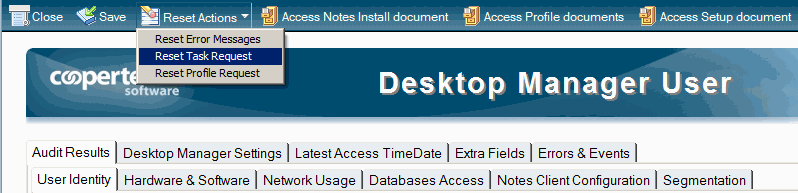
You can also purge Error messages from User document or clear the latest execution date for a Profile, in order to force a new execution soon (for the Profiles running at a specific frequency):

Purging Error messages or Profile execution logs is also available directly from the User document as Reset Actions. You can also purge the Tasks latest execution date:
As soon as one finishes selecting the options and modifying the values, it is enough to click on the  button so that the selected User Documents are immediately modified.
2. Handling Error messages |
|
|
As the Desktop Manager application performs many different actions on user's desktops (application component Installation, desktop configuration Audit, Task execution, Profile application), all processes involved in client desktop management can generate log files when an error occurs.
Error messages are located in error related documents:
- If the error occurs when a Single-User Task is running, the error message will be put into the corresponding Task document, and will then be visible in the Notes Configuration / Tasks views.
- If the error occurs during application Installation, configuration Audit, Multi-Users Task execution or Profile application, the error message will be put into the desktop related User document. Any User document with error messages will be visible in the database's Audit Results views (icon  ) or in the Administration / On Error Users view.
Apart from the list of pre-registered users who have not yet entered in the database (- Never entered in database Users), other documents included in the Administration / On Error Users view indicate that a problem occurred on the user desktop.
3. Desktop Manager databases audit |
|
|
The lower part of Database documents (view Administration / Architecture / Database Information) is used to display statistics related to Desktop Manager database content (size, activity, documents, design elements, ACL and replication) in order to make sure the databases are healthy. Furthermore, the most important numerics (size, number of documents) are displayed in the columns of the Administration / Architecture / Database Information view.
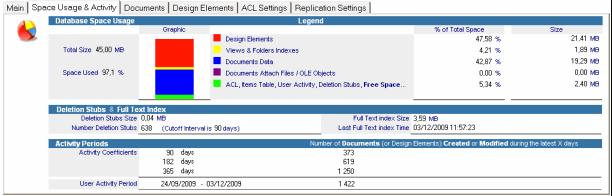
These statistics are built / refreshed by selecting one or several Database documents from view Administration / Architecture / Database Information and by clicking the  . button. The DskMgrTask.exe component is launched in background and a small Desktop Manager icon (
 ) is displayed in the Windows Tray Bar while the process is running.
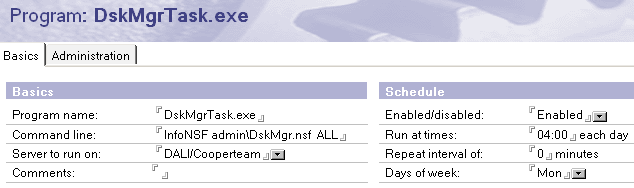
You can schedule a automatic refresh of the statistics by installing the DskMgrTask.exe component on the Domino 32 bits servers (under Windows) hosting Desktop Manager databases. The launch of the Exe on the server will update ALL Database documents related to Desktop Manager databases (DskMgr or DskMgrUser) hosted on this server.
The best way to start the Exe is to use a Program document, in the NAB. The command line is the following one:
DskMgrTask.exe InfoNSF <chemin de la base Desktop Manager> ALL
4. Application update |
|
|
In addition to adding new features, a new Desktop Manager release will handle the additional functionality provided in new versions of Lotus Notes, and also resolve problems detected in earlier versions. Therefore, it is important to deploy the new release onto the production server, in replacement to the previous one.
Newly delivered releases of Desktop Manager are provided using a standard format. This is always a DskMgr.nsf Notes database containing all the elements (help files, binaries, etc.). There is no partial upgrade: all components are systematically re-delivered.
Updating DskMgr and DskMgrUser databases on the server
The implementation of a new Desktop Manager release is similar to a new installation, it is necessary to master the different steps and constraints linked to the installation from the very beginning (Refer to Server Installation, Client Installation). The different steps that should be taken to update a Desktop Manager production release are listed below:
1 - Préparer la nouvelle base Desktop Manager
- Sign the new database with the ID used to sign production databases.
- Copy the ACL of the Desktop Manager production database to the new database.
- Extract the DskMgrStart.nsf database (Binaries view) on the disk and sign it with an ID with full Administration rights in the users' desktop ECLs. Then replace in its document, within the new database. Make sure the database ODS is left unchanged. Make sure the copy of the DskMgrStart.nsf database is removed from the disk from where it was extracted to for signing.
- If the existing database has been modified (customized with new views or agents), all of the required customized Design elements should be copied across to the new instance of the Desktop Manager database.
2 - Test the new Desktop Manager database
- Copy the new database to a Domino server.
- In the new database, copy the settings documents that are present in the old Desktop Manager production database (Setup, Profile, Template, Preference, Hook...) acrosss to the new instance, and update its Reference document.
- Open the new Desktop Manager database from a client desktop and make sure everything works fine (installation, execution) without getting error messages or ECL alerts.
3 - Update the existing database with the new one
- Backup the production Desktop Manager database. Copy the database but only copy the Design, not the documents. If something goes wrong with the Design replace, you would be able to use this backup version to restore everything.
- Update database components by deleting existing documents in the Administration / Architecture / Install Files view and by transferring all documents in the Install Files view (DskMgr.dll, DskMgr.exe, DskMgrTask.exe, nDskMgrHook.dll and DskMgrStart.nsf) from the new Desktop Manager database to the existing one.
- Update the documentation by deleting existing documents in Documentation views and by transferring all documents in Documentation views from the new database to the existing one.
- Create an NTF file from the new DskMgr.nsf database and Replace the Design of the existing database with the new database design.
- Update the Setup, Template, Preference, Hook and Profiles documents by opening and re-saving them. This way, if new fields appear in forms, they will be integrated with their default value in documents. To do this, you can use the
 and
and buttons from the Administration / Setup / Setup Documents and Notes Configuration / Profile / Profile Documents views.
 - Update the Reference document by clicking on the
 button from the Administration / Setup / Setup Documents or Administration / Architecture / Reference views.
 - Rebuild database view indexes by pressing on Ctrl-Shift-F9 keys once the database is opened, or by running the load updall <database_path> command from the server console.
- If you use a multi-database architecture (DskMgr and DskMgrUser), you must create a Template for the DskMgrUser database using the
 button present in the Administration / Architecture / Install Files view. Then replace the Design of your DskMgrUser databases with this Template.
 - Check that the agents (ex : To Schedule : Administration Actions) are still scheduled to run on the right server at the right time.
4 - Check the following points
- If you migrate from release 1.x to release 2.x, make sure the [HELPDESK] role is created in the Desktop Manager database ACL. You should also save resave the settings documents (Setup, Profile, Template, Mails, ECL, Documentation) so that they include a Reader field allowing them to be viewed by users having the [HELPDESK] role. As user documents are updated during executions in Full mode, they will viewed by users having the [HELPDESK] role.
- If you migrate from release 2.x to release 2.4, make sure that [TASK_LEVEL_1], [TASK_LEVEL_2] and [TASK_LEVEL_3] roles are present in the ACL. Assign these roles to the Help Desk people, so that they can create Tasks. In order to know the detail of privileges granted by these 3 role levels, see Task documentation.
- If you migrate from release 2.x to release 2.4, check all your Setup documents (open/save) and if needed, schedule the execution of the To Schedule: Update Setup User List agent in order to keep the list of Setup document users up to date.
- If you migrate from release 2.x to release 2.4, you can schedule the execution of the To Schedule: Update User with NAB information agent if users have a local replica of the Desktop Manager database on their desktop. This agent will create in the Desktop Manager database a document including all NAB information for users with a local replica. This document is replicated in the local database, and when Desktop Manager starts up, NAB information for the user are retrieved in this document (which avoids connection to the server and reading the Person document data in the NAB).
- If you migrate from release 2.x to release 2.4, run once the agent called Run Once: Add Reader field to Multiple User Task documents. This agent will check Multi-User Task documents in order to add a reader field if needed. This field may be missing and documents may be needlessly viewed by all users.
- If you migrate from release 2.x to release 2.5, you should create/update the Reference document. go to the Setup / Setup view or to the Architecture / Reference view and click on the button.
- If you migrate from release 2.x to release 2.6, the DskMgrConstantLib script library should only be used to define default installation paths for the DskMgr.dll component. From now on, you should copy the folder paths where you want to install the component in the Prefered DskMgr Dll files folder Path List field of Setup documents.
- If you migrate to release 2.7, you will move from a connected architecture (the local DskMgrStart.nsf database launch the server DskMgr.nsf database) to a not connected architecture (the local DskMgrStart.nsf is stand-alone).
- If you migrating to release 2.8, the Desktop Manager parameters are no longer hosted in the Notes.ini file but in the DskMgrParam.ini file. They can be located in both file the time needed for all the local components to be switched into 2.8 release.
If the Desktop Manager database is replicated on several servers, new features will be applied using replication, so the update of components on all instances will be unnecessary. Conversely, if the various databases do not replicate, all the aforementioned steps have to be repeated with all available databases. If only the documents replicate, it will be necessary to perform a database template replacement on all servers.
In order to check that everything went right, justo open the database in the application's administrator mode ([ADMIN] or [HELPDESK] role in the ACL) and verify if the documents exist in the views. It is necessary to use a reference client desktop to access to the database (in user mode) and to test the desktop audit.
Components update on the client desktop
While implementing a new database release on the server is done rapidly, the update of components deployed on client desktops is a more complex process, due to the large number of computers to impact. The Desktop Manager application has originally been designed to automatically update components deployed on client desktops. Each time the Desktop Manager Starter database is opened, an update process checks the availability of new components in the database (Binaries documents for DskMgr.dll, DskMgr.exe, DskMgrTask.exe, nDskMgrHook.dll and DskMgrStart.nsf). If it is the case, these new releases will be deployed on desktops and replace the older ones. The transfer, into the local database, of the new components is performed during the data synchronization background process.
The database administrator can monitor the component update on user desktops by accessing the Steps TimeDate section of the User document. Every installed component is displayed with its installation date and its latest update date (on the right):
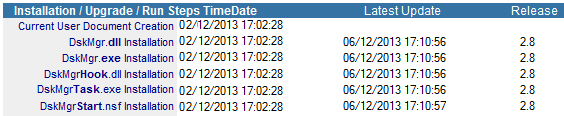
When running in native mode, component update on the desktop will be a seamless process for users and a fully automatic process for the administrator. However, in case of problems, the administrator may consult the latest update date in the user-related document.
It might have been specified in the user-related Setup document that the component update should not be directly supported by the application (Update DskMgr.Dll and Exe not selected). In such a case, system teams are in charge of installing the DskMgr.dll, DskMgr.exe, DskMgrTask.exe and nDskMgrHook.dll components on all client desktops. These files should obviously overwrite the older ones.
To determine if a component has been modified between two Desktop Manager releases and if it has to be re-installed on the desktops, one should simply refer to its version number, available in the Administration / Architecture / Install Files view:

5. Uninstalling the application |
|
|
Uninstalling components from the client desktop
In order to uninstall all Desktop Manager components from a client desktop, use the agent: Uninstall Desktop Manager agent from a Task or a Profile. Most of the operation will be carried out when the Notes client is closing, via DskMgr.exe. As the Notes client is no longer in memory, this executable will be able to uninstall all used files and databases
List of tasks performed by the uninstall agent:
- Remove the Program document from the local NAB used to check that Desktop Manager starts properly;
- Remove all Desktop Manager-related lines in Notes.ini;
- Remove local Desktop Manager Starter database (DskMgrStart.nsf);
- Remove Desktop Manager database icons from the Workspace;
- Remove Desktop Manager databases from the Bookmark;
- Remove Desktop Manager binary files (DskMgr.dll, DskMgr.exe, DskMgrTask.exe and nDskMgrHook.dll);
- Modify Notes shortcuts to remove the DskMgrStart.nsf file from the list of parameters;
- Remove backup files from the desktop (DskMgrWorkspace_*.bin);
- Remove Parameter files (DskMgrParam.ini and DskMgrSession.ini);
- Remove Script files (DskMgr.ini, DskMgrPost.ini and DskMgrPre.ini);
- Remove folders where Desktop Managers binaries are installed (if empty);
- Create an entry in the Registry database to delete DskMgr.exe at next Windows restart.
As those actions are carried out with user rights, ensure that the user is granted the rights necessary to perform these removals and modifications. If binary files or shortcuts have been deployed or modified by a software package, system tools will probably have to be reused (with administrator rights) to remove and modify these files.
Uninstalling DskMgr and DskMgrUser databases from servers
It is logical to wait for the completion of the uninstall agent on client desktops before removing Desktop Manager databases from servers. As the uninstall agent is processing on desktops, audit documents will no longer be updated and the users who still run Desktop Manager on their desktops will easily be detected.
Desktop Manager databases (DskMgr and DskMgrUser) will then simply be removed from the servers on which they are installed. There is no need to wait for ALL user desktops to be uninstalled.
Comments
0 comments
Article is closed for comments.