
 |
 |
1. Overview |
| 2. Mail document content | ||
| 3. Sending and monitoring Mail documents | ||
| 4. Sending reminder Mails |
1. Overview |
|
|
 Back to Top
Desktop Manager includes an automatic installation system that deploys the application onto the client desktops by sending email to future users. The message sending interface may also be used in order to follow up users who have not responded positively to the product installation demand. The mail sent to users should be customized, i.e. written in their own language (English, French, etc.) and should mention the request type (first installation, reminder, etc.). Therefore, it is necessary to set up as many Mail documents as there are identified target users.
If you are deploying the application using a Package Distribution or Login Script (Windows, SMS, Netware...), you don't need to send installation e-mails to users.
However, the installation of the Desktop Manager database on the server should normally be preceded by a communication step, so that users may be notified and made aware of the importance of this application to the proper functioning and management of their desktop.
To send a mail to a target population, 2 methods are available:
- The list of installation mail recipients is immediately accessible with the pre-registering feature available in Setup documents.
- Mails can be directly sent from the Desktop Manager application by selecting recipients in one of the company's address books.
The recipient list is immediately available when using the pre-recording function in Setup documents. The availability of the complete list of users that need to open the database may enable to know precisely who has read the email and installed the Desktop Manager application and who has not reacted. The latter should be sent another message, and then after they may need to be contacted in order to know why the product is not installed.
Experience shows that at least 10% of target users do not respond to the email during the week following its receipt. They may be on holiday, on sick leave, persons who have left the company, shifted to another department or who have been renamed between the pre-registration document creation date and the message-sending date. There even may be users who do not understand what happened and, as a result, do not react. Contacting these users is easier, due to the collection of personal data (e-mail address, phone number, location, etc.) in the pre-recording document. If it is certain that these persons will be unable to receive the application, deleting their document in the Desktop Manager database will be sufficient.
2. Mail document content |
|
|
In order to create a Mail document, use the  button in the Administration / Installation / Install eMails view included in the DskMgr.nsf database. The Mail document contains the following fields:

 : Name of this Mail document. As several Mail documents may coexist in the DskMgr.nsf, each one should be given a unique name. This parameter is required.
 : Free text zone used to specify the Mail document type or information related to it.
 : Name of the last person which has edited the document. Creation time/date and latest modification time/date.
 : Language used for the E-mail body.
 : Forces the Desktop Manager database to open is enabled when opening the Mail (database link or Notes URL activated) without requiring the user to click on the link. This option can be useful for users who do not activate the Doc link (or Notes URL) or who do not understand what it is requested from them. However, it may be perceived as too aggressive, as opening the email is immediately followed by the installation on the desktop, without any message display. Anyway, a successful installation should always be preceded by a communication process about the application, its installation mode and its use (automatic startup, user interface).
 : We can use Database Link (unchecked) or Notes URL (checked).
 : The reminder mail is sent to users by one of the application managers. The users may want to respond to this email to ask for information about the DskMgr database. In order to avoid that the installation mail sender receives emails from the users, this field should simply contain the name of a person in charge of receiving emails from the users who would have responded to installation/reminder messages. This person will be able to inform users or to reassure them about the maintenance procedure on their desktops.
 : The Subject of the mail that will be sent to users. In order to maximize the chances of opening this message and to limit automatic deletion, it is better to choose suitable text. Although this field is not required to send the reminder message, filling it in with something informative is strongly advisable.

The message body, in Rich Text format, must include the text intended for users, reminding them the need to open the server DskMgr database when installing it. The message content should be clear enough to inform users about the different steps to perform while opening/installing the database. Using your company Logo in the message body will likely reassure users regarding the message source. The message body should also contain a database link to the server’s DskMgr database. The example below includes all the necessary elements:
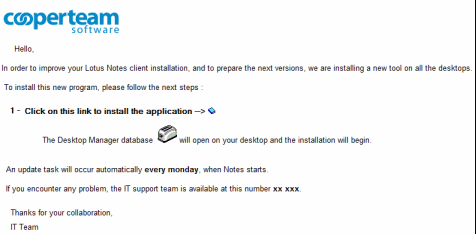
A database link  pointing to the server's Desktop Manager database is also required in the message body. Clicking on this link allows users to open the database and, when automatic opening of the email is activated, to open the Desktop Manager database too. As only the first database link is taken into account during an automatic opening, it is necessary to check whether the first database link in the document is the one that points to server's Desktop Manager database.

If the link to the Desktop Manager on the server is done using a Notes URL, it is mandatory to build this URL in the dedicated field :
- In the URL Notes field, insert the text displayed to the user (ex : Desktop Manager Database), and select the text :
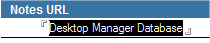
- In the Notes client Menu, select : Create / Hotspot / Link Hotspot... :
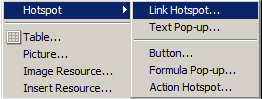
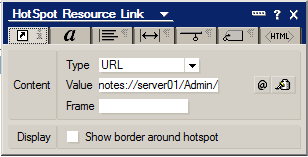
- Select URL as Type and set the link Value (path to Desktop Manager database on the server, ex : notes://server01/Admin/DskMgr/DskMgr.nsf) :
3. Sending and monitoring Mail documents |
|
|
The Administration / Installation / Users Installation Progress and Administration / Installation / Installs eMails views in the DskMgr.nsf database are used to send mails to the various recipients. They display:
- Installation / Users Installation Progress: a list of users who have not yet entered into the Desktop Manager database (pre-registered via Setup) and of those that have already been installed.
- Installation / Installs eMails: a list of Mail documents registered in the Desktop Manager database.
So it is possible to send installation and reminder mails using the Installation / Users Installation Progress and Installation / Installs eMails views interface.
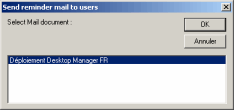
From the Installation / Users Installation Progress view, you only need to select the recipient list in the view and then to click on the  button. A window displaying the Mail document list is then displayed on the screen so that the administrator can select the mail to send to previously selected users:
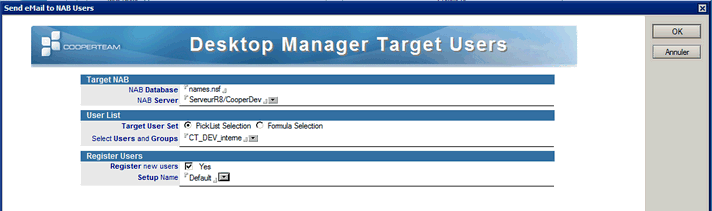
From the Installation / Installs eMails view, you just have to select the mail to send in the view, and then to click on the button. A target user selection window is displayed on the screen, so that the administrator can select these users from one of the company's address books. In addition, if this dialog box asks for new user registration (Register new users) and if a Setup document has been selected (Setup Name), then all mail recipients that are not registered in Desktop Manager will be registered with the selected Setup document settings.
The send dates of installation or reminder mails are stored in the User document. As soon as recipients get the mails and follow the Desktop Manager’s installation procedure on their desktop (database opening), their names are moved in another category (No Installation Mail sent to Users, Installation Mail sent to Users, Already installed Users) in the Installation / Users Installation Progress view and they will be available in the User Audit Results views, which means the application is properly deployed on their desktop. Finally, only the persons who have not tried to install the application will remain in the categories No Installation Mail sent to Users and Installation Mail sent to Users of the Installation / Users Installation Progress view. After a few days, the application manager should send them a reminder mail or contact them directly.
4. Sending reminder Mails |
|
|
Users should regularly run the Desktop Manager Starter database for an optimized management of their desktops. This is done in automatic startup mode, forcing the database to open when the Notes client starts up. However, a user may have not accessed the Desktop Manager database for a while for various reasons: resignation, maternity leave, use of another desktop, holidays, removing the Desktop Manager application from the PC, etc.
In order to detect the lack of access by a person with automatic opening mode rights, one should identify the users who have not accessed the database for a while. The Desktop Manager database includes an interface displaying late users, using the Administration / On Error Users view:
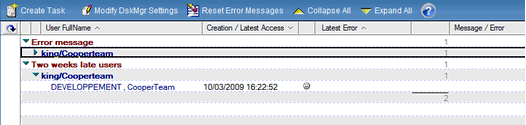
This view provides an ordered list of all the persons who have not opened the database since:
- 1 week
- 2 weeks
- 1 month
- 2 months
- 6 months
- More than 6 months
- And finally, persons who have never accessed the database (following a pre-registration)
This granularity allows the identification of users who regularly forget to open the database as well as the management of people absent from the company (because they are on holidays or have left the company). The latest database access date is outsourced in the view.
A mail including a link to the database should be sent to restart the Desktop Manager database installation procedure. To send users a message, select the name of recipient(s) in the Administration / On Error Users view, then press the button. A select dialog box is displayed to choose the message to send among all database Mail documents:
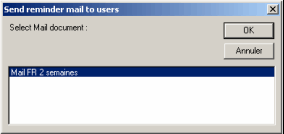
The mail will be sent to all the recipients and the main document associated with each user will be updated with the reminder mail date. This date will also be displayed in the Mail view for user monitoring.
Comments
0 comments
Article is closed for comments.