


1. Overview |
|
|
 Back to Top
The user's desktop is managed via the opening of the Desktop Manager Start local database (DskMgrStart.nsf) during Notes client startup. The database icon ( ) will be displayed on the workspace. The frequency of database opening and the mode of execution (Silent or Full) are defined in Setup documents, and can be updated in the User document.
The local Desktop Manager Start database exchanges data with the server Desktop Manager database (DskMgr.nsf) using a background synchronization process. The Desktop Manager database icon ( ) may also be displayed on the workspace. So, the user may have both databases icons on the workspace :
In order to enable the Notes client to open the local Desktop Manager Start database on startup, the database has to be installed on user's desktop. The installation can be done by sending an e-mail (containing a database link to the Desktop Manager database on server) or by installing all its components (DLLs, Exe, DskMgrStart.nsf database) on the user desktop, via a login script.
2. The Initial opening: application Installation and Audit |
|
|
The first opening of the Desktop Manager Start database will install the external components (DskMgr.dll, DskMgr.exe, DskMgrTask.exe, nDskMgrHook.dll) on the user's desktop. Due to the small size of these files, users rarely detect this process has actually occurred. During the subsequent openings, application components will be checked and replaced if erased or obsolete. If they are deployed on the desktop via system script, Desktop Manager will not attempt to install or update them; however it will check their presence.
As soon as the installation phase is completed, the application switches in Full mode processing pending Tasks, user's Profiles, desktop Audit (done in background) and data/parameters Synchronization (done in background) :
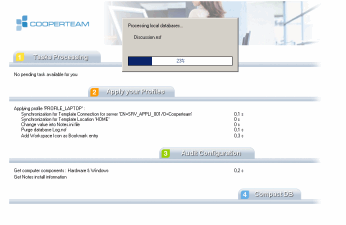
Once the blocking processes are completed (Tasks + Profiles), the application will close itself automatically. The user may have to click on button  to close the application window if the option Automatically close Desktop Manager database after processing has not been checked in the Setup document.
At this stage, the application has been properly installed and the desktop audit has been performed. The database administrators ([ADMIN] or [HELPDESK] roles in ACL) can now access the result in the Desktop Manager database on the server.
3. Automatic opening of the local DskMgrStart database |
|
|
If the automatic opening of Desktop Manager application has been selected, the local database DskMgrStart.nsf will be opened. It is possible to setup the Desktop Manager Start database startup frequency, as well as its working mode (Full or Silent). These two modes differ as regards the processes performed on the desktop, but also as regards the user interface :
- The automatic Full Mode displays the desktop management log screen and performs the following operations:
- Run the pending Tasks (if any)
- Apply Profiles defined for the user (if any)
- Audit user desktop configuration (launched in background).
- Data + Parameter Synchronization between local database and server one (launched in background)
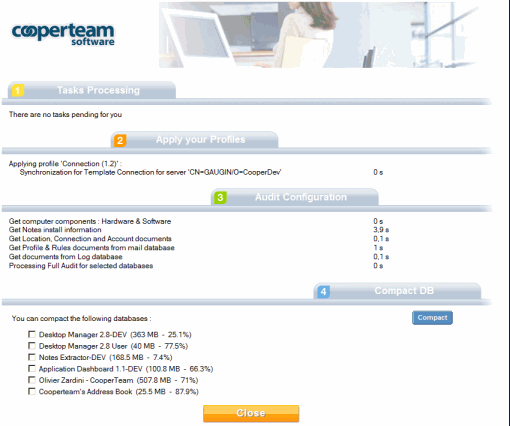
- The automatic closing of the application window. Depending on Setup document options, the user may have to click on the
 button to close the window.
- In automatic Silent Mode, the user won't see anything (frozen screen for 2/3 seconds). The silent mode performs the following operations:
- Apply Profiles defined for the user (if any)
- Audit user desktop configuration (launched in background).
- Data + Parameter Synchronization between local database and server one (launched in background)
Time-consuming operations such as Tasks or local databases audit are not processed during the silent mode execution.
4. Manual opening of the database by a User |
|
|
Manual opening of the database is usually performed through the local database icon  (DskMgrStart.nsf) or through the server database icon
  (DskMgr.nsf) available on the workspace. The synchronization for parameter documents (Setup, Task, Profile, Template, Preference, Agents, Binary...) is performed between the server database (DskMgr.nsf) and the local one (DskMgrStart.nsf) in order to keep it up to date :
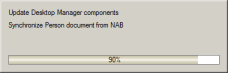
The follow-up screen of the desktop management procedure is displayed (Full mode) :
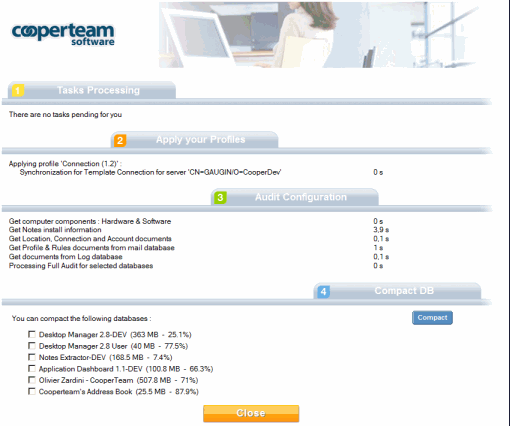
Here is the sequence of operations in Full mode :
- Process Tasks related to this user (if any);
- Apply the operations related to the user Profiles (if one or more Profiles have been defined for the user);
- Audit computer components and user's Notes configuration (may be launched in background);
- Automatically close the application window.
- Launch background data and parameters synchronization between local database (DskMgrStart.nsf) and server one (DskMgr.nsf).
Each operation (or sub-operation) is mentioned by a line in the follow-up document, and the time sent on this process is displayed in the right column. When an error occurs, a message is displayed in the same column.
Users never have access to the information retrieved on their desktops nor their configuration (Profile definition, pending Tasks...). They only see the database through the main browser (with the flags) and the task follow-up documents. Users can return to the databases as many times as required. Once the tasks targeted at them have been completed, active desktop management features will be limited to Profile setup and to desktop audit.
Comments:
- If the user click on the server database (DskMgr.nsf) icon, the execution time will be higher than using the local database (DskMgrStart.nsf) because of the access required to the Domino server hosting the database.
- Background Audit: It is possible to put the user back in control during the component audit phase by performing it in the Notes session background. This type of operation can be specified from the setup document with the Perform Audit and Cleanup jobs using DskMgrTask as background process option.
- Local database compacting: At the end of automatic processes, the list of local databases on the user desktop can be displayed at the bottom of the document (databases size > 10 MB and space usage < 90%). This way, the user can select local databases to compact. Once these compacting operations are complete, the user will click on the
 button to close the application window. This type of operation can be specified from the setup document with the Close application window : Let the user access the compact database panel option.
5. Opening of Desktop Manager database
|
|
|
 by Administrators
The administrators ([ADMIN] or [HELPDESK] role in ACL) arrive at the main browser (standard users do not see this screen) :
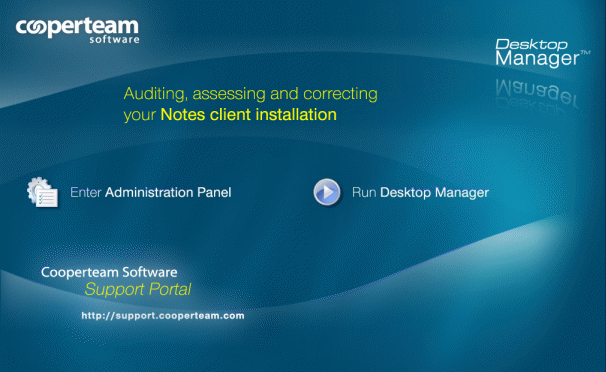
Administrators can click the  button on the left side of the screen, which gives them access to the administration panel:
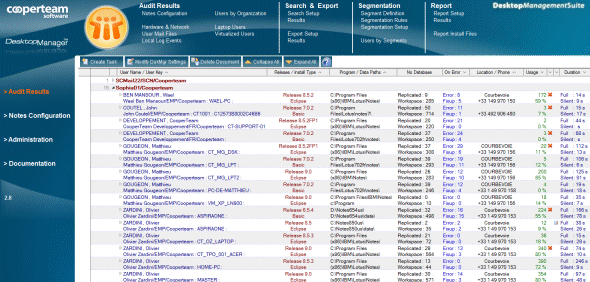
They can also click on the  button to run Desktop Manager in Full Mode on their own desktop.
6. Alert messages |
|
|
A number of alert messages may be displayed during database installation.
- If administrators (persons with an [ADMIN] or [HELPDESK] role in the database ACL) open the database in their desktop and click the
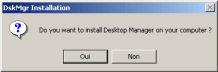
 button, the application will not be installed automatically, but will ask for the authorization to be installed or updated.
- When the database opens for the first time on client desktops, warning message-boxes about code execution risks will be displayed if the database is not properly signed or if the ECL is too restricted on the user desktop. Users should trust the database signer in order for the future tasks to work out properly.
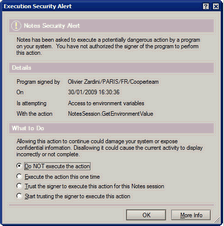
Correctly signing the DskMgrStart.nsf and DskMgr.nsf databases, and the design of a well-configured ECL should prevent such messages from being displayed.
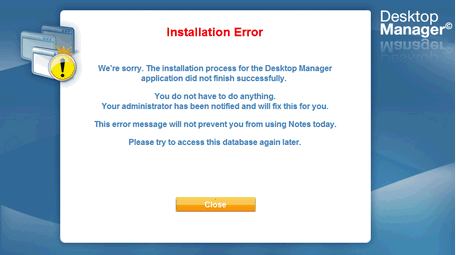
- If the installation phase of user desktop components cannot be achieved (e.g. the inability to detach the DskMgr.dll on the disk at the location specified in the Setup document, access to the Desktop Manager database in read-only mode, etc.), Desktop Manager will be unable to run properly. A screen will then inform the user that application administrators have been advised of the problem. On the administrator side, the error message specifying the problem will be available in the User document related to this person. All problem User documents are gathered in the Administration / On Error Users view.
Comments
0 comments
Article is closed for comments.