


1. Overview |
|
|
 Back to Top
Desktop Manager includes a feature that automatically installs all components required by the application on the client desktop's hard drive. A user simply needs to open the Desktop Manager database on a server to install files. The quickest (and simplest) way to install the application is to send users an email including a link to the database or to set up an automatic database opening system from the database.
If the user population is large, components may be deployed with a package (such as a Windows login script, SMS...). In this case there is no need to send and track mails.
2. Binary files on the client desktop |
|
|
Desktop Manager needs the following files on the client desktop in order to run automatically:

All these components are located in the server's Desktop Manager database (Binary documents in the Administration / Architecture / Install Files view). They are automatically installed onto a user's desktop the first time the Desktop Manager database opens with the Notes client. On subsequent openings, the application checks for the presence of components and updates these if a new version is available in the database on the server. In this way, component versions are automatically updated on user desktops, and the administrator only needs to update the server database. The total size of files installed on the user desktop is around 5 MB.
Normally these files are installed below the user's Notes data folder, so that the user will be able install the files and update them in the future. This file location is defined in Setup documents in the Desktop Manager database (Administration / Setup / Setup Documents view):
 : The usage of Keyword @NotesDataFolder (=Notes client Data folder) defines a generic path for all users (the real location of the data folder doesn't matter for Desktop Manager).
Automatic startup of the local Desktop Manager Starter database, after user authentication, is achieved by adding the StartupDBName=DskMgrStart.nsf line in the Notes.ini file.
3. Settings files on the client desktop |
|
|
When the Desktop Manager application is running on the user desktop, settings files are automatically created or modified there:
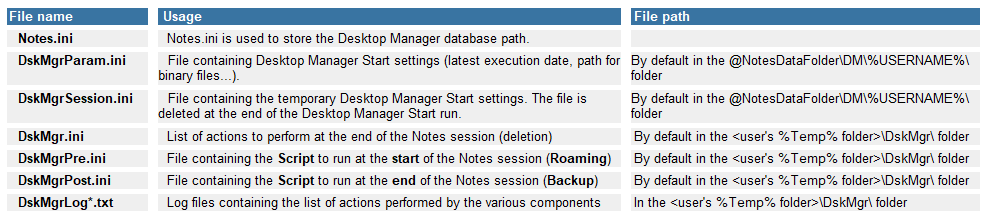
When the Desktop Manager application is running, pending actions are immediately processed, and those that cannot because the Notes client is open are stored in the DskMgr.ini file (workspace modification, Cache.ndk deletion). These are run at the end of the Notes session, via the DskMgr.exe program, which reads the DskMgr.ini file content in order to know the list of actions to perform. The DskMgr.ini file is deleted after being processed.
The DskMgrPre.ini file includes a Script that will be run daily, right at the start of the Notes session (before the password request). This file is usually used to setup Roaming features on the client desktop, to copy Notes configuration files. The DskMgrPre.ini file is installed during Task or Profile application. The DskMgrPre.ini file is processed by the DskMgrHook.dll component.
The DskMgrPost.ini file includes the Script that will be run daily, at the end of the Notes session, after the processing of the DskMgr.ini file. This file is generally used to configure Backup features on the client desktop, in order to save the Notes configuration files. The DskMgrPost.ini file is setup during Task or Profile application. The DskMgrPost.ini file is processed by the DskMgr.exe component.
When the Desktop Manager application is running on the desktop, all operations performed by the various components are tracked in the Log files (DskMgrLog*.txt) that are available in DskMgr sub-folder located in the user's %Temp% folder.
4. Automating Deployment to the user desktop |
|
|
There are several ways to deploy Desktop Manager's files to the user desktop. In the bulk of situations, causing the user to open the Desktop Manager database on its server and install its files to their desktop is the simplest way. The methods detailed below are some of the most commonly used, and there may be other ones.
The 3 most commonly used methods are installation by Sending a Mail, installation by package and installation by adding code to an an existing database. Installation by mail sending and by adding code both aim to cause the user open the Desktop Manager database while the Notes session is active. The installation by package (SMS, Login Script, etc.) consists in installing, at desktop startup, the files required to run the local Desktop Manager Start database. The first time the database opens, the application will install all required files.
Method 1. - Installation by Mail
The installation by Mail consists in sending users a Mail including a database link to the Desktop Manager database on its server. This Mail can be programmed to automatically open the Desktop Manager database, so that users don't have to click on the link. The mails can be directly sent from the Desktop Manager database. For more details regarding preparing these Mails and sending them, see the Mail documents chapter in this manual.
Sending a Mail with a button in the message body can be useful if there is no common signing ID known by all users. In this case, the server's Desktop Manager database should be signed with an application ID and this ID should be declared in the NAB's administration ECL. Then, all desktops' ECLs should be refreshed, via the button present in the mail. This button will therefore include the following code lines:
@RefreshECL("<server name>" : "names.nsf";"");
@Command([FileOpenDatabase];"<name of server hosting the Desktop Manager database>":"<Desktop Manager database path>")
Method 2. - Installation by Package
The installation by Package consists of installing the Desktop Manager Start database (DskMgrStart.nsf) on the desktop and in modifying Notes shortcuts so that the Notes client opens the DskMgrStart.nsf database at startup.
List of actions to perform in the Desktop Manager database on the Server:
- Open the Administration / Architecture / Install Files view in the Desktop Manager database.
- Click on button Build DskMgrStart Db to build a DskMgrStart.nsf database ready to be deployed by package.
List of actions to perform by the package Script on the client:
- Copy the DskMgrStart.nsf file at the root of the Notes client's <Notes Data> folder
- In the Notes.ini file, add the line: StartupDBName=DskMgrStart.nsf
- In the Notes.ini file, add the line: $DskMgrDatabase=<Desktop Manager database path on the server>
- In the Notes.ini file, add the line: $DskMgrServer=<Canonical name of the server hosting the Desktop Manager database>
The DskMgrStart.nsf database will be installed as the Notes client's startup database. Consequently, it will be run after the user authentication phase. At the end of the execution, the Desktop Manager Start database will synchronize its data with the Desktop Manager database on the server. The Notes.ini file should thus mention the location of the Desktop Manager database ($DskMgrServer and $DskMgrDatabase variables).
Comments:
- As regards the DskMgrStart.nsf database, make sure the database's signing ID is authorized in the desktop's ECL.
- Instead of modifying Notes.ini, it is also possible to add a settings document in the DskMgrStart.nsf database, that includes the path to the Desktop Manager database on the server:
- Open the DskMgrStart.nsf database by accessing hidden views (keep Ctrl and Shift keys pressed when opening the database)
- Go to the view (DskMgrParam), and create a document by clicking on the view's Create Param button.
- Enter the information regarding the DskMgr.nsf database location on its server.
- Rather than the server name, you can use the @MailServer keyword to define the user's mail server (MailServer variable value in Notes.ini).
- Save and close the document.
Method 3. - Installation of @Formula code in the Mail database
The opening of the Desktop Manager database may also be pushed to users by modifying the Mail database code of users (or any other database open by the user). For this, just place in the QueryClose event of the Mail database the following code, which opens the Desktop Manager database on the server if the application is not yet installed locally on the desktop (testing whether the DskMgrStart.nsf local database exists):
REM {Desktop Manager Database Location};
db_name := "<Desktop Manager database path>";
server_name := "<Desktop Manager database Server>";

REM {Open the Desktop Manager database if the local DskMgrStart.nsf database is missing};
@If(@IsError(@DbExists("":"DskMgrStart.nsf")) | @DbExists("":"DskMgrStart.nsf") = 0;
    @If(@IsError(@DbExists(server_name:db_name)) | @DbExists(server_name:db_name) = 0;
        @Success;
        @PostedCommand([FileOpenDatabase];server_name:db_name));
    @Success)
This solution is difficult to setup if there are many different messaging Templates. However, it is easy to implement and is transparent for users (no need for user action like opening a mail or clicking on a button). In addition, it is a convenient way to install the application on new users' desktops.
5. Automating Deployment to the user desktop for Notes Client release <= 8.5.2 |
|
|
If Desktop Manager has to be installed on Notes client having a release equal or prior to the 8.5.2 , you can't use the StartupDbName= line in the Notes.ini file to launch the DskMgrStart.nsf database at Notes startup time. You have to modify Notes client shortcuts to add the DskMgrStart.nsf to the parameter line or to use the Hook DLL to enforce the launch of the DskMgrStart database at Notes startup. This change the way the application is deployed by package:
Method 1. - Installation by Package / Shortcut Modification
The installation by Package with modification of Notes shortcuts consists of installing the Desktop Manager Start database (DskMgrStart.nsf) on the desktop and in modifying Notes shortcuts so that the Notes client opens the DskMgrStart.nsf database at startup.
List of actions to perform in the Desktop Manager database on the Server:
- Open the Administration / Architecture / Install Files view in the Desktop Manager database.
- Click on button Build DskMgrStart Db to build a DskMgrStart.nsf database ready to be deployed by package.
List of actions to perform by the package Script on the client :
- Copy the DskMgrStart.nsf file at the root of the Notes client's <Notes Data> folder
- In the Notes.ini file, add the line: $DskMgrDatabase=<Desktop Manager database path on the server>
- In the Notes.ini file, add the line: $DskMgrServer=<Canonical name of the server hosting the Desktop Manager database>
- Copy the DskMgr.exe file somewhere on the disk
- Run the DskMgr.exe program with the following command line:
DskMgr.exe -S "<Notes.exe program path>" DskMgrStart.nsf
Example :
DskMgr.exe -S "c:\Program Files\Lotus\Notes\Notes.exe" DskMgrStart.nsf
The DskMgrStart.nsf database will be installed as the Notes client's startup database. Consequently, it will be run after the user authentication phase. At the end of the execution, the Desktop Manager Starter database will synchronize its data with the Desktop Manager database on the server. The Notes.ini file should thus mention the location of the Desktop Manager database ($DskMgrServer and $DskMgrDatabase variables).
Comments:
-
As regards the DskMgrStart.nsf database, make sure the ODS is compatible with the Notes client version (do not deploy ODS 48 on R6 or R7 clients).
-
As regards the DskMgrStart.nsf database, make sure the database's signing ID is authorized in the desktop's ECL.
-
Instead of modifying Notes.ini, it is also possible to add a settings document in the DskMgrStart.nsf database, that includes the path to the Desktop Manager database on the server:
- Open the DskMgrStart.nsf database by accessing hidden views (keep Ctrl and Shift keys pressed when opening the database)
- Go to the view (DskMgrParam), and create a document by clicking on the view's Create Param button.
- Enter the information regarding the DskMgr.nsf database location on its server.
- Rather than the server name, you can use the @MailServer keyword to define the user's mail server (MailServer variable value in Notes.ini).
- Save and close the document.
- The DskMgr.exe -S command listed above is used to modify shortcuts pointing to the Notes installation where Desktop Manager should be installed. Since several Notes versions may be installed on the desktop, you will be prompted to define the right installation (defining the Notes.exe complete path). The DskMgr.exe file used for the installation will not be the one used by Desktop Manager. This is why it can be deleted at the end of the package execution. The .exe file will process and update shortcuts to Lotus Notes found in the following locations:
- shortcuts on the user's desktop
- shortcuts in the user's Start/Programs
- shortcuts in the user's Quick Launch bar
- shortcut of the Windows XP startup menu for the messaging system
- Office's program launch bar.
- If the installation package is run with the desktop's administrator privileges, shortcuts located in the user folders may not be processed since they won't match the identity running the DskMgr.exe component. In such a case, it is possible to add the path from which a recursive search will be performed:
DskMgr.exe -S "<Notes.exe program path>" DskMgrStart.nsf "<search start path>"
Example :
DskMgr.exe -S "c:\Program Files\Lotus\Notes\Notes.exe" DskMgrStart.nsf "c:\Users\"
- While running, the DskMgr.exe component generates a Log file in the <user's Temporary folder\DskMgr\> folder.
Method 2. - Installation by Package / Hook usage
The installation by Package with Hook usage consists of installing the Desktop Manager Start database (DskMgrStart.nsf) as well as the DskMgr.exe and DskMgrHook.dll components on the desktop so that the Notes client runs the DskMgrStart.nsf database at startup.
List of actions to perform in the Desktop Manager database on the Server:
- Open the Administration / Architecture / Install Files view in the Desktop Manager database.
- Click on button Build DskMgrStart Db to build a DskMgrStart.nsf database ready to be deployed by package.
List of actions to perform by the package Script on the client :
- Copy the DskMgrStart.nsf file to the root of the Notes client's <Notes Data> folder
- Copy the DskMgr.exe file to the <Notes Data>\DM\ folder
- Copy the nDskMgrHook.dll file to the <Notes Data>\DM\ folder
- In the Notes.ini file, add the line: $DskMgrDatabase=<path to the Desktop Manager database on the server>
- In the Notes.ini file, add the line: $DskMgrServer=<Canonical name of the server hosting the Desktop Manager database>
- In the Notes.ini file, add the line: DskMgrExePath=<DskMgr.exe component path>
- In the Notes.ini file, add or modify the line: EXTMGR_ADDINS= <nDskMgrHook.dll component path, without the letter 'n'>
Comments:
- With the DskMgrStart.nsf database, make sure the ODS is compatible with the Notes client version (do not deploy ODS 48 to R6 or R7 clients).
- Also ensure the DskMgrStart.nsf database's signing ID is listed in the desktop's ECL. with all rights.
- Rather than modifying Notes.ini, one can add a settings document in the DskMgrStart.nsf database that will include the Desktop Manager database path on the server:
- Open the DskMgrStart.nsf database by accessing hidden views (keep Ctrl and Shift keys pressed when opening the database)
- Go to the view (DskMgrParam), and create a document by clicking on the view's Create Param button.
- Enter the path to the DskMgr.nsf database location, and the name of the server hosting it in the relevant fields.
- Instead of the server name, you can also use the @MailServer keyword to define the user's mail server (MailServer variable value in Notes.ini).
- Save and close the document.
- DskMgr.exe and DskMgrHook.dll components will be used by the Desktop Manager application. This is why they should be installed in the paths defined in Setup documents.
- If the nDskMgrHook.dll component path on the desktop includes a blank space (ex: "c:\Program Files\Notes\Data\DM\nDskMgrHook.dll"), a short path should be entered (ex: "c:\Progra~1\Notes\Data\DM\DskMg~1.dll") on the EXTMGR_ADDINS line.
- For the nDskMgrHook.dll component, make sure not to enter the letter 'n' of nDskMgrHook.dll on the Notes.ini line. The file name includes a small n, unlike the Notes.ini statement (EXTMGR_ADDINS=c:\Progra~1\Notes\Data\DM\DskMg~1.dll).
Comments
0 comments
Article is closed for comments.