
 |
 |
1. Preparation of Desktop Manager database |
| 2. Validate Setup documents | ||
| 3. Implementation of the multi-databases architecture |
To install the Desktop Manager solution on the Domino server, the following steps should be performed in collaboration with the system Notes administrator.
The total time required to perform all the following actions is estimated at approximately 30 minutes.
1. Preparation of Desktop Manager database |
|
|
 Back to Top
- Copy the DskMgr.nsf database on the Domino server. The database can be deployed anywhere in the server's Data directory or subdirectories thereof.
- Sign the database with a server ID (or with the corporate ID used to sign Domino applications). The ID chosen to sign the database should be present in the users' ECLs with ALL rights in order to avoid users being disrupted with dialog boxes about the execution of uncertified code in the domain. During the client desktop installation process, it is necessary to detach files to the disk drive, call code stored in DLLs, and perform other configuration modifications. You may also wish to check whether the signing ID is present in the organisation's Administration ECL in the Domino directory, so that new users, and those who refresh their ECLs stay up to date.
- Modify the ACL of the DskMgr database in order to restrict database access to authorized users only:
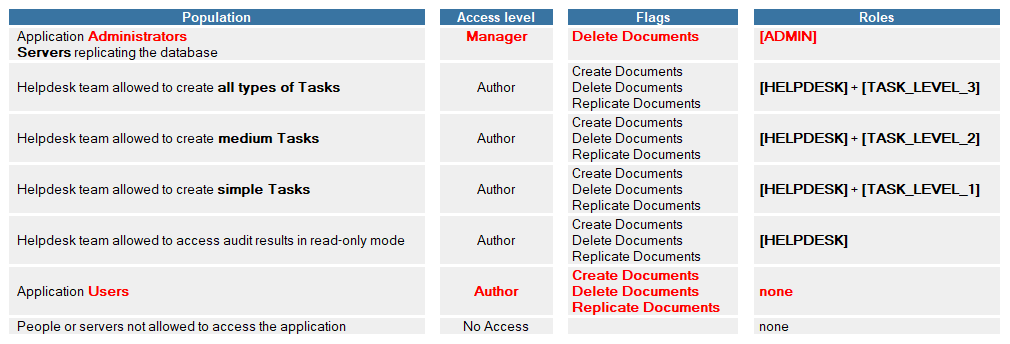
There is no need to complement the [ADMIN] role with a [TASK_LEVEL_] role since it already allows all possible actions via Tasks.
- Prepare the DskMgrStart.nsf database:
- Open the Desktop Manager Start Database document which you will find in the Administration / Architecture / Install Files view of the Desktop Manager database.
- Detach the DskMgrStart.nsf database to the local drive or onto the server.
- Sign the database with the same server ID (or the application database signing ID) used above in order to prevent the user desktops from generating ECL warning dialog boxes.
- Be careful not to change the database ODS when signing it. If you still have Notes R5 clients, change the database ODS back to the 41 value.
- Make sure the DskMgrStart.nsf has NO Replication History. If so, clear it.
- Re-attach the newly signed database to the Desktop Manager Start Database document and save the document.
- Delete the DskMgrStart.nsf database you signed from the local disk drive where you have detached it.
- If needed, schedule the execution of the administration Agent (once a day, night time) :
- To Schedule : Administration Actions : This agent runs scheduled Administration Actions.
2. Validate Setup documents |
|
|
Update the predefined documents Setup:
- Open Setup / Setup Documents view of the Desktop Manager database.
- Select both SETUP ADMIN and SETUP DEFAULT documents in the view.
- Click on button Refresh Setup.
Predefined Setup common usage:
SETUP DEFAULT: Desktop Manager automatically runs on user desktop every day in 'silent' mode and once a week in 'full' mode.
SETUP ADMIN: Desktop Manager only starts up on administrator desktop if they click on the Run Desktop Manager button from the presentation page.
Creation / Update of the Reference document
Update the Reference document by clicking on the Refresh Reference button in the Administration / Setup / Setup Documents or Administration / Architecture / Reference view in the Desktop Manager database.
Insert the Activation Key, if appropriate
If you are evaluating or renting Desktop Manager, open the view Administration / Setup / Activation Key. Create a new document or Edit the existing one. Then paste the key provided to you into the Activation Key field.
3. Implementation of the multi-databases architecture |
|
|
To determine the best architectural choice for your Desktop Manager installation, refer to the Architecture document in the documentation. The Multi-databases architecture is relevant when the Desktop Manager database is used by more than 10,000 people, or when the application has to be deployed in different geographical areas and audit results are not to be entirely disclosed.
The Single-database architecture is the default architecture for the Desktop Manager application. It consists of installing the Desktop Manager database (DskMgr.nsf) on one server, and installing database replicas on the other servers. That database contains all the elements required by the application (Setup, Profile, Template, Tasks, audit results, etc.).
In addition to the Desktop Manager database (DskMgr.nsf), the Multi-databases architecture includes a Desktop Manager User database (DskMgrUser.nsf). The Desktop Manager database stores all settings documents (Setup, Profile, Template, Task, etc.), while the Desktop Manager User database receives all user audit documents (User, Notes Install, etc.)
In a Multi-databases architecture, each Desktop Manager database is associated with only one Desktop Manager User database:
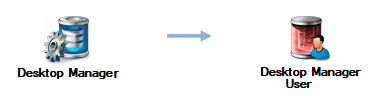
When the user access a Desktop Manager database on one of the servers, their audit data is searched for and updated in the Desktop Manager User database associated with the opened Desktop Manager database. Implementing the Multi-databases architecture simply consists of creating Desktop Manager User databases and specifying the Desktop Manager User database associated with each Desktop Manager database.
Installing Desktop Manager and Desktop Manager User databases
The Server Installation document included in this documentation describes how to install the Desktop Manager database (DskMgr.nsf).
To create the Desktop Manager User database (DskMgrUser.nsf), you should go to the Administration / Architecture / Install Files view and use the  button in order to generate a Notes database template (DskMgrUser.ntf). This template is used to create Desktop Manager User databases on servers. In order for a database generated from the template to be considered as a User database, the file name must contain the USER word (e.g. DskMgrUser.nsf, DM_User.nsf, User.nsf, etc.).
Declaring Desktop Manager and Desktop Manager User databases
In a Multi-databases architecture, all existing Desktop Manager and Desktop Manager User databases should be declared in the Desktop Manager database. To achieve this, one should create a Database document for each of those databases. The document type can be either Desktop Manager or Desktop Manager User.
Database documents are created in the Desktop Manager database using the  button present in the Administration / Architecture / Database Information view. In order to ensure the validity of these documents, there are four fields that must be filled in:

 : Type of database concerned by the document (either a Desktop Manager database or a Desktop Manager User database)
 : Database path on the server.
 : Name of server hosting the database.
 : Replica ID of the database. As this value is calculated when saving the Database document, the database should exist the location mentioned above when the document is created.
-
Remark :
You can create replicas for some Desktop Manager User database on a centralized server, close to the Administrators:
 : Path of the Desktop Manager User replica database on the server.
 : Name of the server hosting the Desktop Manager User database replica.
When the Administrators open the Desktop Manager database available on this server and click on the  button, Desktop Manager detects the availability of several Desktop Manager User databases hosted on this server. So the application will pop-up a windows showing all Desktop Manager User databases they could access:

This is a way to gather all Desktop Manager User databases close to the administrators, so they can access them 'locally', instead of having to open them on distant servers.

This section is only visible in Database documents with a Desktop Manager type, as it allows the definition of the associated Desktop Manager User database using the  button present in the form.
 : Path to the Desktop Manager User database associated with this Desktop Manager database.
In order to declare the Desktop Manager and Desktop Manager User databases more easily, you can select a Database document from an existing database in the Administration / Architecture / Database Information view and press the  button in that view. This button displays a dialog box allowing to list servers in which to find databases with the same Replica ID as the selected database. If the database is found on one of the specified servers, a Database document will automatically be created for that database.
The lower part of the Database document is used to display statistics related to Desktop Manager database content (size, activity, documents, design elements, ACL and replication):
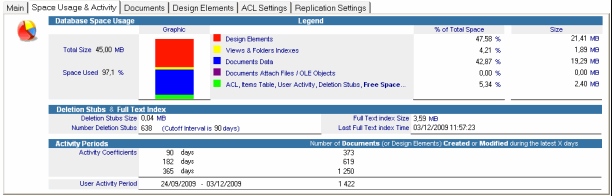
These statistics are built / refreshed using the  button from Administration / Architecture / Database Information view. The DskMgrTask.exe component is launched as background process to compute the statistics. A small Desktop Manager icon (
 ) is displayed in the Windows Task bar while the process is running.
Declaring Desktop Manager databases in the Reference document
In order to get the list of referenced Desktop Manager databases and the list of Desktop Manager Database--> Base Desktop Manager User Database links, just refer to the Desktop Manager database's Reference document in the Administration / Architecture / Reference view. The database table is displayed in the User Database tab:

In case of desynchronization between Administration / Architecture / Database Information documents and the Reference document, refresh the Reference document to update it.
Comments
0 comments
Article is closed for comments.