
 |
 |
1. Overview |
| 2. Precedence Setup / User | ||
| 3. Setup document contents | ||
| 4. Pre-registering users | ||
| 5. Recommendations for Setup documents |
1. Overview |
|
|
 Back to Top
The DskMgr database configuration requires the creation of one or several Setup documents using the  button available in the Administration / Setup / Setup Documents view of the DskMgr.nsf database. The creation and modification of Setup documents is restricted to the users having the [ADMIN] role in the database ACL. Users with the [HELPDESK] role have a read only access to these documents.
Each Setup document will apply to several company employees. When opening the Desktop Manager database, preferences defined in the user's Setup document will be used for:
- the installation and the update of Desktop Manager application on user's desktop (components installation paths, update options...)
- the execution of the application (start frequency, execution mode, messages to display to the users...).
- the audit of user's desktop (information to collect)
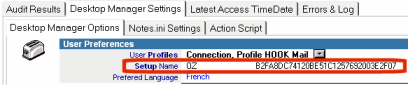
The selection of the right Setup document for a User is performed automatically, during the startup of the Desktop Manager application. The choice is based on many criteria (Mail server of the user, Notes certificates, membership of a group in the NAB...). For the same User, the Setup document may have changed between 2 executions of Desktop Manager (the user has been moved to a new mail server). The name of the Setup document used during the latest run of Desktop Manager is available in the User document:
2. Precedence Setup / User |
|
|
During the first run of Desktop Manager application for a User, some values from the Setup document are copied into the User document (prefered language, Profiles documents list, startup frequency...). These values can be modified later in both Setup and User documents. The modification of these values in the User authorize the handling of exceptions.
If, for the same parameter, the value available in the Setup document is different from the value available in the User document, Desktop Manager use the Precedence option of this parameter, located in the Setup document:

- If the Precedence is User, the right value of the parameter is the one located in the User document.
- If the Precedence is Setup, the right value of the parameter is the one located in the Setup document.
In the previous example, the Profiles list (User Profiles) applied to the user will be the one defined in the User document (Precedence = User) and the user interface preferred language (Preferred Language) will be the one defined in the Setup document (Precedence = Setup).
If the Precedence is Setup for a parameter, the value of this parameter in the User document will be overwritten by the value available in the Setup document. Switching from User to Setup for the Precedence of a parameter in a Setup document is a good way to force a re-initialization of the values stored in all User documents linked to this Setup.
3. Setup document contents |
|
|
Le document de Setup comporte un certain nombre de champs indispensables au bon fonctionnement de l'application :
Global Settings
 : Name of this Setup document. As many Setup documents may exist in the DskMgr.nsf database, each one should be given a unique name. This is a required setting.
 : Free text specify any information related to this Setup.
 : This value may be used to categorized the Setup document in the view (sort by geographical area...).
 : Release number of this document.
 : Name of the last person which has edited the document. Creation time/date and latest modification time/date.

 : Tasks that start administration processes on user desktops will only run if they are created by database administrators and helpdesk staff. In order to check if a task performed on a user desktop has been created by an authorized administrator or an helpdesk employee, this field should contain the complete list of users with task creation rights. User names or group names may be retrieved from the address book. It is then necessary to press the
  button in order to get the full administrator list (groups present in the list are analyzed so users can be retrieved from there) .

To keep this list of users updated (particularly if groups are present in the field), it is necessary to create an Administration Action document (Update Setup User List) in the Desktop Manager database.


 : These Profiles (see Profile documents) are associated with the users of this Setup document. Associating one or more Profiles to a Setup document is not compulsory or may be done later. Profile documents are used to set up some parameters in the client Notes installation, e.g. setting a Connection document pointing to a known server or starting the week on Monday. Several Profile documents may be created in the Desktop Manager database, and one or more of these documents can be associated to a given user. When the list of Profiles applicable to its users is defined in a Setup document, these Profiles can be immediately applied to them when the application is installed on their desktop. This is a convenient way of completing the initialization (locally replicating some databases, creating settings documents for the NAB, installing icons on the workspace, etc.) of an empty desktop connecting to the Desktop Manager database. As Profile documents must be created before they can be associated with a Setup document, the Setup document is likely to be created without Profiles, these ones being added later on.
 : If Precedence is set to Setup for the User Profiles of this Setup, the Profiles defined here will be put at the first position in the User document. It is possible to remove from the User document existing Profiles by giving here the unwanted list (wildcard character like * are allowed).
 : Here you should specify the language of users associated with this Setup document. This is a way to provide users with an interface in their own language, for instance during a Full Mode start.
 : If the users' Notes data folder is hosted on a file server and if the users can connect to Notes via several computers (each accessing the same network disk hosting the data folder), the primary key used for the unequivocal identification of these users (User Key) should not be based on the computer ID, but only on the Notes data (Short Key). A specific Setup document should be created for them and this checkbox should be selected. Otherwise, the Desktop Manager database would contain several entries for a single user (as many entries as used desktops).
User key example: John Smith/SFO/US/Cooperteam:LAPTOP1:C125718700458AC4
Short key example: John Smith/SFO/US/Cooperteam:C125718700458AC4
For Virtualized users (CITRIX...), the computer name (hostname) is automatically replaced with the keyword define below (Virtual Name) since it may change at each session (John Smith/SFO/US/Cooperteam:CITRIX:C125718700458AC4).
 : @Setup1, @Setup2 and @Setup3 keyword values that can be used in all settings documents (Task, Profiles, Templates...).
 : @User1, @User2 and @User3 keyword values than can be used in all configuration documents (Task, Profiles, Templates...).

Each Setup document is defined for a user group in the company. Defining several Setup documents is a way to consider the various application uses for all these people (language, installation, start mode...).

There are seven ways of defining the list of people associated with a particular Setup document:
- All Users: Defines the default Setup document that will apply to the whole company staff. It is recommended to define at least one All Users Setup document in order to retrieve all users entering the database that are not associated with another Setup.
- By Mail Server: It is possible to create a Setup document for all the users sharing the same messaging servers. This is the most common way to define Setups.
 : Names of Mail Servers
- By Certificate: It is possible to create a Setup document for all the users sharing the same Notes certificates or sub-certificates.
 : Names of Notes certificates.
- [ADMIN] or [HELPDESK]: It is possible to create a Setup document for all application administrators (getting the [ADMIN] or [HELPDESK] role). This way, the application will not be automatically installed for these users.
- PickList Selection : Users can be selected one by one, using the person selection window. You may also select user groups. This option suits small groups whose common criteria cannot be easily identified on the basis of the Person document data in the NAB. These people may be for instance laptop users or VIPs. They will not use Desktop Manager like other groups, which justifies the use of a specific Setup document.
 : List of users or list of user groups. Then press the
  button in order to retrieve the actual user list (analysis of groups content, filtering of mail-in databases...). Note that to keep this list up to date, you must create an Administration Action document (Update Setup User List) in the Desktop Manager database.
- Formula Selection : A user population can also be defined using a selection formula. This option is usually chosen to define users associated with a Setup document in the absence of any other criteria. The use of @Formulas based on Person document values in the server's NAB allows building homogenous groups based on organizational criteria (use of /OU= from FullName), geographical location (Location field), Mail server (MailServer field), etc.
 : Selection formula for Address Book users. Then press the button in order to retrieve the matching user list. Note that to keep this list up to date, you must create an Administration Action document (Update Setup User List) in the Desktop Manager database.
- Virtualized Users : It is possible to create a Setup document for all users accessing the application via a Virtual session (CITIX...). As the Virtual environment is more restrictive than a Windows client desktop, it may be sometimes necessary to apply different parameters there (file installation path, binaries update...).
The All Users, By Mail Server, By Certificate, [ADMIN] or [HELPDESK] and Virtualized Users options are the most effective because they do not require a user list update nor a complex search to determine if a user is a list member. Therefore, it is recommended to limit the PickList Selection and Formula Selection options to user groups that cannot be defined otherwise.
Except for the All Users option, it is necessary to mention the reference Address book used to search for users (Pick List, Formula...):
 : Name of the Address Book and name of the server hosting it.
In order to validate the list of users attached to this Setup document, you should click on the button. Users will be retrieved in the specified Address Book, and their name list and number will be displayed. If the list displays unexpected results, then you should modify your selection criteria (formula, mail server name, certificate name...) and click again on the Get Users button.


For user groups defined with By Mail Server and By Certificate, the Get Users button is only used to check if the number of found users is in line with your expectations. The resulting list will not be used to determine if a user should be associated with this Setup document . This list is used only at the time it is generated, for instance to send installation emails.
To keep the user list up to date, whether based on the used selection formula (Formula) or on group content (PickList), it is possible to create an Update Setup User List Administration Action document. This Administration Action will calculate selection formulas (Task Administrators, user selection by Formula or PickList) for all Setup documents requiring it and declared in Administration Action document.
If the Update Setup User List Administration Action is scheduled, you may request it to pre-register all new users (PickList Selection, Formula Selection, By Mail Server, By Certificate):
 : Creation of a User Entry document for every new user.
An installation mail can automatically be sent to these new users by scheduling the Send Install Mail to New Users Administration Action. The mail to send can be selected (among the available messages) by searching for the name of the Setup to which the user is associated in the Mail document title. For instance, if you define a Setup document named SETUP_KING, you should just give the Mail document the Mail For SETUP_KING name so that it works (the Mail document name includes the Setup document name).

 :If Target Users is set to Virtualized Users, we define here the way a user is found to be as Virtual user :
- If the CITRIX word is found of the PATH environment variable
- If a text file named DskMgrVirtual.txt is available in the Data folder of the Notes client
- If the call to GetSystemMetrics() function returns a SM_REMOTESESSION.
 : We define here the location of the name used in the UserKey. We can either give a name in the Setup document (see below) or get it from the DskMgrVirtual.txt text file (first line of the file).
 : Keyword used instead of the PC name in the Desktop Manager key UserKey.
Product Installation

 : Paths list specifying where to install DskMgr.dll, DskMgr.exe, DskMgrTask.exe and nDskMgrHook.dll components. Files can be placed anywhere on the user's hard drive, but it is recommended to select a location where the user has write privileges (file installation and update). @Keywords (@NotesProgramFolder, @NotesDataFolder), #Keywords (#Directory#, ...) or %Keywords (%TEMP%, ...) may be used in this field. We recommend you to install these files in a sub-folder of the Notes client Data folder (@NotesDataFolder). If this field is left empty, the files will be placed in the @NotesDataFolder\DM\ folder.
 : Path specifying where to install ini files (DskMgrParam.ini, DskMgrSession.ini, DskMgr.ini, DskMgrPre.ini and DskMgrPost.ini). These files may be placed in 3 different locations:
- in the user's Temporary\DskMgr folder
- in the user's Application Data folder
- in the same folder as the *.dll and *.exe components (<DskMgr filer path>\<UserName>)
 : Folder path where Notes configuration files can be backed up for a possible restore in case of data corruption. This information is transmitted to the User document at pre-registering. For further modifications, this value should be directly modified in the User document. You can use Keywords (@, # and %) in this field.
 : Folder path where Notes configuration files can be backed up in order to be distributed later on between several PCs (roaming). This information is transmitted to the User document at pre-registering. For further modifications, this value should be directly modified in the User document. You can use Keywords (@, # and %) in this field.

 : During the first run of Desktop Manager on a PC, we ask for the Audit step to be performed BEFORE the execution of the Tasks and Profiles in order to use, from Tasks and Profiles, the Desktop Manager @Keywords based on Audit Results (local mail replica path...).
 : When installing or updating the DskMgrStart.nsf database, its replica Id can be modified in order to avoid any accidental replication with a DskMgrStart database that would be present on a server.

 : Specifies whether files present on the user desktop should be automatically installed and updated by the Desktop Manager application. Application components external to the database (DLL and EXE) are installed when the user opens the database for the first time. During the next openings, the Desktop Manager application may be requested to automatically update its components if new releases are available in the DskMgr.nsf database. This may not work if, for instance, a Notes process could not write in the folder hosting the DskMgr.dll, nDskMgrHook.dll, DskMgrTask.exe and DskMgr.exe files. In such a case, the inventory administrator will make sure that the new EXE and DLL releases of the Desktop Manager application are distributed on user desktops.
 : It is possible to force the execution of the Desktop Manager database on the user desktop if the application has not been run for X days. This is a way to fix damaged Desktop Manager installations or to force the execution for users that never close their Notes client (Desktop Manager usually runs at Notes client startup. For this, a Program document is created in the user's local address book. The first field is used to specify the maximum time interval allowed between two Desktop Manager executions (in days) and the second field is used to specify the Desktop Manager database run time if the delay was exceeded.
 : If an error occurs during the installation or the update of Desktop Manager application on a user workstation, an Alert Email can be sent to the Administrators (the recipients list is defined in the Task Administrators field in Global Settings tab). You can use @ErrorMsg, @UserName, @DskMgrServer and @DskMgrDatabase keywords in the e-mail body field.
 : You may check how long it takes to run Desktop Manager : You may check how long it takes to run Desktop Manager on desktops (in Silent or Full mode) by requesting a detailed report about all performed actions (along with their respective runtime). This report is a text file attached in the User document.
An  icon is also displayed in Audit Results views. As the attachment of this report in the User document requires database space (approximately 5 KB), it is recommended to attach it only when the total process runtime was long enough (for instance more than 20 seconds). In order to have this report systematically added, just set the maximum runtime to 0. Another file called DskMgrExeLog.txt is created during the execution of DskMgr.exe. It is also attached to the User document.
 : You can disable the display of error messages while Desktop Manager is running.


 : Desktop Manager database path (database path, server name) that can be used as a substitute for the Desktop Manager database associated to the user. If the main database does not answer, the replacement database will be activated by the code available in the DskMgrStart database. The name of the backup database is stored in the Notes.ini file ($DskMgrBackupDatabase and $DskMgrBackupServer). You may use this feature in exceptional cases like the non availability of the server hosting the main Desktop Manager database.

 : Desktop Manager Project database path. If the server name field is left empty, it means that the database is on the same Domino server than the Desktop Manager database currently in use. If you don't use the Desktop Manager Project database, you can leave these fields empty.
 : Desktop Manager Upgrader database path. If the server name field is left empty, it means that the database is on the same Domino server than the Desktop Manager database currently in use. If you don't use the Desktop Manager Upgrader database, you can leave these fields empty.

If you want to install Desktop Manager on Notes clients having a release number equal or prior to the 8.5.2, you will have to use the following parameters to launch the local DskMgrStart.nsf database at Notes startup time :
 : In order to open the DskMgrStart.nsf database at the Notes client start up, it is necessary to modify Notes related shortcuts (Windows Desktop icons, Start menu applications, Taskbar startup icons). When this checkbox is selected, the automatic installation process is requested to modify these shortcuts in order add the DskMgrStart.nsf into. The opening mode of the DskMgrStart.nsf database may be setup in a different way (via a portal database, a .bat document, Hook, etc.). In such cases, this checkbox should be left unselected.
 : If the application cannot start with Notes shortcut modification (impossible to modify shortcuts...), the nDskMgrHook.dll component may be requested to handle it. It will run the DskMgrStart database at Notes client startup (Overlay) or it will restart the Notes clients with the DskMgrStart database as parameter (Restart).
 : You may request Desktop Manager to create in the Windows startup folder a link to the DskMgr.exe executable file. This way, the DskMgr.exe program can be started before the Notes client is run, in order to perform specific tasks (workspace icon removal, Cache.ndk deletion, Notes database move...).
 : These Notes.ini variables are used at Notes startup in order to know the location of the Desktop Manager database to open. They are updated from the fields present in the User document. This box should be checked so that these variables are not overwritten by User document values.
Process Execution

Two automatic start modes have been implemented for Desktop Manager:
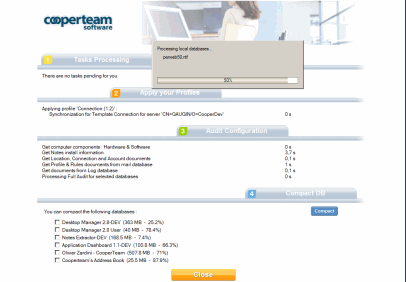
- The Full Mode that may take a few seconds, depending on the tasks assigned by the administrator (e.g. compacting or replicating a large database). During the whole processing, an interface display will inform users about the current process and the operation progress status :
- The Silent Mode, whose maximum duration should not exceed 2 to 3 seconds. In this case, the user does not get any display and is not provided with any information regarding the current execution of an administration process. The silent mode does not allow performing all administrator scheduled tasks because only the fastest ones are executed.
These two modes are complementary: the silent mode ensures a consistent desktop setting (Profiles) without stopping users, while the full mode supports all tasks (Tasks + Profiles), including the most substantial ones. Their respective actions are detailed below:

If the application starts in Silent mode and if there are pending Tasks to run for the User, the application will immediately switch into Full Mode. In order to avoid this (non-urgent Tasks), it is possible to define Tasks only running in Full Mode.

 : Specifies the application's automatic or manual start mode. The manual mode may be selected if Desktop Manager application is installed on Administrator or Helpdesk staff desktop. So they can run the application manually by opening the DskMgr.nsf database and clicking the
  button.
 : You can force Desktop Manager to run on a User's desktop if a Switch ID is performed. This helps to handle Notes configuration where several person shared one single Notes installation.
 : Specifies the Desktop Manager start frequency in Full mode. It is the complete execution of the administration process, which can block the user during few seconds at Notes starts up. The common frequency is once a week.
 : Specifies the Desktop Manager start frequency in Silent mode. This mode may be used on a daily basis since it can hardly be detected by users.


 : When Desktop Manager automatically starts when Notes starts up, users may be asked if they want to run the application. If they don’t, users immediately regain access to their computers. The application restarts automatically the next time Notes starts up. This can be useful to avoid users in urgent need of their desktop (VIPs) from being stopped in their work. However, it is important to consider the fact that users with this option activated could still refuse to run Desktop Manager on their desktop, thus preventing the administration processes from being triggered. It is also possible to request the user authorization before triggering the Full Mode, while leaving the user no choice as regards the silent mode triggering.
 : For time-consuming administration tasks (such as compacting a large database), this option enables users not to start the process by confirming or not the task execution. This message is, displayed only if the database size is higher than the one specified.
 : In order to limit interactions between the user and the application, you can request that the Desktop Manager database be automatically closed as soon as processes are completed (Full Mode). If you don't, at the end of the audit step, a list of local databases to compact will be suggested to the user. He will then have to click on the
  button to quit the application.


 : While it runs various processes (Audit, Task, Profile, Compact), Desktop Manager will have to open the desktop's Notes local databases. If the Notes client assumes these databases are not stable enough (because they remained open during a Notes client crash), it will check the data by performing a Fixup (consistency check). If the database size is small, the Fixup operation will take one or two seconds, but if the database is huge (more than 1 GB), it can takes several minutes. Desktop Manager is not in charge of running this Fixup because it takes place during the database opening. In order to prevent this side effect from significantly slowing down the Desktop Manager runtime on desktops, you can ask Desktop Manager NOT to process (compact, copy, replication, change acl, audit...) databases requiring a Fixup. Only the Task Fixup command remains available. These databases will be considered as 'impossible to open' databases and an error message will be displayed.
 : In order to speed up the modifications to apply in the User's Mail database (creation of Mail Rule documents, update of Calendar Profile document...), Desktop Manager can first try to perform these modifications in the local replica of the Mail database (if it exists). This will avoid a connection to the Mail Server of the user and will save few seconds.
 : In order to get the user back in control as soon as possible, the user desktop audit process may be run in the Notes session background. Clicking on the Icon in Task Bar option displays a small Desktop Manager icon in the Windows Taskbar (
 ) during the desktop audit process.
 : In order to speed up the desktop data's audit step and the synchronization between audit results and the data stored into the user's Desktop Manager server database, you may request that only the local data modified since the latest audit are updated in the server database. If you want to enforce a full synchronization, you can uncheck this option or more simply delete the user's Notes Install document from the Audit Results / Notes Configuration view.
 : Define the frequency (in hours) for the background synchronization between local Desktop Manager Starter database (DskMgrStart.nsf) and the Desktop Manager server database (DskMgr.nsf). Clicking on the Icon in Task Bar option displays a small Desktop Manager icon in the Windows Taskbar (
 ) during the data synchronization process.

 : This is a way to reset the focus on any workspace database. Indeed, when Desktop Manager runs at Notes client startup, the Desktop Manager Starter database icon (
 ) on the workspace is activated and the focus remains on this database. If the Desktop Manager Starter database is not located on the same page as the user's Mail database, it can be annoying to force the user to manually change the page every day. Setting the correct value here eliminates that annoyance.
 : Path of the Notes database we want to open at the end of the Desktop Manager execution.
 : You can use a Domino URL syntax to build the path of the database to open. The full URL would be : notes://<server_name>/<database_name>/URL
Example : notes://SrvAppl01/Administration/Portal.nsf/main?OpenFameset
 : This is a way to request that all tasks that should be performed by DskMgr.exe when the Notes client is not in memory (workspace icon removal, Cache.ndk deletion, file move...) be performed at the end of the Notes session (when the user closes his Notes client). If this option is checked, the DskMgr.exe program is started in the background by Desktop Manager, and it waits for the end of the Notes client before processing the DskMgr.ini file's command lines.
 : Ask for the display of a Progress Bar window while the DskMgr.exe is processing the DskMgr.ini file, at the end of the Notes session:
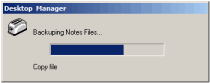


 : When Desktop Manager starts, it records the time required for its init step (configuration check, binaries upgrade, search for Setup and User documents...). If this duration is longer than the setup one, Desktop Manager won't run. This option helps to detect situations where the users starts a Notes client having a Notes Data folder located on a low bandwidth Network drive.
 : If the application doesn't run because of a low bandwidth connection, it is still possible to run an agent present in the Desktop Manager Starter database.
 : When the application runs in Silent mode, Desktop Manager checks the configuration (init), applies user Profiles (apply profiles) and ends up performing a quick configuration audit (audit). Audit steps may be skipped if the duration of the init + profile is longer than expected (runtime set up in seconds). This way, Desktop Manager can run quicker in Silent mode.
: When the application runs in Full mode, Desktop Manager checks the configuration (init), runs pending Tasks (run tasks), applies user Profiles (apply profiles) and ends up with a full configuration audit (audit). Audit steps may be skipped if the duration of the init + task + profile takes too much time (runtime set up in seconds). This way, Desktop Manager can run quicker in Full mode.

 : Desktop Manager startup may be linked to the user desktop's IP address. You should first define the default behavior (Desktop Manager startup or no) and then define the IP address ranges where the application can or cannot run. If Desktop Manager can run, it is possible to enforce its startup using a specific Location document.
Audit Configuration

 : In order to speed up the local Notes database (.nsf or .ntf) analysis, Desktop Manager can launch several execution threads to parallelize the process.
 : During the analysis of local databases, the percentage of space usage in the database is computed (useful to know if the database has to be compacted). For large size databases, the calculation may take a few seconds. So you may choose not to perform this % calculation for large databases and in this case, the space usage will be set to 100%.
 : If the user's Mail database is present on his desktop as a replica, it may be more suitable to use this local replica to extract information (Profile documents, Rules, ACL...) rather than to query the database present on the messaging server.
 : For locally replicated databases, Desktop Manager may raise an alert if they have not replicated after a given number of days. If this limit is exceeded, a check (X) will be displayed in the last column of the 'Replicated Databases' table, in the local databases section of the Notes Install document.
 : During the audit of Location, Connection and Account documents, you don't want to bring in the Desktop Manager database any Location, Connection or Account documents from the local NAB (PNAB) which have been pre-installed by Notes (home/notes/net Connection document, Bigfoot Account documents, Verisign...).
 : During the Personal Names and Address Book (PNAB) audit, do not collect Password located in the documents (Account, Location, ...).
 : During the Personal Names and Address Book (PNAB) audit, do not audit documents with recording conflicts, because you don't want to bring in the Desktop Manager database documents that will also appear as conflicting.
 : Get the list of NAB Groups the user is member of. The Group names are stored in the User document.

The application retrieves a number of information during the Notes installation audit phase (in Silent or Full mode). You can select here the data to be collected, whether it be in Silent mode and in Full mode.
 : Collects information about the user desktop (hardware configuration, network configuration, software list, Windows settings...)
 : Collects information about the Notes client installation (release, installation paths, files, ...) and configuration (user preferences, miscellaneous settings).
 : Copies the user ID file in the Desktop Manager database.
 : Copies the user personal dictionary file (User.dic) in the Desktop Manager database.
 : Copies the Notes.ini file in the Desktop Manager database.
 : Analyzes the Desktop.ndk file (or Desktop6/9.ndk) to retrieve information about database icons available on the workspace and display options.
 : Searches for all Notes databases (.nsf) locally available on the user desktop. Each of these databases is open and basic information are collected (title, replica id, size, number of documents...). This option is not available in Silent mode because it can take a few dozen of seconds to complete.
 : List of local Notes databases you want to audit with all details. For each database, a Database Audit document is created in the Desktop Manager database :
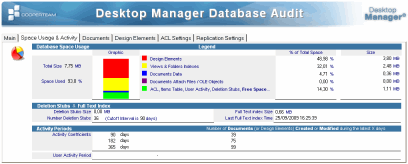
 : Searches for all Notes Template databases (.ntf) locally available on the user desktop. Each of these Template databases is open and basic information are collected (Template name, size, replica id...). This option is not available in Silent mode because it can take a few dozen of seconds to complete.
 : Retrieves Connection documents from the user's local Names and Address book.
 : Retrieves Location (with related Replicator Page) documents from the user's local Names and Address book.
 : Retrieves Account documents from the user's local Names and Address book.
 : Retrieves the Profile document from the user's local Names and Address book, as well as the Profile document from the Perweb.nsf database.
 : Opens the user's Mail database on its Mail Server and collects a number of information (database size, number of documents, quota, used template, ACL...).
 : Searches for a local replica of the Mail database and of the Archive database on the user desktop. If these databases are found, they are open and some information (database size, document number...) are collected there.
 : Retrieves Profile documents from the user's Mail database (Calendar Profile, Out of Office Profile, Delegation Profile, Archive Profile). The information contained in Mail database's Profile documents is not client desktop related because these documents are stored in the user database on a Mail server. However, the process takes advantage from being run with the user identity to access documents within the Mail database and to transfer them to the Desktop Manager database. In the meantime, these Profile documents are converted to Notes documents, which makes them available in views and thus easily accessible (in the Mails database, only the database owner can access them). These documents are important because they contain information that may impact the user desktop configuration (e.g. Archive database path for the mail).
 : Retrieves Mail Rules documents from the user's Mail database.
 : Retrieves Archive Settings Profile documents from the user's Mail database.
 : Processes the desktop's local Log database documents in order to inventory error messages. It is important to analyze the contents of the local Log.nsf database because it is the only place where errors occurring on the desktop since its installation (resource allocation issues, replication error, database corruption, etc.) are recorded. As this database is never purged, nor even accessed, it may contain thousands of documents. As this information cannot be put back into the Desktop Manager database, a parsing process is implemented on the Log contents to search only for some information (extracting lines containing keywords). The tool uses search start dates in order not to retrieve always the same information. The information to extract from the Log is specified a little further in the Setup document.
 : Search into configuration databases (Names.nsf, Bookmark.nsf, Log.nsf, Headline.nsf, Mail.Box, Smtp.box, DskMgrStart.nsf) and local Mail replica (if exists) the number of Design elements having the flag 'Prohibit Design Refresh' enabled.
 : Get the Replication Formula stored in Mail database (both server and local replica).
 : During the local database archive process to the Archive database, the Notes client synchronizes the folders so that the Archive database contains the same folders as the Mail database. Sometimes, this synchronization goes wrong and folders are duplicated in the Archive database. In order to detect such a problem, Desktop Manager can compute the number of duplicated Design elements in the Archive database.
 : List of ACL rules to apply to the Mail Database's ACL. Alerts are raised in the Notes Install document and in the User Audit Results / User Mail Files.
 : List of Environment Variables to collect from the user's desktop. The values are stored in the User document.
 : List of executable to search on the user’s hard drive in order to check their presence and their release number. As the search is conducted using the Windows registry database, all these software must have been correctly installed and referenced in the register database. The analysis process does not have the time to browse the complete disk in order to search for these executable files, as this could take up to one hour. It is also possible to specify a exe file full path (c:\notes5\notes.exe). If so, Desktop Manager will have a look to find the executable file at the specified location, without using the Windows registry facility. It is possible to use @Keywords (@NotesProgramFolder, @NotesDataFolder), # keywords (#directory#, ...) or %Keywords (%TEMP%, ...) in this field.
 : List of field names coming from the NAB's Person record that you want to retrieve and place in the User document.
 : List of values to collect from the user's Notes.ini file. The values are stored in the Notes Install document.
 : List of values to collect from the Windows Registry Keys. The values are stored in the User document.

Processing documents present in the user desktop's Log.nsf database allows to retrieve the list of Notes errors that occurred on the desktop (Cache.dsk saturation, Replication error, access denied to resources) since its installation. The selection of messages to retrieve depends on the selection of keywords specified below. Language will have to be considered in the selection criteria. Any line included in one of the Log documents containing one of the keywords will be copied to the User Log document in the Desktop Manager database, and the keyword will be highlighted.
 : Type of Log database documents to take into account.
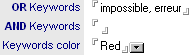 : List of keywords to search (OR or AND format) and highlighting color for found keywords. Several keyword blocks can be specified in order to select different rendering colors.
 : List of Log line keywords to ignore.
4. Pre-registering users |
|
|
Once users have been selected (in Pick List, Formula, MailServer, Certificate mode), they may be pre-registered in the database with the  button. In the Desktop Manager database, this will create a User Entry document for all Setup document persons. These entries include some options defined in the Setup document: language selection, installation type (manual or automatic), list of Profiles documents to which the user is attached...These entries are visible in the Desktop Manager database, in the Administration / Installation / User Installation Progress or Administration / On Error Users views, under the - Never entered in database Users category:
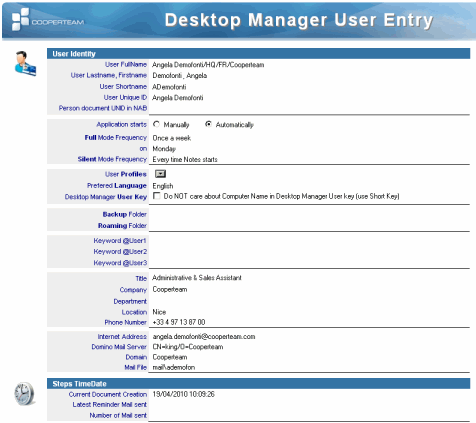
These entries are used both to send an installation mail to involved users, and to monitor database access (meaning application installation) for these users. So it is strongly recommended to pre-register users, as it makes mail sending and installation monitoring easier in order to detect which users put in the mail cc: have not installed the application yet on their desktops. After a few days, late users will be sent a new mail asking them to install the application.
NB: If you are installing the application using a package, you don't need to pre-register the users (no installation e-mail sent).
5. Recommendations for Setup documents |
|
|
- It is recommended to create at least one Setup document for all users (All Users). This 'default' document will be applied for any unregistered user who happens to open the Desktop Manager database on the server.
- Then, as many Setup documents as there are modes of using Desktop Manager should be created. When a user connects to the database, the application searches for the first Setup document containing the user name or its Mail Server or its Certificate... If no document matches this search, the application applies the default Setup document (All Users). If there are no Setup documents within the database, the following minimal options are applied:
- No installation in automatic starting mode
- Authorized update of Desktop Manager components (DskMgr.dll, nDskMgrHook.dll, DskMgrTask.exe and DskMgr.exe)
- No retrieval of the Notes.ini or ID files
- No search for executable on the user desktop
- No retrieval of Mail database documents
- No tasks due to the absence of specified administrator
- No associated Profile
- No search in the Log
- Setup documents using All Users, By Mail Server, By Certificate, Virtualized or [ADMIN] or [HELPDESK] are more efficient than the ones based on user lists (Picklist Selection or Formula Selection) because these lists must be regularly updated through an administration action (Update Setup User List).
- Profiles documents should do not have to be associated with the Setup document from the start. This can be done afterwards or even not at all (if the Profiles are not intended to be used).
- When using @Formula to select users associated with this Setup document, the Notes client might display an error message regarding the size of a field, of a document or of a view column. This simply means that there are too many users and that the Setup document cannot be recorded in its current configuration. The solution consists in dividing it into sub-documents containing less users. For instance, assuming the @Formula is:
Type = "Person" & Location = "Paris"
only 2 Setup documents need to be created, with the following @Formulas:
    Type = "Person" & Location = "Paris" & @UpperCase(@Left(LastName;1)) <= "L"
    Type = "Person" & Location = "Paris" & @UpperCase(@Left(LastName;1)) > "L"
in order to split users into the 2 documents.
As this problem only arises in some Notes client releases, it is very unlikely that you would come across it. Sometimes, no error is raised but the user still doesn't "see" the Setup document associated with him. If so, the number of users in a Setup document should be limited to 1,000 by modifying the formula.
- If you are using Setup documents based on Mail Server (By MailServer) or Notes certificates (By Certificate), there is no need to click on the
 and
and  buttons. These buttons are only useful if you want to pre-register the users in the Desktop Manager database in order to send them the installation e-mail (and this way to control who has entered into the database).
 - In order to improve analysis results of the local Log.nsf database documents, the list of searched keywords must be enlarged. The best method consists in opening the Log database on several client desktops to collect the terms most commonly used in error messages and to place them in the Setup document.
Comments
0 comments
Article is closed for comments.