
 |
 |
1. Database Documents |
| 2. Multi-databases Search | ||
| 3. Administration Requests |
1. Database Documents |
|
|
 Back to Top
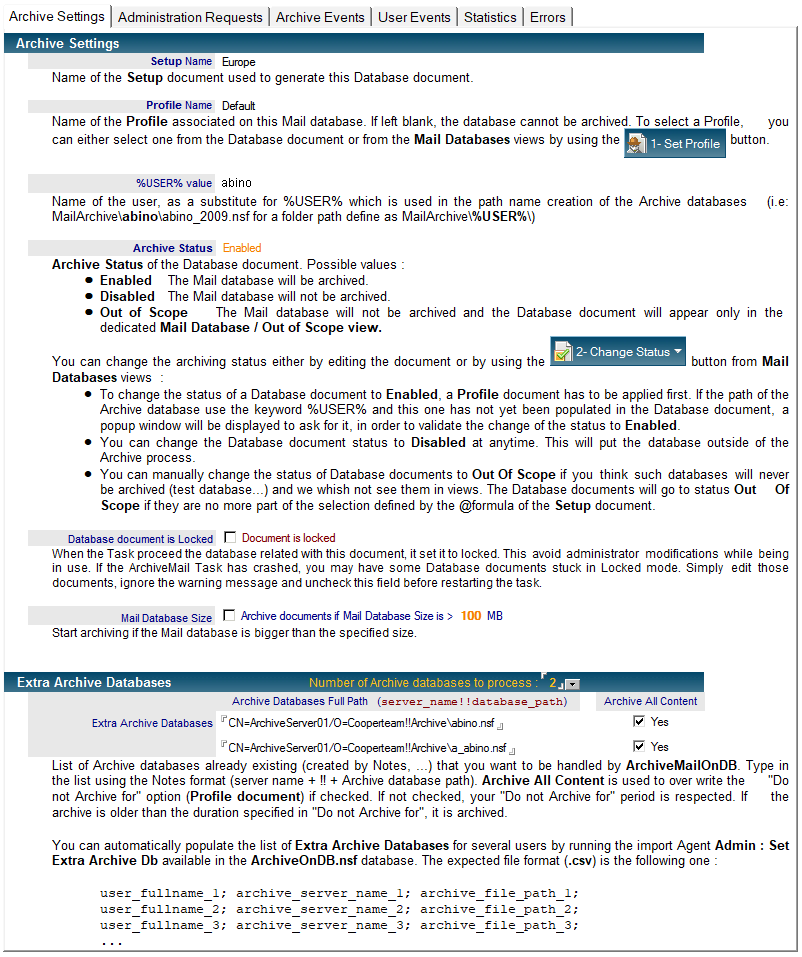
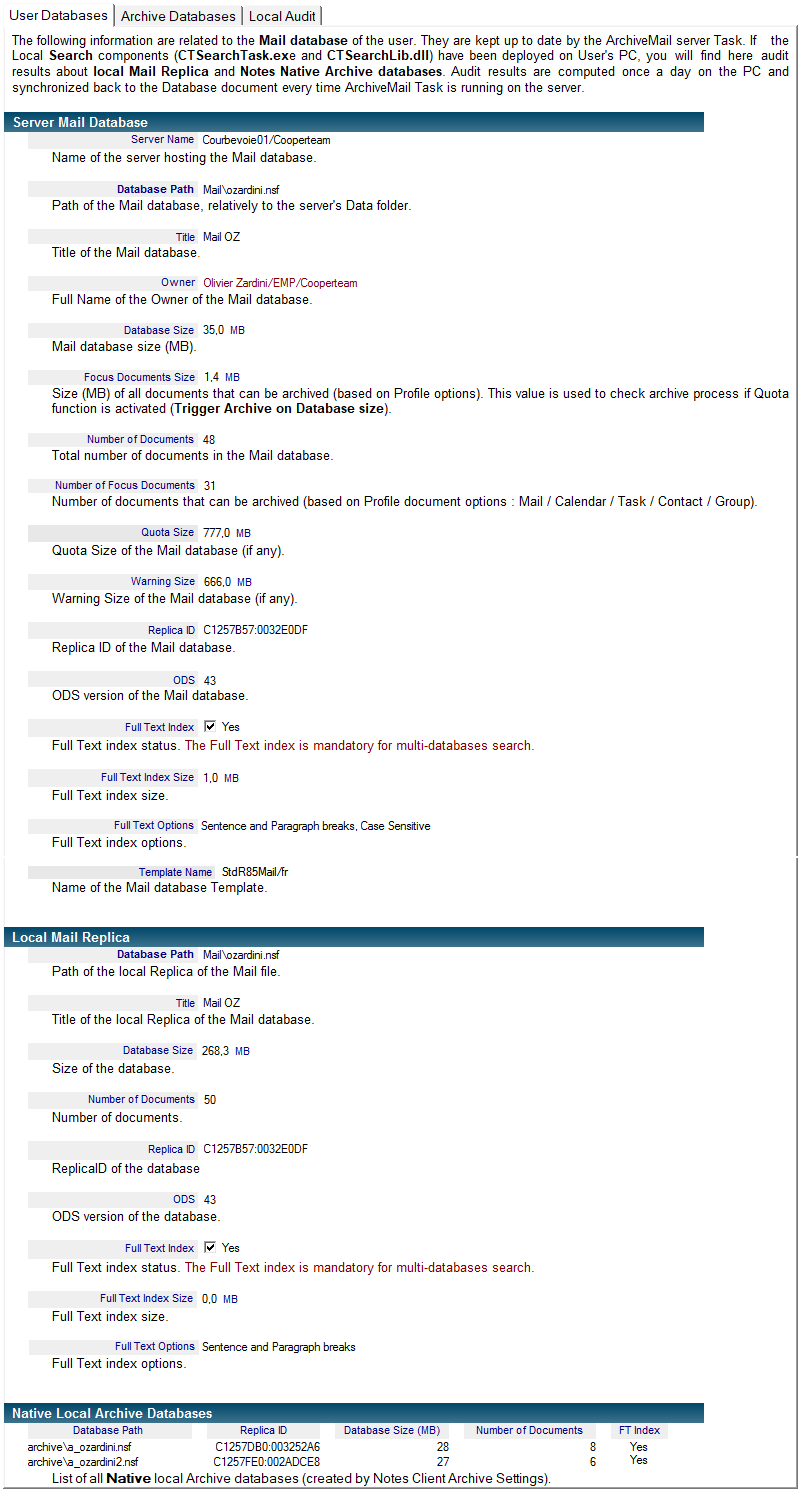
Database documents are created by the task in the ArchiveMail on DB database. They reflect all the Mail databases that may be archived. If a database is not displayed in this list, you should check the selection criteria defined in the Setup document. The Database document allows monitoring the archive process throughout the Mail database’s lifetime. It is also used to link with Archive Profile documents, thus specifying for each mail database for how long the documents are stored in the database.
2. Multi-databases Search |
|
|
The multi-databases search module allows the user to look for a string in all active mails and archived mails in one run (instead of having to open each database to repeat the search).
Multi-databases Search from Notes Client or iNotes
The Search module is available from the Search folder which is under Archive Mail in user's mail database:
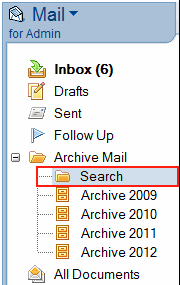
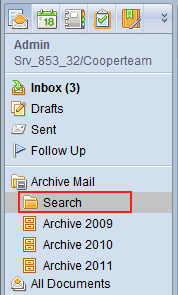
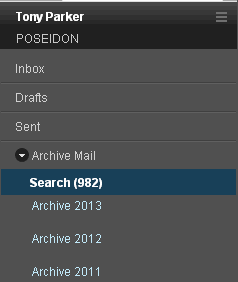
Click on the Search folder to display the action buttons:
 Start a new search.
 Remove the selected search results.
 Remove all the search results.
 Update the Search folder.
To launch a multi-databases search from the Notes client, do as following:
- Open the Mail database and select the Archive Mail entry in the main browser. Click on the Search link
- From the Search folder, click on the
 button. The Search interface displayed below shows up :
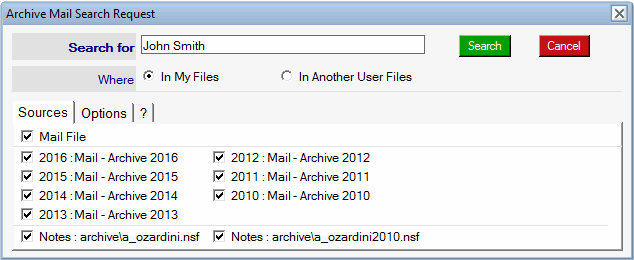

The string to look for.

Main Mail database to search in. The default search is applied on the user Mail database.
By selecting Another User, you can search in other user Mail database. To do so, you have to select a user name in an address book. You can do this only if the selected user have granted read access to his Mail database and if Archives inherits of these access rights. You can't search into another User Mail files if you are running the search from iNotes client.
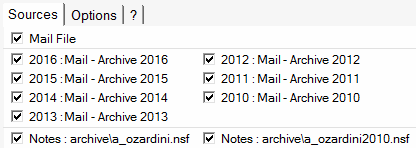
List of databases (Mail or Archives) to search in. Check or uncheck to select. The Full Text index is mandatory to search into the databases. The search engine can also search in the local native Notes archive databases of the Notes client. You simply have to check the Enable Native Local Archives Search option the Tab Local Installation from Profile document.
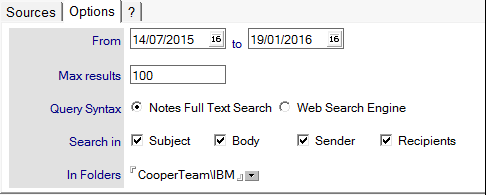
You can restrict the search scope by providing a date range (based on document creation date). You can also define the maximum number of results returned by the search engine, the type of Query Syntax used (Notes Full Text or Web), the list of fields where the search is applied to (Subject, Body, Sender or Recipient names) and restrict the search to the messages stored in some specified folders.

In order to simplify the usage of the Search module, the Help Tab ? provides a quick reminder about commonly used search syntax (which can by Notes Full Text or Web, depending on the chosen option above).
- Launch the Search by clicking on
 .
. - If you are running the Search from a Notes client, the search engine (installed on the server hosting the Mail database or on the local PC of the users) will display a message:
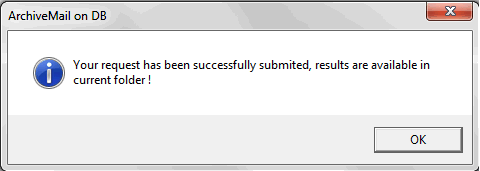
If you are running the Search from iNotes client, there is no popup window displayed but you have to click the button  to refresh the Folder and see the results.
- The Search folder is updated and display a new category (Date / Hour and requested string), containing the search results:
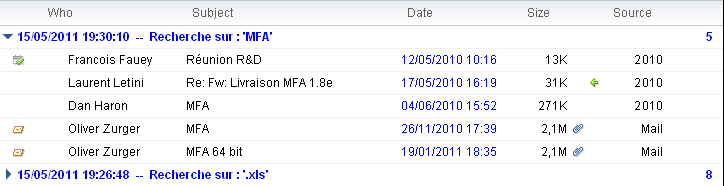
The Source column indicates where the documents come from (the key word "Mail" indicates it came from the user Mail database. If it's a year, it indicates it came from an Archive database).
The documents generated and displayed under the Search folder are links, like the ones in the Mail database after archiving (if a linking period was defined). Opening one of those link documents will automatically redirect on the original document. Deleting a link document DO NOT delete the original document (archived or not).
Trace Mode
In order to get some information during the execution of the search module, you have to add a debug line in the Notes.ini file of the Domino server or the Notes client (if the search module has been installed locally on a user PC). A Trace file will be created at the location defined by the variable:
CTSearchLibDebug=file_path\file_prefix
For example, the line:
CTSearchLibDebug=c:\Temp\search_debug
creates a Trace file named:
c:\Temp\search_debug_nlnotes_20130212_17_59_4956.txt
3. Administration Requests |
|
|
Overview
ArchiveMail on DB provides an request engine to perform day to day administration tasks on existing archive databases. The 10 available requests are:
- Move an archive database to a new location.
- Move an archive database outside of the Archive process.
- Delete an archive database from disk.
- Add a new Archive database in the Archives Databases section of the Database document.
- Change Archive Database Location (change both Server Name and Database path for existing Archive databases).
- Delete Local Full Text Index for local databases (Mail Replica or Archive Replicas)
- Export Archive databases content into XML/HTML file format.
- Archive all Mail database content into existing Archives databases (empty Mail database content).
- Copy back all Archived documents into Mail database (roll out).
- Remove all Archive Mail components from Mail database (remove Archive database links & Search folder).
The first two requests (Move an archive database and Move an archive database outside) have to be managed by the administrator of the application. He has to select manually the archive databases documents and set inside the required parameters (i.e new database location).
The creation of the Delete archive database request (linked to Profile document deletion criteria) is automatic. As soon as an archive database is old enough to be deleted, a Purge Request document is created. The deletion of the archive database will take place after the administrator validation.
The Move an archive database outside request and the next 4 ones (Add a new Archive database, Change Archive Databases Location, Delete Local Full Text Index and Export Archive databases to XML/HTML) are launched from the Mail Databases views, selecting the Database documents and clicking the More... button:
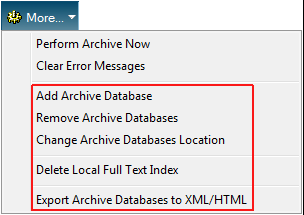
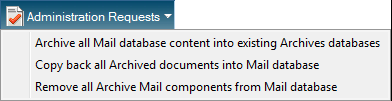
The last 3 requests (Archive all Mail database content into existing Archives databases, Copy back all Archived documents into Mail database and Remove all Archive Mail components from Mail database) can only be applied on Out Of Scope Database documents. You have to open the Mail Databases / Out Of Scope view, select the Database documents and click the Administration Requests button:
Request to move an archive database to a new location
This request is used to move an archive database to another Domino server or another path (within the Data directory). The Task will create a replica of the archive database at the new location and will delete the existing one when the replication process is completed. The database link located in the Mail database will be updated.
In order to request an archive database move:
- Edit the Database document.
- Find the archive database and select Move Archive Database to a new Location in field Administration request.

- Choose the new database path and the new server name. Leave the Server Name empty if the new server is the same that the one hosting ArchiveMail on DB application.

- Save the Database document.
- The request is now waiting to be processed and can be watched in the Administration / Requests / Move Requests view.
- The next time ArchiveOnDB.exe Task will run, the request will be processed and the information related to the new path for the archive database will be updated.
Request to move an archive database outside of the Archive process
This request is used to exclude an archive database from the archive process. All references to the archive database will be removed in the Database document and all links located in the Mail database will be deleted. This exclusion is used when you want to move the database outside of the Domino server to backup it to another storage (tape, DVD).
In order to run an archive database exclusion request:
- Edit Database document.
- Find the archive database and select Move Archive Database outside of the Archive Process in field Administration request.

- Save the Database document.
- The request is now waiting to be processed and can be watched in the Administration / Requests / Move Requests view.
- The next time ArchiveOnDB.exe Task will run, the request will be processed and any reference to this archive database (in Database document or from Mail database) will be removed.
This request may also be launched from the Mail Databases views, by selecting several Databases documents (useful to remove all archive database for a specific year):
- Select Database documents from one of the Mail Databases views.
- Click the button
 /
/  .
. - Populate the field used to locate the archive database years:

- Click the button
 to validate the request. The Database documents are immediately modified.
The next time ArchiveOnDB.exe Task will run, the archive databases will be removed from the Archive databases list and the Archive Links will be removed from the Mail database Outline. All archive databases removed from the archiving process are kept in the Database document (Archive Events Tab).
Request to delete an archive database
This request is used to automatically delete from disk any archive databases older than the deletion criteria defined in the Profile document.
In order to create a purge request on an archive database:
- Edit the right Profile document.
- In the Archive Databases tab, define the way the archive databases have to be deleted (by age or by date):


- Save the Profile document.
- The next time ArchiveOnDB.exe Task will run, all the archive databases matching Profile document Deletion criteria will be processed and a Purge Request document will be created. These documents are available in the Administration / Requests / Databases Deletion view.
In order to validate the deletion of an archive database:
- Open the Administration / Requests / Deletion Requests view.
- Select the archive databases to be deleted and click on the
 button. The Database documents will be modified and the Administration Request field of the archive database section will be updated as:

- The next time ArchiveOnDB.exe Task will run, the archive databases will be deleted from disk and any reference to these databases will be removed (archive database section in Database documents, archive database links from Mail database).
The list of deleted databases is kept in the Database document, in Tab Archive Events:

Request to add a new Archive database
This request is used to add a new Archive database into the Archives Databases section in a Database document. The database will also be added to the Mail database outline (inside Archive Mail folder). This is useful in case the Archive database has been removed by accident from the Archive process.
To add a new archive database ::
- Select Database document from one of the Mail Databases views.
- Click the button
 /
/  .
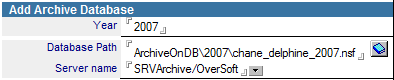
. - Populate the 3 mandatory fields used to locate the archive database (year, path, server name):
- Click the button
 to validate the request. The new archive database is immediately visible in the Database document.
During the next run of the ArchiveOnDB.exe Task, this new Archive database will be take into account (update of the information in Archives Databases section of the Database document, add of the database link into the Mail database Outline).
Request to change Archive Databases Location
This request is used to change, in the Database documents, the name of the server hosting the archive databases or the databases Folder path. You have to stop the ArchiveOnDB.exe Task before running this request. Once the archive databases already moved to the new Archive server at the new location, the Database documents have to be modified to change the name of the Archive server + database Folder Path in the Archives Databases section.
To change the name of the server hosting Archive databases + Path of the Folder:
- Select the Database documents from one of the Mail Databases views.
- Click the button
 /
/  .
. - opulate the mandatory fields used to change the Archive server name (old archive server names, new archive server name), the new Folder Path (old folder paths, new folder path) and the list of Target Archive databases (list of archive databases years):


You can use Keywords in the Folder Path fields:
%MAILFOLDER% Folder Path of the Mail File (usually mail\).
%MAILFILENAME% Mail File name (ex: rjohnson.nsf).
%USER% Value of the %USER% field of the Database document.
%SHORTNAME% Shortname of the Owner of the Mail database (ex : rjohnson).
%YEAR% Year (4 digits) of the Archive database (ex : 2014).

- Click the button
 to validate the request. The Database documents are immediately modified. You can check the new Server Names & Folder paths to ensure everything is as expected.
During the next run of the ArchiveOnDB.exe Task, the archive databases will be processed on the new archive server at the new location and the Mail database outline will be updated (archive databases links).
Request to Delete Local Full Text Index
This request is used to delete Full Text Index of local databases such as Local Mail Replica or Local Archives Replicas, on the User's PC. The ArchiveOnDB local components have to be deployed on the User's PC to have the request processed.
To delete Full Text index files for local databases:
- Select the Database documents from one of the Mail Databases views.
- Click the button
 /
/  .
. - Populate the mandatory fields used to define which local databases must be processed (you can define local Archives databases by Year with a 4 digits number or by file path):

- Click the button
 to validate the request. You can see that the request has been registered by looking at the Archive Events Log field in the Database document:

During the next run of the ArchiveOnDB.exe Task, the request is transferred (through a Profile document located in the Mail File) to the local components running everyday on the User's PC (CTSearchTask.exe + CTSearchLib.dll). The Request is executed at the next Notes client restart and the result of the Request is sent back to the ArchiveOnDB Task. You see the result of the execution of the Request in the Archive Events Log field in the Database document.
Request to export Archive databases content into XML / HTML
This request is used to prepare the export of the archive databases content (documents, attach files) into a open file format based on XML / HTML. Setup documents are created in the parameter database of the export tool (NotesExtractor) in order to preset the path of archive databases to be exported.
To prepare the export of the archive databases:
- Select the Database documents from one of the Mail Databases views.
- Click the button
 /
/  .
. - Populate the fields used for the databases export:
 : List of archive databases to be exported (we use the year).
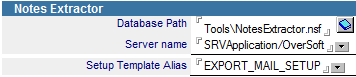 : NotesExtractor database path + name of the Setup document to use for the export.
- Click the button
 to validate the request. The Setup documents are created into the NotesExtractor.nsf database and the Database documents are modified in the ArchiveOnDB.nsf database in order to declare the archive databases outside of the archive process.
Request to Archive all Mail database content into existing Archives databases
This request is used to empty a Mail Database by transferring all documents into Archive databases. This request can be used if the owner of the database is leaving the company and all the mails have to be archived before the deletion of the Mail database.
To transfer the Mail database content to the Archive databases:
- Select the Database documents from the Mail Databases / Out Of Scope view.
- Click the button
 /
/  .
.
You can see that the request has been registered by looking at the Administration Requests / Out Of Scope Administration Request field in the Database document:

During the next run of the ArchiveOnDB.exe Task, the request will be processed and all documents remaining in the Mail database will be transferred into the Archive databases.
Request to Copy back all Archived documents into Mail database
This request is used to perform a roll back of ArchiveOnDB for some Mail databases. The content of the Archive databases are copied back to the Mail database and everything which have been added to the Mail database are removed. This request is useful to cancel ArchiveMail installation.
To roll back the Archive databases content into the Mail database:
- Sélect the Database documents from the Mail Databases / Out Of Scope view.
- Click the button
 /
/  .
.
You can see that the request has been registered by looking at the Administration Requests / Out Of Scope Administration Request field in the Database document:

During the next run of the ArchiveOnDB.exe Task, the request will be processed and all documents located in the Archive databases will be copied back to the Mail database. All Archive Mail features which have been added to the Mail database (Archive databases links, Search Module, Archive Now agent...) will be removed from the Mail database. The Archive databases are not modified.
Request to Remove all Archive Mail components from Mail database
This request is used to remove all ArchiveMail components from some Mail databases. This request is useful to un-install ArchiveMail from a Mail Database.
To remove ArchiveMail components from Mail databases:
- Select the Database documents from the Mail Databases / Out Of Scope view.
- Click the button
 /
/ 
You can see that the request has been registered by looking at the Administration Requests / Out Of Scope Administration Request field in the Database document:

During the next run of the ArchiveOnDB.exe Task, the request will be processed and all Archive Mail features which have been added to the Mail database (Archive databases links, Search Module, Archive Now agent...) will be removed from the Mail database. The Archive databases are not modified. No already archived document is brought back to the Mail database.
Comments
0 comments
Article is closed for comments.