
 |
 |
1. Running ArchiveOnDB |
| 2. Task status Document | ||
| 3. Updating application | ||
| 4. Un-installing the application |
1. Running ArchiveOnDB |
|
|
 Back to Top
To run ArchiveOnDB, it must have been installed and set up properly::
- ArchiveOnDB.nsf must have been created on the Domino Server.
- ArchiveOnDB.exe must have been installed in the Program directory of the Domino server.
- A Setup document must have been created in the ArchiveOnDB.nsf database.
There are several ways of launching the application:
Manual launching from ArchiveOnDB.nsf database
Select the Setup document that suits you from the Administration / Setup view of ArchiveOnDB, and click the  /
/  button. To make sure the Task has been launched, look at the Task Status via the Task Status document in the Administration / Task Status view.
Tip: The ArchiveOnDB.nsf database and the ArchiveOnDB.exe task must be on the same server.
Launching the application from the server console
Open the server console, and type the following command:

load archiveondb ArchiveOnDB.nsf MAIN
Where:
archiveondb is the name of the executable ArchiveOnDB.exe
ArchiveOnDB.nsf is the path of the database on the server
MAIN is the name of the Setup document you want to use (name is case sensitive)
If the console server is active, it will send back a message similar to : :
02/05/2016 10:59:53 ArchiveMail On DB v 3.0, (c) CooperTeam, 2004-2016.
This means the Task is running properly.
Tip: If the ArchiveOnDB.nsf database is in a sub-directory of the Data folder that contain a space in its name, you must quote the command line:
load archiveondb "Admin Databases\ArchiveOnDB.nsf" MAIN
Automatic launching from NAB's Program document
To schedule a weekly execution of the Task, you just have to create a Program document in the server's NAB:
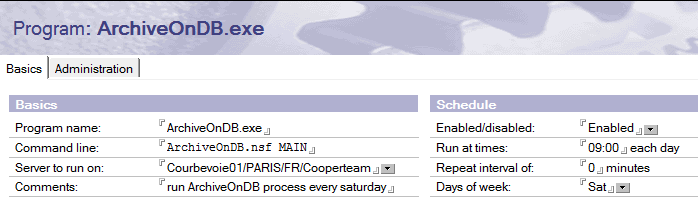
Where:
ArchiveOnDB.exe is the executable ArchiveOnDB.exe.
ArchiveOnDB.nsf MAIN is the command line to launch the application (database path + Setup document name)
The other parameters are common:
- Application host server name
- Task's schedule (Day / Hour)
The application start up mode (Enabled / At Server Startup only) in the Program document is directly related to the Run Type option in the Setup document used:

- Run Once, mean running the Task in Enabled mode + scheduled days.
- Run Always, mean running the Task at Server Startup only.
Tip: If the ArchiveOnDB.nsf database is in a sub-directory of the Data folder that contain a space in its name, you must quote the command line:
"Admin Databases\ArchiveOnDB.nsf" MAIN
Automatic launch from ServerTasks line (ServerTasks= ) in Notes.ini
To run the task and the server at the same time (ServerTasks=) or on schedule (ServerTasksAt=), you just have to paste ArchiveOnDB's Task command line at the end of the ServerTask line in the Notes.ini server file:
ServerTasks=Update,Replica,Router,AMgr,AdminP,archiveondb ArchiveOnDB.nsf MAIN
Where:
archiveondb is the name of the executable ArchiveOnDB.exe
ArchiveOnDB.nsf is ArchiveOnDB.nsf database path on the server
MAIN is the Setup document name you want to use (name is case sensitive)
Tip : If the ArchiveOnDB.nsf database is in a sub-directory of the Data folder that contain a space in its name, you must quote the command line:
archiveondb "Admin Databases\ArchiveOnDB.nsf" MAIN
2. Task status Document |
|
|
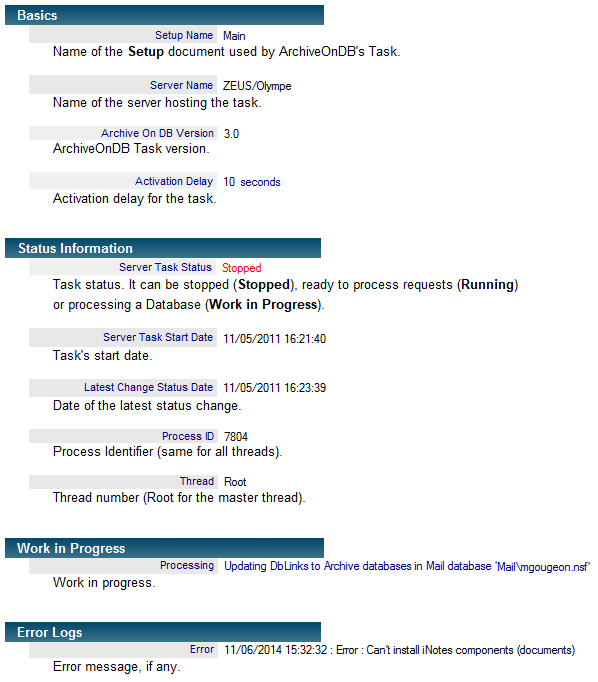
The ArchiveMail on DB application is available as an Add-In Task running on a Domino server. The Notes database ArchiveOnDB.nsf provides a monitoring interface for the Task activity. In the Administration / Task Status view, several follow up documents are created, showing the Task activity and status.
3. Updating application |
|
|
Here are the steps to upgrade ArchiveOnDB to the new version:
- Stop ArchiveOnDB Task if it's running. To do so, open Administration / Setup and click
 . Check that the Setup documents are not locked and that there is no Program documents in the Address Book that are going to run a Task in the next few minutes.
 - Check that the ArchiveOnDB's Design elements are not protected against replacement.
- Create an ArchiveOnDB.ntf file based on the new ArchiveOnDB.nsf database. Replace ArchiveOnDB.nsf 's design with this file.
- Sign the database with the Notes ID.
- Remove from your old ArchiveOnDB database all documents from Installation / Documentation and Installation / Install Files. Replace these files with the new ones from the new version of ArchiveMailOnDB.
- From the Administration / Setup view, use the action button
 to perform the following actions:
- : Update all Setup documents data model.
- : Update all Profile document data model.
- : Update all Database document data model.
 - In the Profile documents, check the @Formula for fields Creation Date @Formula and Last Modification Date @Formula in Tab Archivable Documents / Document Selection. Create a new Profile document and Copy the @Formula from the new Profile and replace the ones in the existing Profile documents (if the @Formula have changed). If you had made some customization to these @Formula, adapt the new ones with your constraints.
- In the Installation / Install Files view select the ArchiveOnDB Task document that suits your Operating System and use it to replace the executable file on the Domino server.
- If there's a new version of the CTSearchLib component, you should upgrade to the new version on your Mail servers and your user's PC. To do so, find the version that suits your OS in Install Files view and replace the installed component on the Mail servers by the new one. To do this, you MUST turn off the domino server, replace the component and restart it thereafter. If the component has been installed manually on User's PC, you have to update it. If the component has been installed automatically on the User's PC (using Profile document option), you have nothing to do, both components (CTSearchLib.dll and CTSearchTask.exe) will be updated automatically.
- If the multi-databases search is used from iNotes, it is required to read the chapter of the documentation related to iNotes components installation to check if something specific has to be done.
- From the Administration / Setup view, use the action button
 to run the task. Check the Logs to make sure everything is OK.
4. Un-installing the application |
|
|
Here is a step-by-step guide to un-install ArchiveOnDB:
- If you want to remove from Mail databases all features installed by ArchiveOnDB (links to Archive databases, Search module...), you have to move Database documents in status Out of Scope, apply them the administration request Remove all Archive Mail components from Mail database and run the Archive Mail Task one last time.
- Stop ArchiveOnDB's Task if it's running. To do so, click the action button
 from Administration / Setup to stop any occurrences of the Task. Make sure Setup documents are not locked. Make sure there is no Program document in the NAB about to run within the next minutes.
 - Remove Program documents used to start the Task from the NAB. If this Task runs, simply remove its command line from the Notes.ini file on the server (ServerTasks=).
- Remove all previously installed ArchiveOnDB's executable from servers (Directory: Program Domino).
- Remove ArchiveOnDB.nsf database located in the Domino\Data directory.
- If you want to remove the multi search component, you have to stop the Mail Servers and the Notes clients where it has been installed and remove the CTSearchLib file from the Domino's Program directory. Then remove its name from the EXTMGR_ADDINS= line in the Notes.ini file on the server and on the local PC (if the component has been installed locally). Restart your server or your Notes client.
Comments
0 comments
Article is closed for comments.