
Right after the selection of the Notes Extractor source and SharePoint destination target, you can set several options for lists and fields to import.
You can change the import options of a list, for example to choose to import into an existing list, rename the title, create a folder in the list, and so on. See below all available options.
1 - Lists Options:
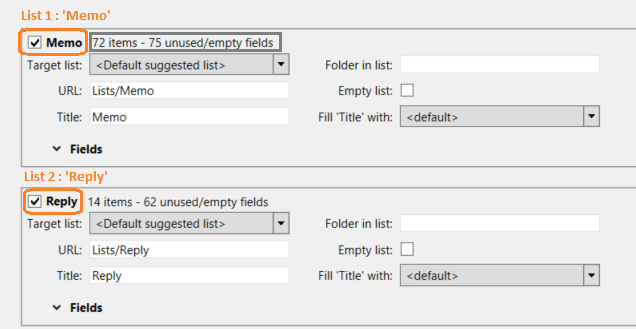
- You can select or deselect a list to import.
- For each list, you see the exact number of items to import for each list.
(see example from the above picture: 72 items for List 1) - For each list, you can import in an existing list if needed (see below example, Target list).
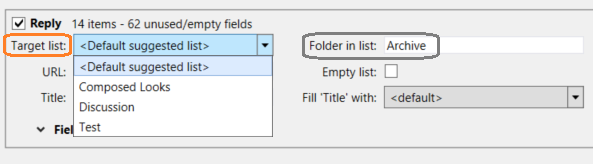
- You can also define a (or several) target folder(s) if you wish to import items into a new or existing folder (see above example, Folder in list : Archive).
Note: If the XML files contains a <HEADER><PREFERREDFOLDER> tag, then, the folder specified in the user interface (always the first) will be concatenated to the folder specified in the 'preferredfolder' tag. Also, it is possible to add several sub-folders.
See below example: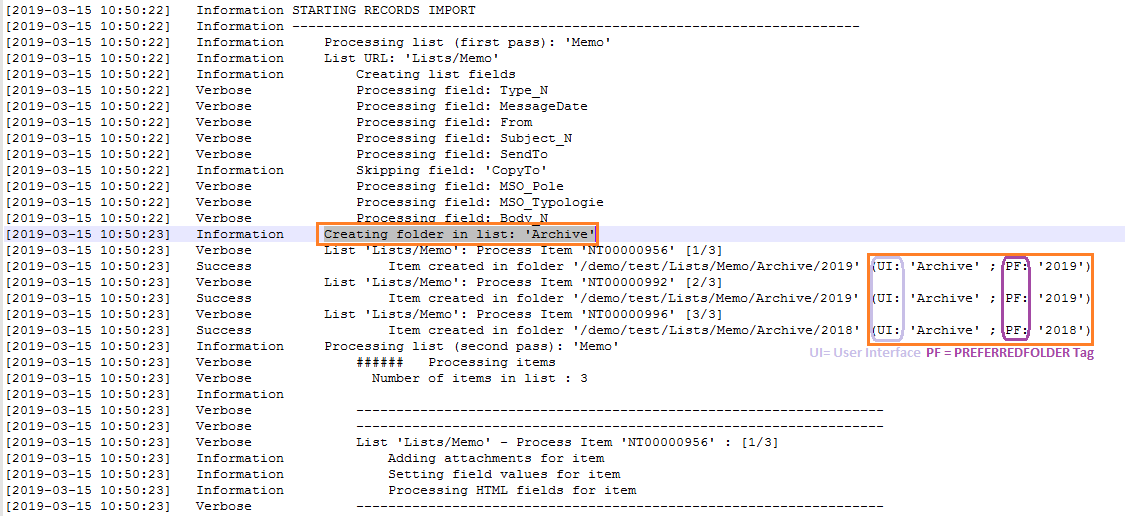
- You can empty the list of its data using the option "Empty list".
2 - Notes Fields Options (or Columns in SharePoint):
For each list, it is also possible to customize the columns to import.
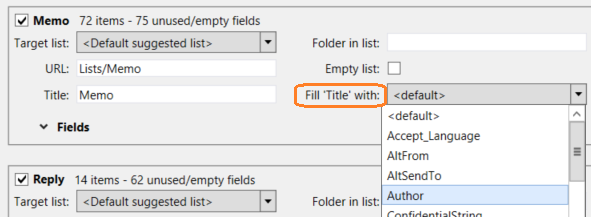
- Ability to associate the Title field with any available Notes field of your choice (by default <default> is always mapped with the 'NoteID' field/column), example:
- For each list, ability to select or deselect each field.
Note: Blank fields are deselected by default. It's possible to select all fields at once, checkbox 'All'.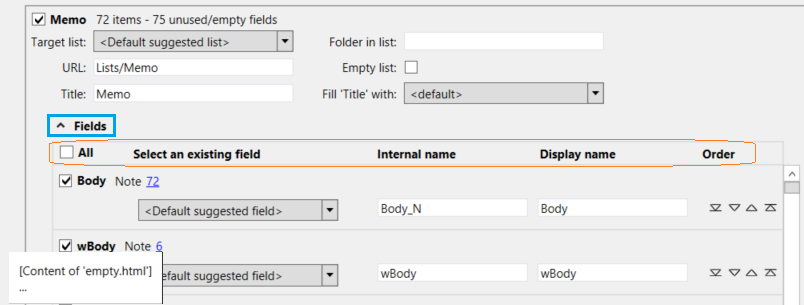
- Ability to sort fields to import them in a specific order (see small icons on right of each field/column).
- Ability to see a data sample for each field (example from the above picture: [content of 'empty.html']).
- Ability to change the Internal name as well as the Display name.
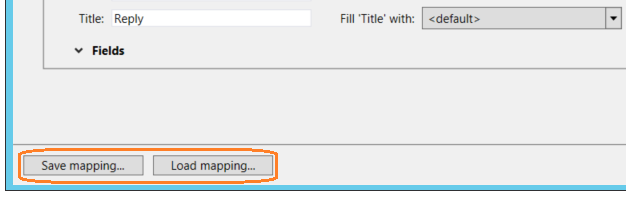
Note: Some fields are automatically renamed with a suffix "_N" (there is a specific article about it). - Ability to Save or Load a mapping file (XML format):
Comments
0 comments
Article is closed for comments.