
 |
 |
1. Segmentation Overview |
| 2. Segments Definition | ||
| 3. Segmentation Rules | ||
| 4. Segmentation Setup | ||
| 5. Running the Segmentation |
1. Segmentation Overview |
|
|
 Back to Top
Segmentation aims to categorize Desktop Manager User documents into segments in order to categorize them according to your needs. The definition of the segments and rules allows the identification a user’s membership of a given segment and depends on the nature of the project (ex : Notes upgrade, server consolidation, archiving project, migration to another application platform, migration of mail databases to the cloud…).
Here are the different steps to follow to run a Segmentation process :
- Define the Segment documents
- Define the Segmentation Rules used to put a User document into one of the previous Segments, based on one or several fields value.
- Define the Segmentation Setup used to define which Segmentation Rules have to be applied and in which order.
- Run the Segmentation process on the group of User documents.
2. Segments Definition |
|
|
To define a new Segment, open the Audit Results / Segmentation / Segment Definition view, create a new Segment document using the button  .
.

 : Segment name. The value in this field will be unique (mandatory presence).
 : Comment field.
 : Sort Segment documents in the Segment Definition view by category.
 : Name of the person who last modified the document and the date of creation / modification of the document.
3. Segmentation Rules |
|
|
To define a new Segmentation Rule, open the Audit Results / Segmentation / Segmentation Rules view, create a new Segmentation Rule document using the button  .
.

 : Rule Name. The value in this field will be unique (mandatory presence).
 : Comment field.
 : Categorize Segmentation Rule documents in the Segmentation / Segmentation Rules view.
 : Name of the person who last modified the document and the date of creation / modification of the document.

 : Selection of document type where to find the value used by this Rule (User or Notes Install).
 : Name of the field to use in the Rule.
 : List of possible operators for comparing the value of the Field name field against the value of the Values field.
 : Value for the comparison.

 : Name of the target Segment set to the User document when the rule returns true.
 : Explanation field, it allows you to automatically add a text in the document Audit (when the rule returns true) to facilitate understanding of the rule.
4. Segmentation Setup |
|
|
In order to achieve the segmentation on a Desktop Manager user set, it is necessary to create a Segmentation Setup document, defining the order of segmentation rules to apply. To create this document, open the Audit Results / Segmentation / Segmentation Setup view and click the button  .
.

 : Name of the Segmentation Settings document. The value in this field will be unique (mandatory presence).
 : Comment field.
 : Categorize Segmentation Setup documents in the Segmentation / Segmentation Setup view.
 : Name of the person who last modified the document and the date of creation / modification of the document.

 : Rules list to be applied, in the order defined by the document. You can temporarily disable one or several Rules.
5. Running the Segmentation |
|
|
To launch the segmentation on a set of Desktop Manager User documents, from the views Audit Results / Segmentation / Segmentation Setup or Audit Results / Segmentation / Users by Segment, and run it using the button  . It is possible to perform segmentation on all User documents or on a selection.
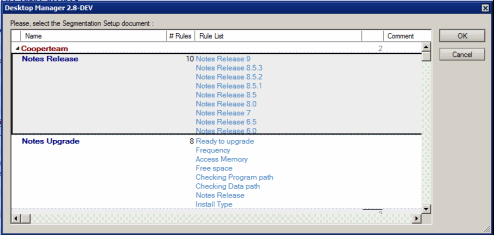
A window displays the list of available Segmentation Setup document to let you select the one to use :
Segmentation Results
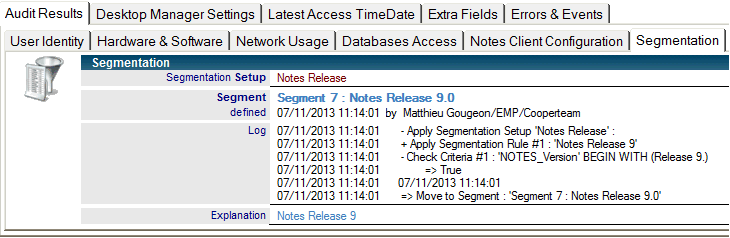
The Audit Results / Segmentation / Users by Segments view lets you visualize the results of the segmentation. In addition, you will find in each Desktop Manager User document, the details about the segmentation process applied to this User:
Comments
0 comments
Article is closed for comments.