
 |
 |
1. Overview |
| 2. Creating a Search Setup Document | ||
| 3. Initiating a Search | ||
| 4. Contents of the Search Results |
1. Overview |
|
|
 Back to Top
Desktop Manager collects several hundred different pieces of information for each user during the audit phase. These results are stored in Notes Document form (User, Notes Install, Connection, Location, Replicator Page, Calendar Profile...) in the Desktop Manager database. The User Audit Results / Notes Configuration view presents, for each user, the whole of the audit documents which are related to them. The other view in the User Audit Results (Hardware & Network, User Mail Files, Local Log Events, Laptop Users, Citrix Users...) section are more focussed on other types of audit results (hardware, mail database, error log...).
Since it is not practical to offer as many views as there are types of information collected, the Desktop Manager application includes a powerful multi-criteria search module allowing the administrator to extract data stored within the audit results. The goal of searching is to find users (identified by a User document) for whom the Notes configuration (hardware or software) meets certain criteria :
- Users with an archive mail database on their workstation
- Users with a Connection document pointing to server X
- Users with a Location document with replication enabled
- Users with an 'icon for database" X hosted on Y on their workspace
- Users who have activated 'Messaging Rule' X
...
Whatever the item being searched for, it is possible to create a search to find the users having this property. The search module is also capable of performing 'cross searches' with search criteria, based on different types of document :
- Users with a Connection document pointing to server X AND a Location document where the Mail Server is Y
It is impossible to create a view in order to select the above users because the criteria apply independently to the Connection and Location documents without any way to apply a junction : The search will show the Connection pointing to server X and the Location documents Y as the Mail Server, but it will be impossible to show only the Connection pointing to server X belong to a user having also (AND) a Location document for which the Mail Server is Y.
2. Creating a Search Setup Document |
|
|
Searches of the audit results are don from within the view Audit Results / Search & Export / Search Setup, using Search Setup documents. To create a Search Setup document, you need to click on the  button provided in the view and fill in the following fields:

 :The name of the Search Setup document.
 : Free text field to describe the nature of the Search Setup document, or other relevant information.
 : Name of the last person to modify the document. Creation and Last Modification dates of the document document.

 : Display format for the results of the search (document Search Result) :
| Doc links : |
results in the form of Notes doclinks pointing to the documents which meet the results of the search criteria |
|
| CSV file : |
results in the form of a CSV containing the data form the document which meet the results of the search criteria |
 : In the case of results in Doclink format, one can define here the maximum number of lines to be returned for each Search Result document.

Selecting Users
In order to speed up the search (by limiting the number of documents to search), we can define a selected group of users to be the target of the search.
 : If the search refers to all the user in the database, select All Users. If this is not the the case, it is necessary to choose By Selection and complete the following fields :
 : List of Notes Certifiers which users belong to.
 : List of Mail Servers to which users are attached.
 : List of all Lotus Notes user
 : Allows a targeted search for Virtualized users (CITRIX...), if desired
 : Allows a targeted search for laptop user if desired
 : Defines a group of users via an @Formula. NB: this is NOT as selection formula. Instead it is a calculation formula which should return either "1" (character string) or 1 (number/integer) when it is applied to the DskMgrUser document of the user, in order to make it eligible for selection.
Search Criteria Definition
Once the users have been targeted, it is necessary to define the search criteria which will be applied to the whole of the audit documents returned above. It is possible to apply 'cumulative' search criteria, using the logical operators AND and OR and parentheses :

Each search criteria is defined individually using a wizard which can be called by clicking on the  button :
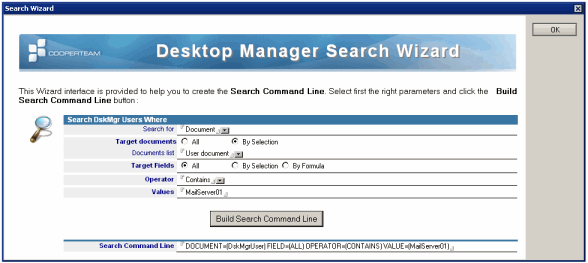
The definition of the search criteria passes the selection of documents, the champs, the operator(s) and finally the value(s).
 : The search can be done on the full set of documents or directly from a pre-selected set of documents corresponding to the most common searches:
| Icon on workspace by ReplicaID : | Search for an icon on the workspace, given the Replica ID of the database. | |
| Icon on workspace by name : | Search for an icon on the workspace, given the name of the database | |
| Local database by name : | Search for a local database, using its name | |
| Local database by ReplicaID : | Search for a local database, using its Replica ID. | |
| Location document by name : | Search for a Location document, using its name | |
| Connection document by server name : | Search for a Connection document, given the name of the server | |
| Account document by name : | Search for an Account document, using its name |
Selecting documents
 : Defines whether the search will take place on all documents or on a selection of documents.
 : List of the types of document on which the search will take place.
Selecting fields
 : Defines whether the search will be done across all fields in the documents, on a selection of fields, or using an @Formula.
 : @Formula to determine whether the fields meet a criteria
 : A list of fields which are searched for a value.
Searching in multi-column tables :
The results of Desktop Manager audit sometimes use tables containing several columns . Each line group data about the same object (e.g. database, icon, document...). The table below is the one which gives the list of icons on the workspace :
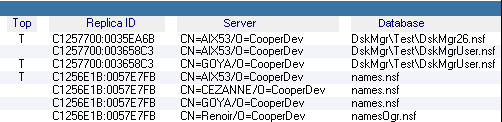
Each column in the table uses a different TextList field. The names of the fields are accessible via the Notes Designer Client :
| Top: | Top | |
| Replica ID: | WDBID | |
| Server: | NOTES_WorkspaceServer | |
| Database: | NOTES_WorkspaceDB |
If you want to search for the presence of an icon for the local DskMgr\Test\DskMgrUser.nsf database on the workspace, you can use NOTES_WorkspaceDB as a field name and DskMgr\Test\DskMgrUser.nsf as value.
If you want to search for the presence of an icon for the database DskMgr\Test\DskMgrUser.nsf on the server CN=GOYA/O=CooperDev, It is necessary to use
NOTES_WorkspaceServer+NOTES_WorkspaceDB
as a field name (NB: The fields are separated by the + character) and CN=GOYA/O=CooperDevDskMgr\Test\DskMgrUser.nsf as value (the values of the two fields are concatenated according the order of the two preceding fields :name of server then name of the database) :


It is possible to do searches using an unlimited number of 'column' fields :
Fields List : Top+WDBID+NOTES_WorkspaceServer+NOTES_WorkspaceDB
Values : TC1257700:0035EA6BCN=AIX53/O=CooperDevDskMgr\Test\DskMgr26.nsf
It is only necessary that the different fields belong to the same table, because the search module checks the number of elements for each Text List field is identical before concatenating the values.
Operator
 : Comparison Operator (Equal, Not equal, Contains, Not contains, Begin with, End with, > and <).
Value
 : Value to search for in the fields
Following that click the  button in order to create the command line which assembles the preceding choices:

The wizard window is closed using the  button. This transfers the command line into the Criteria field in the Search Setup document:

Having added together the user selection and the search criteria, the complete search formula is generated :

3. Initiating a Search |
|
|
To initiate a search, it is necessary to select the Search Setup document in the Audit Results / Search & Export / Search Setup view and to click on the  button. The DskMgrTask.exe component is started in the background on the Administrator's workstation :

A small Desktop Manager icon ( ) displays in the Windows Task Bar during processing. If several searches are initiated at the same time, several
  icons will be display in the Windows Task Bar. Hovering the the mouse pointer over the icon will display the advancement status of the search.

Once the search is completed, the icon disappears from the Task Bar and a Search Results database is created in the Desktop Manager database.
4. Contents of the Search Results |
|
|

 : Name of the Search Setup document from which this results document was generated
 : Total number of 'read' documents in the Desktop Manager database at the time of this search.
 : Number of user documents meeting the search criteria = Number of user documents found.
 : Total number of User documents + Audit Results documents meeting the search criteria
 : Doclink to the Search Setup document used during this search.
 : The the time and date from both the start and end of the search process and the person who performed the search.

 : Request used during the search. (Target and criteria documents).
Results of the search using Doclink format

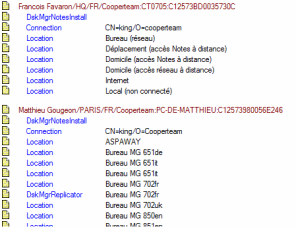 : The first document in red is the DskMgrUser document for the user. Next come the other audit documents in blue (Notes Install, Connection, Location...) which meet the search criteria used. If the document(s) resulting from the search has a key (Name of the document for: Location, Server Name for the Connection documents...), this will be displayed on the same line. There is also a doclink
  at the start of each line to provide direct access to the document.
Results of the search using CSV format

 : The file is compressed in ZIP format to save space. The data format is analogous to that used with Doc Link formatted results.
Comments
0 comments
Please sign in to leave a comment.