
Google Chrome / Microsoft Edge (based on Chromium):
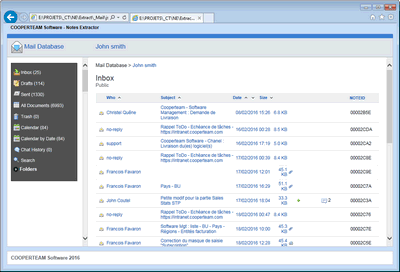
- If you are using either Google Chrome or Microsoft Edge browser to access locally to the results of the export, it is possible that you get a blank screen when you run in the Index.html file:

By default, Chrome as well as Edge do not load local files. To allow this, we must add the -allow-file-access-from-files parameter to its command line, for example in the shortcut file used to launch it. Then just drag / drop the index.html file into the browser's window or just double-click the index.html file if browser is already started to see the right result:
Mozilla Firefox:
- If the version of Mozilla Firefox browser is higher than version 64, you must modify an option allowing the correct display of the results. Note that by default, Firefox (like Chrome) has a local security policy preventing access to HTML files locally. Follow the procedure below to change the setting: security.fileuri.strict_origin_policy
Note: This parameter is by default with the value 'true', the procedure allows to change it to the value 'false'.
- From a new tab, open the Firefox settings with the command: about:config
- Click on the 'Accept the risk and continue' button
- Use the top search box to find "security.fileuri.strict_origin_policy"
- The default value of this option is "true", then click on the toggle button on the right to disable it.
- In order for this change to take effect, restart Firefox.
Internet Explorer:
- If you are using Internet Explorer browser to access locally to the results of the export, it is possible that you get a warning message at the bottom of the screen when you run in the Index.html file:
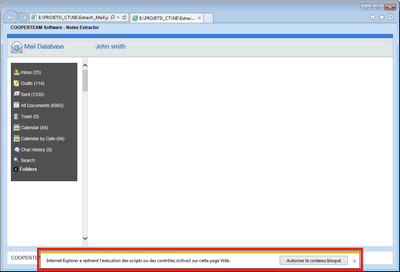
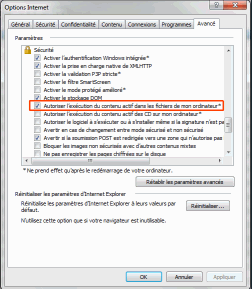
This is a security warning related to the use of JavaScript code in the HTML pages. Just allow blocked content to browse the database's pages. You can also change the browser security preferences to avoid this kind of warning messages in the future (Allow active content to run in files on My Computer option):
Comments
0 comments
Article is closed for comments.