
In order to import in a list or a library, one (or several) column(s) of type Lookup, it is necessary to follow the following procedure:
1 / Creation of a List which will contain a set of elements with the list of possible choices. Example, a 'Colors' list with one item for each color. This list can be created manually or with the help of SharePoint Provisioner (both for Online & On-Prem versions).
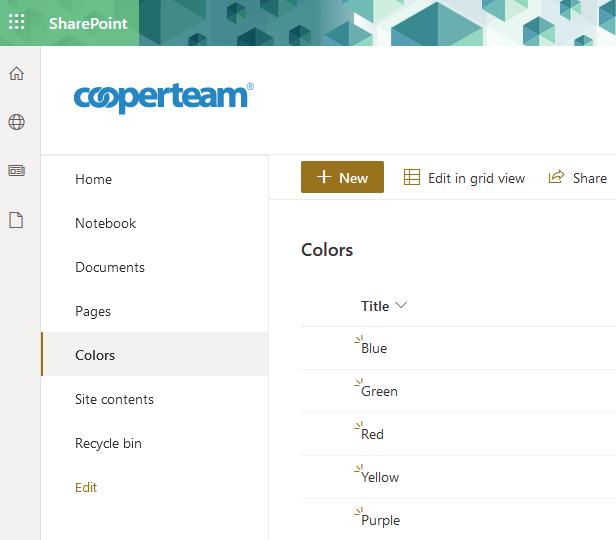
2 / Creation of the main list or library that will contain the Lookup column.
2.1 > Creation of the list or library.
It is mandatory to create a Lookup column before importing into the destination list or library. It is therefore necessary to create the destination list or library (manually or via SharePoint Provisioner) and note the URL of the site that must be transferred to the mapping file, for example:
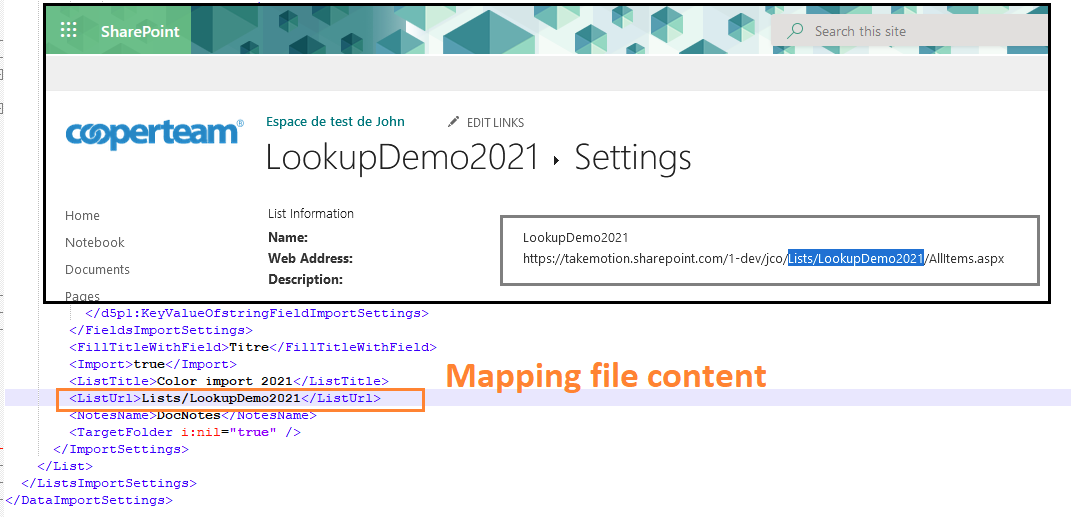
2.2 > Creation of the Lookup column
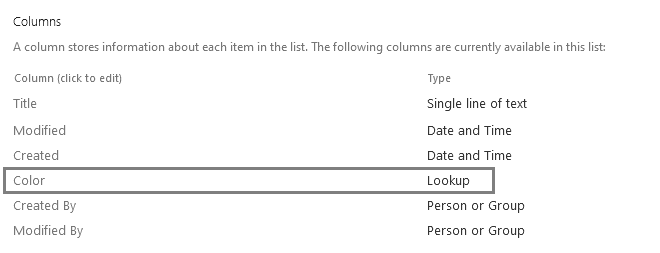
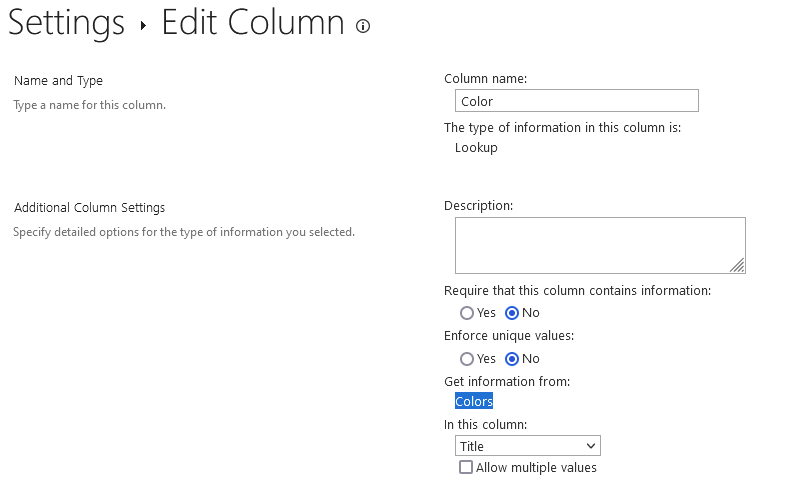
3 / Importing items into the main list or library with SharePoint Provisioner,
> The mapping file must specify the Lookup column type as below:
<d5p1:KeyValueOfstringFieldImportSettings>
  <d5p1:Key>Color</d5p1:Key>
  <d5p1:Value>
    <ApplyToIndividualFiles>false</ApplyToIndividualFiles>
    <FieldDescription></FieldDescription>
    <FieldDisplayName>Color</FieldDisplayName>
    <FieldInternalName>Color</FieldInternalName>
    <FieldRequired>false</FieldRequired>
    <FieldType>Lookup</FieldType>
    <Import>true</Import>
    <MapToExistingLookup>true</MapToExistingLookup>
    <NotesName>Color</NotesName>
    <OriginalFieldType>Text</OriginalFieldType>
  </d5p1:Value>
</d5p1:KeyValueOfstringFieldImportSettings>
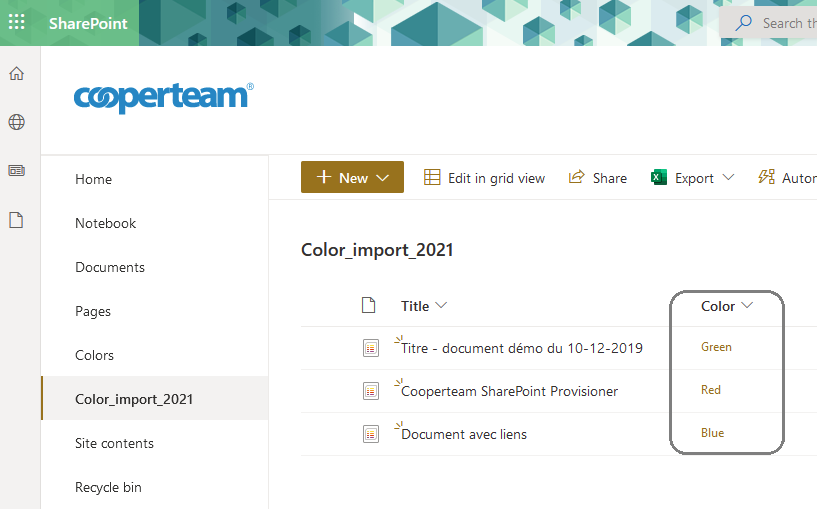
After importing with SharePoint Provisioner, you will be able to see that the Lookup column is available, like the example below:
Comments
0 comments
Article is closed for comments.