
 |
 |
The Desktop Manager solution supports the remote audit and administration of Notes installations on user desktops, thus allowing administrators to control and update desktop inventory attributes without any physical intervention: setting user preferences, installing new applications, triggering administration processes usually reserved for server databases, controlling user actions, changing Notes versions, etc. This way, users are assured that their Notes installations will operate with maximum efficiency and in compliance with the IT department recommendations.
The application features the following functions:
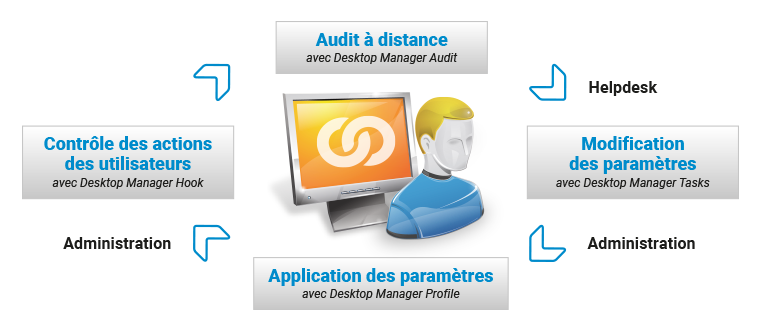
- User desktop complete audit:
- Audit of the user desktop (microprocessor, RAM, hard drive, operating system, installed software, regional settings...)
- Audit of the Notes configuration (version, installation folders, local Log, User Preferences, Sametime settings, ECL, ID file, Policies, NSD files, Notes.ini...)
- Audit of the Personal Address Book's settings documents (Location, Connection, Account and Cross-certificates, Replicator tabs...)
- Audit of local Notes databases (size, number of documents, encryption, quota, ODS, Template...)
- Audit of the user Mail databases (Mail database on the server, local replica, archive databases...)
- Audit of the Network usage for Notes replication traffic between the user desktop and the Domino Servers (per database / server, consolidated view per month / year).
- Audit of the Database Access (local ones or server hosted). Statistics are provided on monthly and yearly basis.
=> The nature of collected data and their update frequency are defined in the application's Setup document.
- Helpdesk type occasional tasks, via Task documents, such as:
- Trigger maintenance processes on local databases (fixup, compact, updall, refresh design, purge...)
- Install new Notes databases (replicas, copies) on the desktop
- Update User Preferences (Notes.ini variables, messaging options, smart icons...) and Sametime settings
- Update Location, Connection, Account documents and Replicator page options.
- Update Workspace icons (add/delete/modify icons and pages, display options, bookmark)
- Update Mail database settings (ACL, Mail Rules, Out of Office, Calendar Profile. Archive Settings...)
- Update the ACL of local databases and update the desktop ECL (add / modify / remove entries, Refresh ECL...)
- Run Notes agents, external applications and Scripts.
- Deploy files (signatures, template, pictures...)
=> It only takes a few seconds to create a Task and it can be immediately run on the user desktop.
- Recurring jobs / Enforce settings set up by Administrators, via Profile documents:
- Define local address book documents: Location, Connection, Account, Program and Cross-certificates.
- Define desktop User Preferences (Notes.ini variables, messaging options...) and Sametime settings.
- Define the look of Workspace (pages, database icons, display options) and bookmark (startup application, databases shown in the left browser).
- Define list of local replicas and Replicator page options (server with which local databases replicate...)
- Define Mail database settings (ACL, Mail Rules, Out of Office, Calendar Profile. Archive Settings...)
- Define desktop ECL, ACLs and local databases' encryption
- Ensure files exist on the user desktop (html signatures, pictures, database templates...)
- Run Notes agents, external applications or Script for recurring administration tasks (cache deletion, workspace compacting, Log purge...)
- Implement backup and roaming procedures for Notes configuration files.
=> Applying Profiles to users is a way to enforce the key parameters of Notes configurations so that they remain stable over time. This is also a way to set up a consistent desktop environment for users with the same profile within a company. In effect, the more settings you define in Profiles, the more self-healing your Notes clients will be.
- User action control by Administrators, via Hook documents:
- Prevent some users from sending messages whose size or network impact exceeds XX MB
- Prevent some users from sending messages including certain type of file attachment (mp3, video, exe...)
- Prevent some users from sending messages to some recipients (people or NAB groups)
- Prevent some users from exceeding Mail database quota.
- Prevent some users from creating local replicas of some Notes databases (HR databases)
- Prevent some users from accessing some Notes databases (enforce the usage of the local mail replica instead of the server one)
- Prevent some users from deleting local Notes databases (Address Book)
=> Hook documents are a way to locally apply parameters according to user needs (message maximum size...) rather than to do it globally at server level.
- Major updates of the Notes configurations via dedicated application add-on applications 'Desktop Project' or 'Desktop Upgrader':
- Switch user Mail configurations to Local Replica mode
- Modify Mail server or Application servers for users (server consolidation, move users to another server)
- Upgrade Notes client release (client upgrade from version 6.5 to version 8.5...)
=> Projects databases allow to control and display the progress status of the various steps of the project workflow.
For Notes Administrators and Helpdesk staff, the Desktop Manager application interface includes a Notes database (DskMgr.nsf) placed on one or more company servers. This Notes database is used to review data coming from user desktop audits, thus providing full visibility over the Notes inventory. It is also used to schedule Notes installation updates (Tasks) for one or more users, to define Setup documents and Profiles and then to assign them to the various users. Finally, this database will also be used to automatically deploy the application on client desktops after its users have been pre-registered and installation mails have been sent to them. The application may also be pre-deployed on user desktops using a package.
On the User side, the startup of their Notes client automatically open and starts up the local Desktop Manager database (DskMgrStart.nsf). Pending Tasks for the user are run immediately. If Profiles have been associated to this user, they are applied. Desktop configuration audit is run in the background, after execution of Tasks and Profiles. Operations are monitored through a simplified interface using the user language.
 Back to Top
Comments
0 comments
Article is closed for comments.